Printing a Model
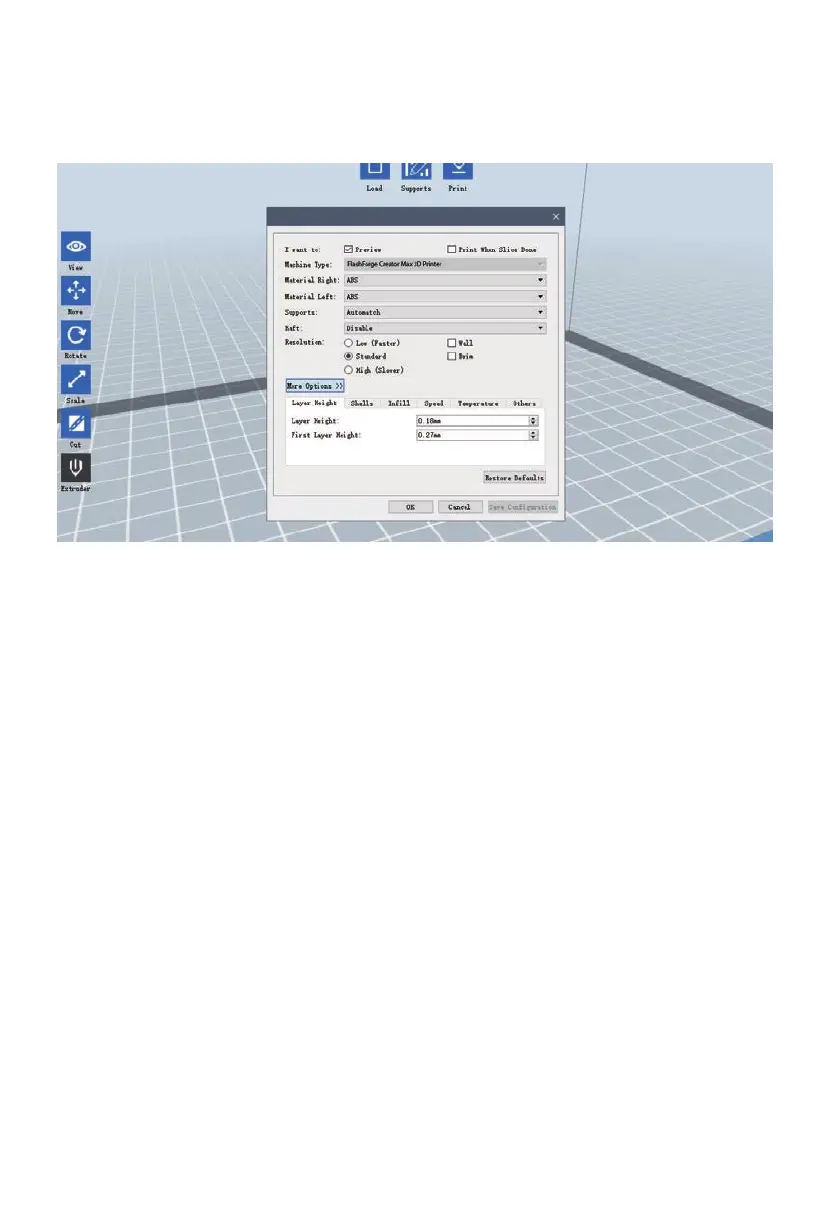
Click the Print icon on the main interface to slice the model and print the resulting Gcode file,
either directly from FlashPrint or by first exporting it to the SD™ card.
Preview: Check the Preview box to preview the model before slicing and printing.
Print When Slice Done: Check the Print When Slice Done box to start the print as soon as the slice
is completed.
Material Type: Select the filament type in use.
Supports: Enable or disable the creation of supports.
Raft: Enables or disable a Raft, which is several layers of material on the build plate to help with
model adhesion.
Wall: Check the Wall box to help clear leaking filament from a second extruder during dual color
printing.
Brim: Check the Brim box to print a ring of filament around the model to help prevent warping and
assist with bed adhesion.
Resolution: For ABS and PLA printing, you can choose Low, Standard, or High resolution.
For PLA printing, you can also choose Hyper. The higher the resolution, the smoother
the model surface, but at a corresponding cost in print speed.
More Options: Click the More Options button to reveal tabs with additional options.
Layer: Click the Layer tab to reveal the layer options.
· Layer Height: Sets the thickness of each layer. The thinner the layer, the smoother the
model surface, but at a corresponding cost in print speed.
· First Layer Height: Sets the thickness of the first layer of the model, which affects how
well the model adheres to the build plate. The maximum thickness
is 0.4mm and the default value is usually sufficient.
Shell: Click the Shell tab to reveal the shell options.
· Perimeter Shells: Sets the number of perimeter shells. The maximum value is 10.
· Top Solid Layers: Sets the number of solid layers at the top of the model. The maximum
value is 30 and the minimum is 1.
· Bottom Solid Layers: Sets the number of solid layers at the bottom of the model.
The maximum value is 30 and the minimum is 1.
32


 To Next Page