42
3. Reboot the printer and wait 4-5 seconds until the update progress bar is displayed.
When the update is finished, it will return to the Top Menu.
4. Touch the Tool button, then touch About to check that the version is correct.
Printing
There are two basic modes of printing: single extrusion and dual extrusion. With single extrusion
printing, you can choose which print head to use for making the print. Dual extrusion printing is
useful if you want to print with two color or print complex models that require supporting material.
Perform the following steps to print a model on the printer from a Gcode file saved to the SD™ card.
Generating Gcode
1. Plug the included SD™ card into an SD card reader on your computer.
2. Double-click the FlashPrint shortcut to launch the software.
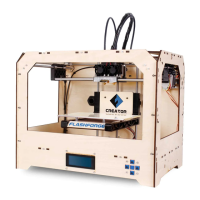
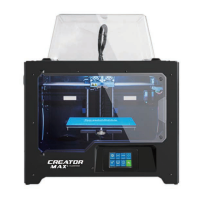
3. Click Print > Machine Type and select the Flashforge Creator Max 3D Printer entry.
4. Click the Load icon to load a .STL model file. The model will display within the build area.
5. Double-click the Move icon, then click the On the Platform and Center buttons to ensure the
model is in contact with the center of the build platform.
Machine Name: Flashforge Creator Max
Machine Type: Flashforge Creator Max
3DPrinter
Frimware Version: V2.5 2018****
Print Volume: 227 X 148 X 150
Usage Counter: 0hours
Tool Count: 2


 To Next Page