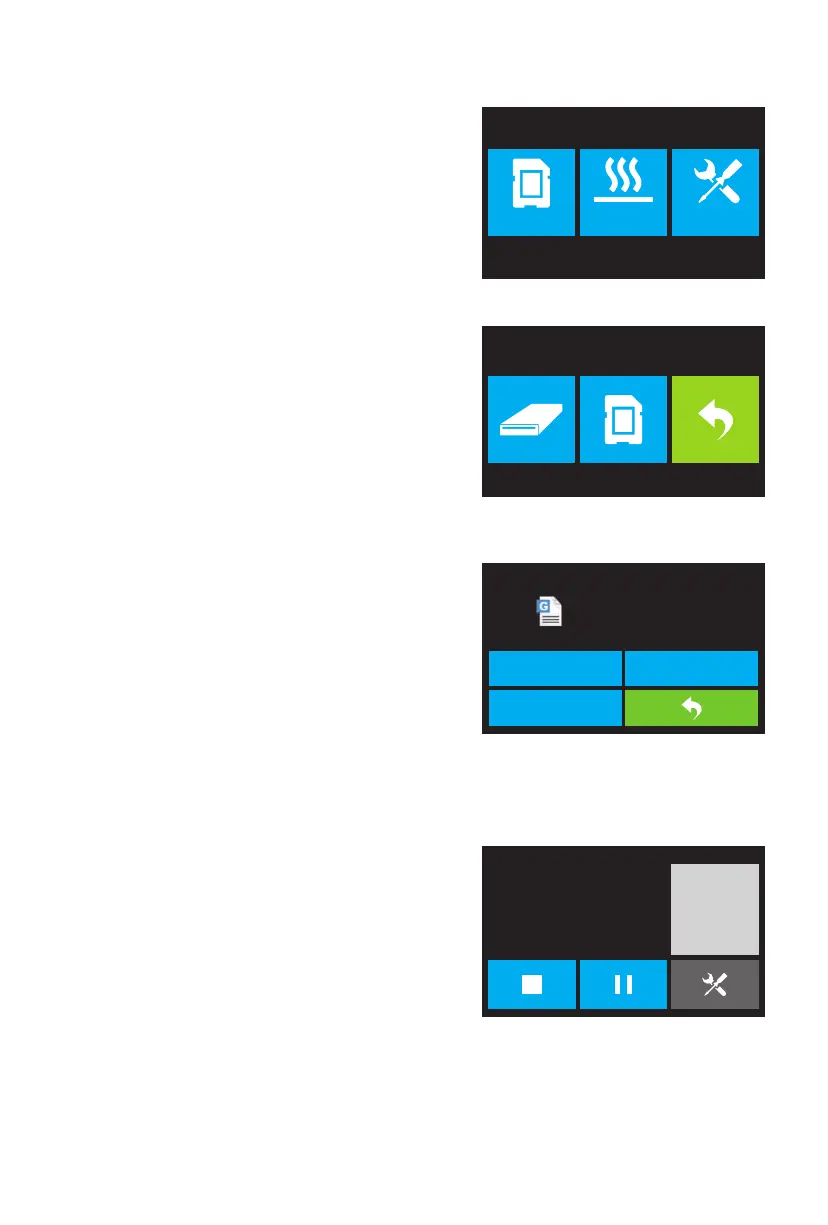
Top Menu
The Top Menu is displayed after the printer is powered
on and initialized.
· Touch the Print button to enter the Print Menu.
· Touch the Preheat button to enter the Preheat Menu.
· Touch the Tools button to enter the Tools Menu.
Main Menu System
The Print Menu is displayed by touching the Print button
from the Top Menu.
· Touch the Internal Memory button to read the print
file from internal memory.
· Touch the SD™ Card button to read the print file from
the SD card.
· Touch the Back button to return to the previous menu.
Print Menu
The Print File Screen is displayed after selecting a print
file from internal memory or the SD™ card. The print
filename is displayed.
· Touch the File icon to display a list of available model
files.
· Touch the Print button to begin printing the loaded
print file.
· Touch the Copy button to copy the loaded print file.
· Touch the Delete button to delete the loaded print file.
· Touch the Back button to return to the previous menu.
Print File Screen
The Print Progress Screen is displayed while printing is in
progress. It shows the print filename, the actual and target
temperatures, and the print progress with the remaining
time displayed.
· Touch the Stop button to cancel the print in progress.
· Touch the Pause button to pause the print. Touch the
Resume button to resume printing.
· Touch the Tools button to display the Print Tools Menu.
Print Progress Screen
05
Print Preheat Tool
TEST~1.g
Print
Delete
Copy
TEST~1
0:00
24℃ / 220℃
0
%
17℃ / 110℃
24℃ / 220℃
Print Time
L Extruder
R Extruder
Platform


 To Next Page