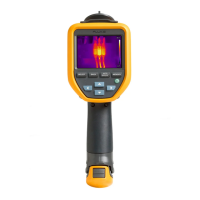
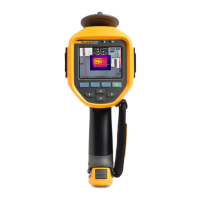
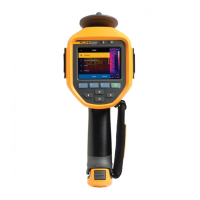
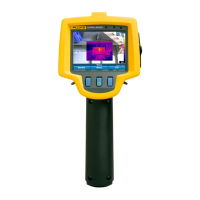
Expert Series Thermal Imagers
Menus
29
Video
The video controls include stop, rewind, fast forward, and pause/play functions. The thermal
scene and complexity of the recorded data affects the amount of time available to record a
video.
Note
A Bluetooth headset is required and the radio must be enabled to record audio
files. This feature may not be available in all regions.
The video capture format is set in the Settings menu. For more information, see File Format.
Record Video
To record:
1. Select Camera > Video.
2. Select Video/Audio or Video ONLY.
3. Touch Record Video to set up the Imager to record a video.
p shows in the upper left corner of the display.
4. Push and release the Image Capture button to start recording.
r shows in the upper left corner of the display. The elapsed time shows at the bottom of
the display.
5. Push and release the Image Capture button to stop recording.
6. Push to end the recording session.
7. Push to save the video file.
Playback Video
To playback:
1. Open the Memory menu.
2. Select a file to playback. All video files show the k icon in the upper right corner of the
thumbnail.
3. Push to set a file for playback.
4. Push to start the playback. During playback, push or for fast forward and rewind.
Push to continue normal playback.
5. Push to exit the playback mode.
Shop for Fluke products online at:
1.888.610.7664
www.MyFlukeStore.com


 To Next Page