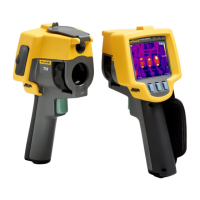
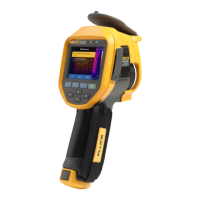
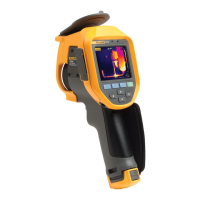
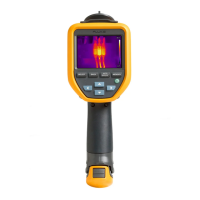
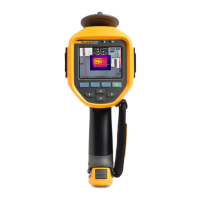
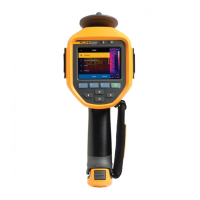
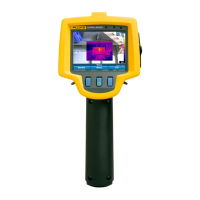
TiX500, TiX520, TiX560, TiX580
Users Manual
32
Fluke Connect Wireless System
The Imager supports the Fluke Connect Wireless System. The Fluke Connect system
wirelessly connects your Fluke test tools with an app on a mobile device. It shows images from
the Imager on your mobile device.
Note
The Fluke Connect system is not available in all countries.
Fluke Connect App
The Fluke Connect app works with Apple and Android products. The app is available for
download from the Apple App Store and Google Play.
How to use the Fluke Connect app with the Imager:
1. On the Imager, select Fluke Connect > Pair to Fluke Connect Mobile App > On.
2. On the mobile device:
a. Go to Settings > Wi-Fi.
b. Select the Wi-Fi network that begins with Fluke...
3. On the Fluke Connect app, select Thermal Imager from the list.
You can now take images on the Imager, and they will stream live from the Imager to your
mobile device. Live streaming may not be available on all devices. The pictures you take with
the Imager are saved on your mobile device and on the Imager.
Note
To save images to the Fluke Connect app, set the file format to .is2 (see File
Format) and the image storage to internal memory (see Table 14). Images stored
on the SD card or USB storage device may not transfer to the Fluke Connect
app.
4. On the Imager, capture an image.
The image is now in the buffer.
5. Push to save the image and view the image on the phone app.
Fluke Connect Tools
Use the Imager to wirelessly connect to Fluke-Connect-supported tools to:
• View the live measurement of each tool.
• Capture the measurement of each tool in .is2 and .is3 images.
Shop for Fluke products online at:
1.888.610.7664
www.MyFlukeStore.com


 To Next Page