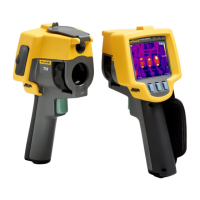
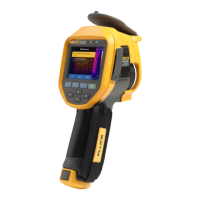
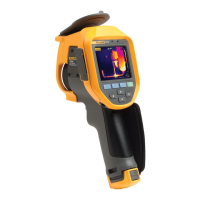
TiX500, TiX520, TiX560, TiX580
Users Manual
18
Note
Surfaces with an emissivity of
<
0.60 make it difficult to determine reliable and
consistent actual temperatures. The lower the emissivity is the greater the
potential of error is when the Imager calculates the temperature measurement
because more of the energy reaching the camera is specified as background
temperature. This is also true even when adjustments to the emissivity and
reflected background adjustments are performed properly.
Spot Markers
Use fixed-temperature spot markers to highlight a region on the display before you save an
image.
To set a marker:
1. Select Measurement > Markers.
2. Select an option.
3. Push to set the marker option and go to the Move Marker display.
The Move Marker icon shows on the display and the labels on the function buttons change
to Done, Next, and Cancel.
To change the marker position on the display:
1. Push
to move the marker location on the image.
2. Push to select the next marker.
3. Repeat for the rest of the markers.
4. Push when done.
Spot Box
Use the Spot Box feature to adjust a temperature measurement zone (box) to center on the
target. This zone expands and contracts to different levels within the infrared image. The zone
shows an approximate maximum (MAX), average (AVG), and minimum (MIN) temperature
measurement in that area.
Note
When using the Spot Box, the level and span of the Imager adjusts to the thermal
scene within the Spot Box.
Shop for Fluke products online at:
1.888.610.7664
www.MyFlukeStore.com


 To Next Page