Input Channels
72 VM200 User’s Guide
Copying Channel Settings
You can use the Channel Copy function to copy input channel set-
tings from one channel to another.
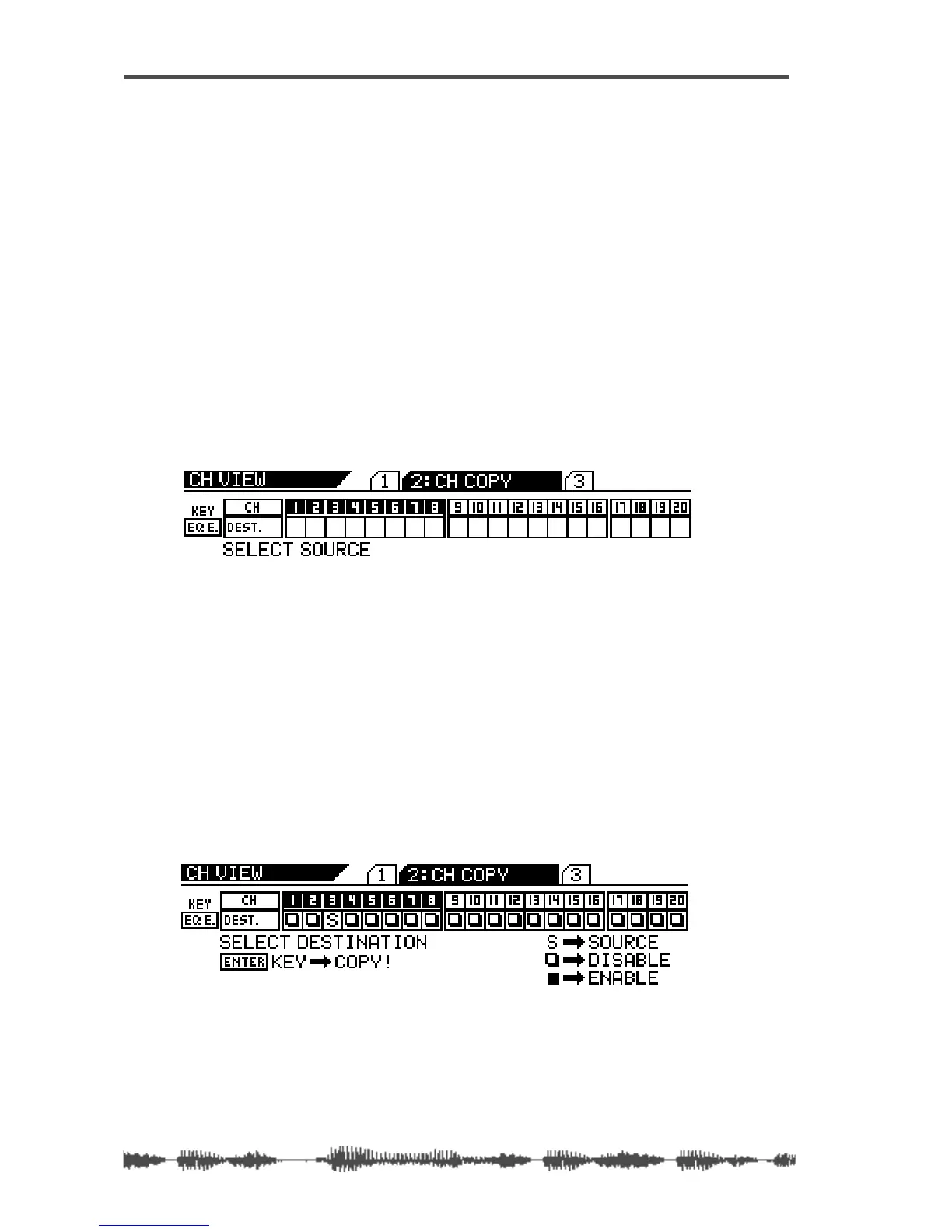
The CHANNEL COPY function page features a 1-by-20 matrix that
enables you to select one source channel, and enable or disable the
other channels as copy destinations.
The selected source channel is marked by an “S.” A highlighted indi-
cator marks the channels targeted as copy destinations. A dark indi-
cator means the channel is not selected (disabled) as a copy
destination.
1. Press the [CH VIEW] key twice (from start of cycle) to display
the 2:CH COPY function page.
The
[CH VIEW] key and the [EQ EDIT] keys for all channels flash. The
selected Page Select key lights up; the unselected Page Select keys
flash.
2. Press the appropriate Page Select key to select the desired
channel layer.
The selected Page Select key lights up; unselected Page Select keys
continue to flash.
3. Press the [EQ EDIT] key for the copy source channel.
You can select only one source channel to copy at a time.
The selected
[EQ EDIT] key lights up. The CHANNEL COPY function page
marks the source channel with an “S” and prompts you to select a
destination channel.
4. Press the appropriate Page Select key to specify the channel
layer, then press the
[EQ EDIT] key of the copy destination
channel(s).
You can select multiple channels as destinations.


 To Next Page