Optimail Operator Manual
32
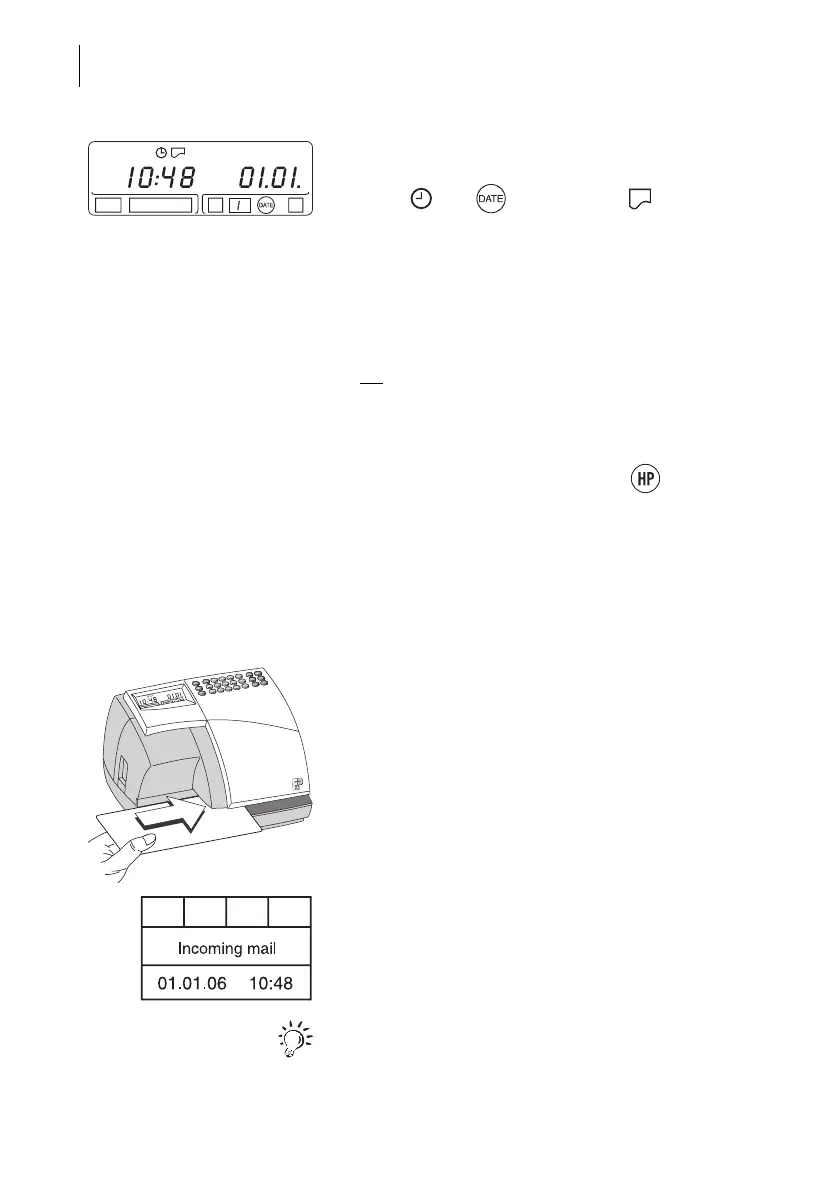
The incoming mail stamp mode is active,
which can easily be seen in the display by time, date
and the and symbols. The symbol
indicates readiness for printing.
The following incoming mail stamp settings are
active after switching on:
– Date and time.
– Standard incoming mail stamp
(incoming mail stamp no. 1)
–No print offset.
Adjusting the settings
– Date and time can only be set in metering mode.
Switch to metering mode with the key and
adjust date and time as normal. Read Chapter 8.1
and 8.2).
– For setting a print offset read Chapter 9.3 on
page 33.
– If several incoming mail stamps are available, you
can select the imprint. Read Chapter 9.4 on
page 34.
Printing the incoming mail stamp
Please note information on handling of the letters on
page 17.
• Insert the incoming mail (envelope or document)
on the letter receiving tray so that the side to be
printed is face up.
The Optimail grips the incoming mail, prints the
incoming mail stamp and ejects it to the right.
For stamping thin paper you should place a sheet of
paper (e.g. copying paper) under the incoming mail.



 To Next Page