41
CHAPTER 6 – Q-LINK ANDROID MOBILE APPLICATION
CHAPTER 6 - Q-LINK iOS & ANDROID MOBILE APPLICATION
The Q-Link Companion App can be downloaded from either the Apple App Store™ or the
Google PlayStore™.
6.1 Setup Bluetooth Connection
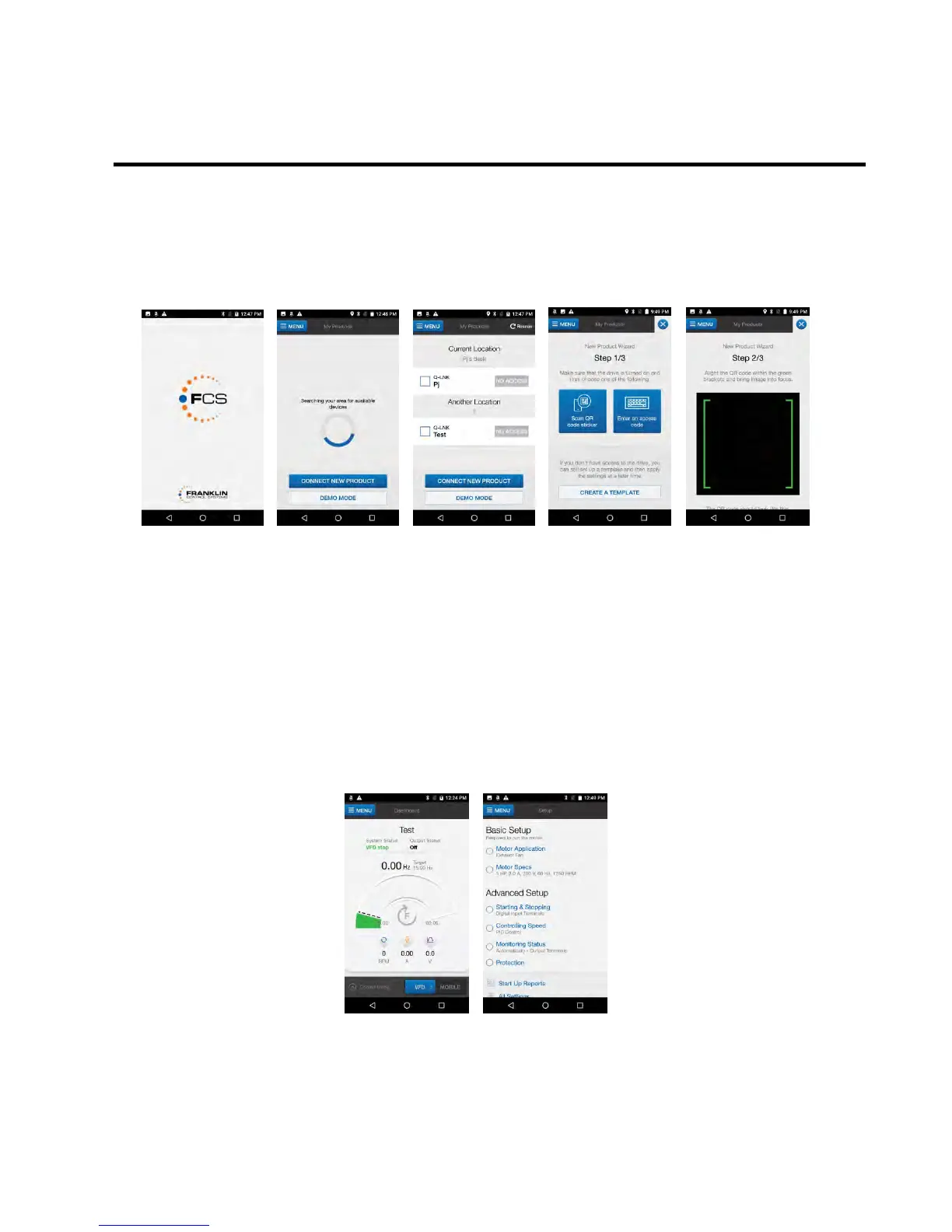
From the Home screen, tap “Connect New Product.”
On the My Products screen, tap either “Scan QR Code Sticker” or “Enter an Access
Code.”
A QR code targeting screen will appear upon tapping “Scan QR Code Sticker.”
Once the QR code is acquired and verified a new VFD item is added to the
“Location” list on the home screen.
6.2 Setup VFD
On the ‘My Products’ screen, tap “Q-Link <Name>” to connect to the device and
enter the Dashboard
Tap on drop-down “MENU” button located on the top-left of the display screen then
press “Setup”.
Choose options under “Basic Setup” or “Advanced Setup” to change VFD settings.


 To Next Page