1-26
1.13 Loading and Updating Software Procedures
Updating the software takes approximately 30 minutes. The software only needs to be loaded in ONE controller and it will
update all the controllers and boards in the system. Press the TEMP button to check current 3000/ATO software version.
Remove the bezel by removing the screws under the bottom of the bezel. Remove the two screws securing the controller
allow it to swing down. Remove the two screws on the left side cover plate of the far left 3000 controller.
To update the software, follow these steps carefully:
Left Display Right Display Action
OFF OFF
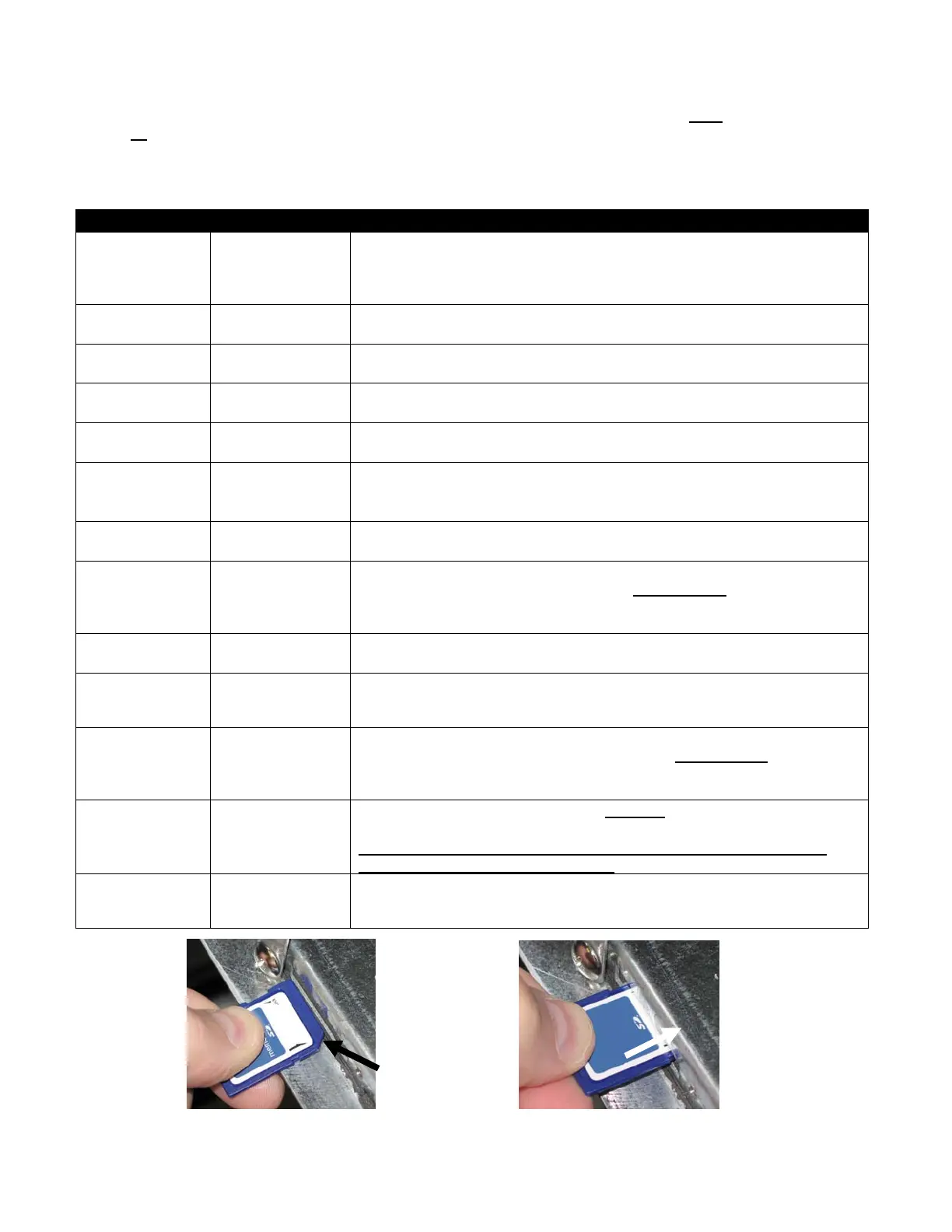
With the controller folded down, insert the SD card, with the contacts facing
down and the notch on the bottom right (see Figure 8 and 9), into the slot on the
left side of the 3000 controller. ENSURE THE CARD IS FULLY
INSERTED INTO THE SD CARD SLOT.
UPGRADE IN
PROGRESS
WAIT
None required.
CC
UPDATING
PERCENTAGE
COMPLETE
None required.
UPGRADE IN
PROGRESS
WAIT
None required.
CALL TECH
If this message is displayed, press the FILTER button and the software load will
continue.
IF_COOK
HEX, IF_aTO
HEX
PERCENTAGE
COMPLETE
None required.
REMOVE SD
CARD
100
Remove the SD card using the fingernail slot on the top of the SD card.
CYCLE
POWER.
BLANK Cycle the control power using the reset switch behind the far right control box.
ENSURE THE SWITCH IS HELD FOR 10 SECONDS. WAIT
ANOTHER 20 SECONDS AFTER THE RESET BEFORE
CONTINUING.
off boot
The left controller displays OFF. The remaining controllers display a flashing
BOOT while the program is transferred.
LOCALE NON-CE
Setup the locale, type of fryer, etc. Exit when finished. (Note it may be
necessary to enter 7628 in Tech Mode to change fryer type from Legacy to
OCF30. Ensure if a JIB is present that Fresh Oil is set for JIB.
OFF OFF
Cycle the control power using the hidden reset switch under the left control box
again. ENSURE THE SWITCH IS HELD FOR 10 SECONDS WAIT
ANOTHER 20 SECONDS AFTER THE RESET BEFORE
CONTINUING.
OFF OFF
With the controller displaying OFF, VERIFY software update by pressing
the TEMP button to check updated 3000/ATO version on each controller.
IF ANY BOARDS DID NOT UPDATE, REPEAT THE PROCESS BY
INSERTING THE SD CARD AGAIN.
OFF OFF
Once the software has been updated and the versions are correct, replace the
cover and screws covering the SD card slot. Replace the screws attaching the
controller and replace the bezel and screws.
Figure 8 Figure 9



 To Next Page