57
Basic operation
IV
Press the [SEL] button.
This begins importing the data into the deck. If the data has
already been imported, the data will be overwritten. When
importing has completed, [Completed] will appear and the
front panel opens automatically, and CD-Rs will automatically
eject. Press the [OPEN] button to close the panel.
Press the [RTN] button.
At this time, other adjustments can also be made in display
adjustment mode.
Press the [DISP] or [RTN] button to exit display
adjustment mode.
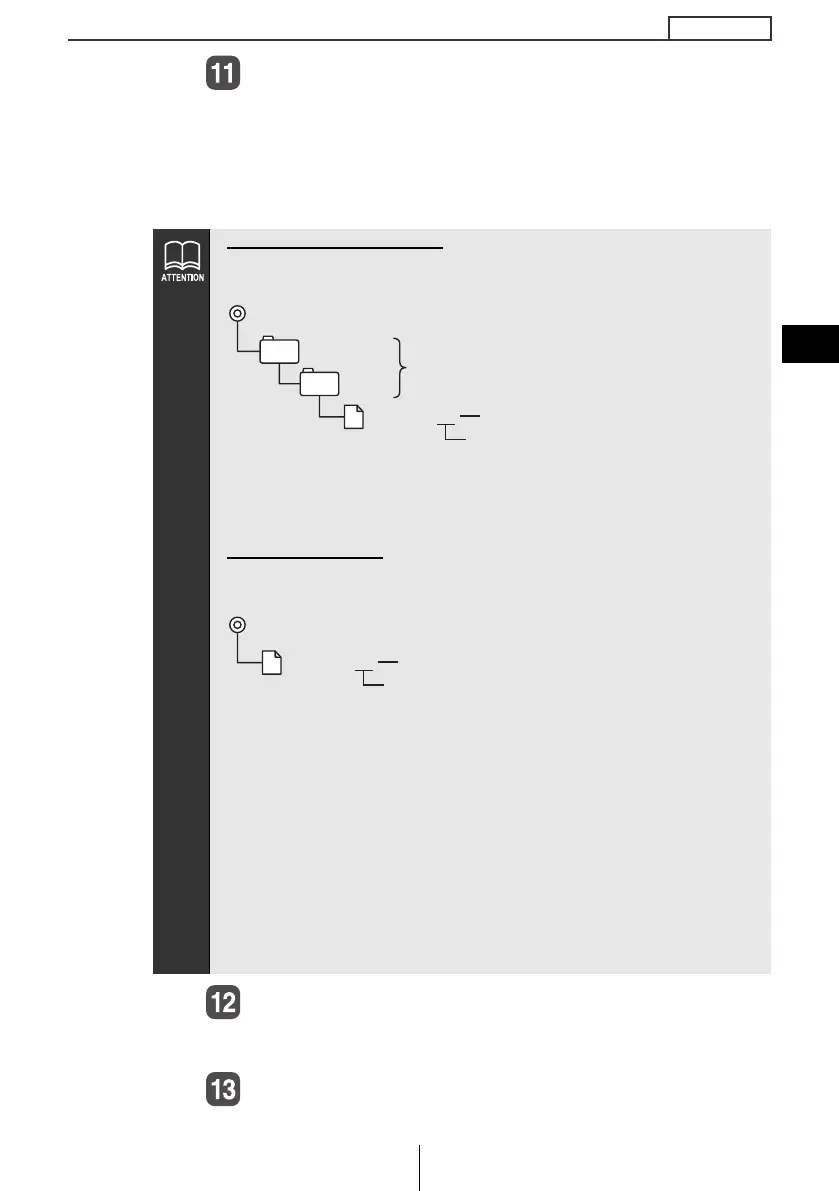
When using a Memory Stick:
● Data downloaded from the ECLIPSE website (E-iSERV) can be
saved in folders on the Memory Stick as follows:
● Files that can be imported into the deck are created
automatically when downloaded from the E-iSERV website.
● The file name can be changed using 8 alphameric characters
(space cannot be used).
When using a CD-R:
● The deck can only import files from CD-R that have been written
in root directories.
● Disc formats that may be used are as follows:
• CD-ROM (MODE 1)
• CD-ROM (MODE2_FORM 1)
*CD-ROMs written in MODE2_FORM2 cannot be read.
● The file name can be changed using 8 alphameric characters
(space cannot be used).
● Do not turn ON/OFF the power is this deck or ignition switch
while the importing. The importing will be interrupted and the
data may be damaged.
● When data is imported from a CD-R, the importing process will
take a long time if a lot of data other than the import data has
also been saved to the CD-R.
MSFTEN
DISP
File extension
XXXXXXXX.vfd
Automatic creation
User creation
File extension
XXXXXXXX.vfd
Automatic creation
CD8455_04_E.fm 57 ページ 2004年12月16日 木曜日 午後5時53分


 To Next Page