About Actions (for Windows users)
124
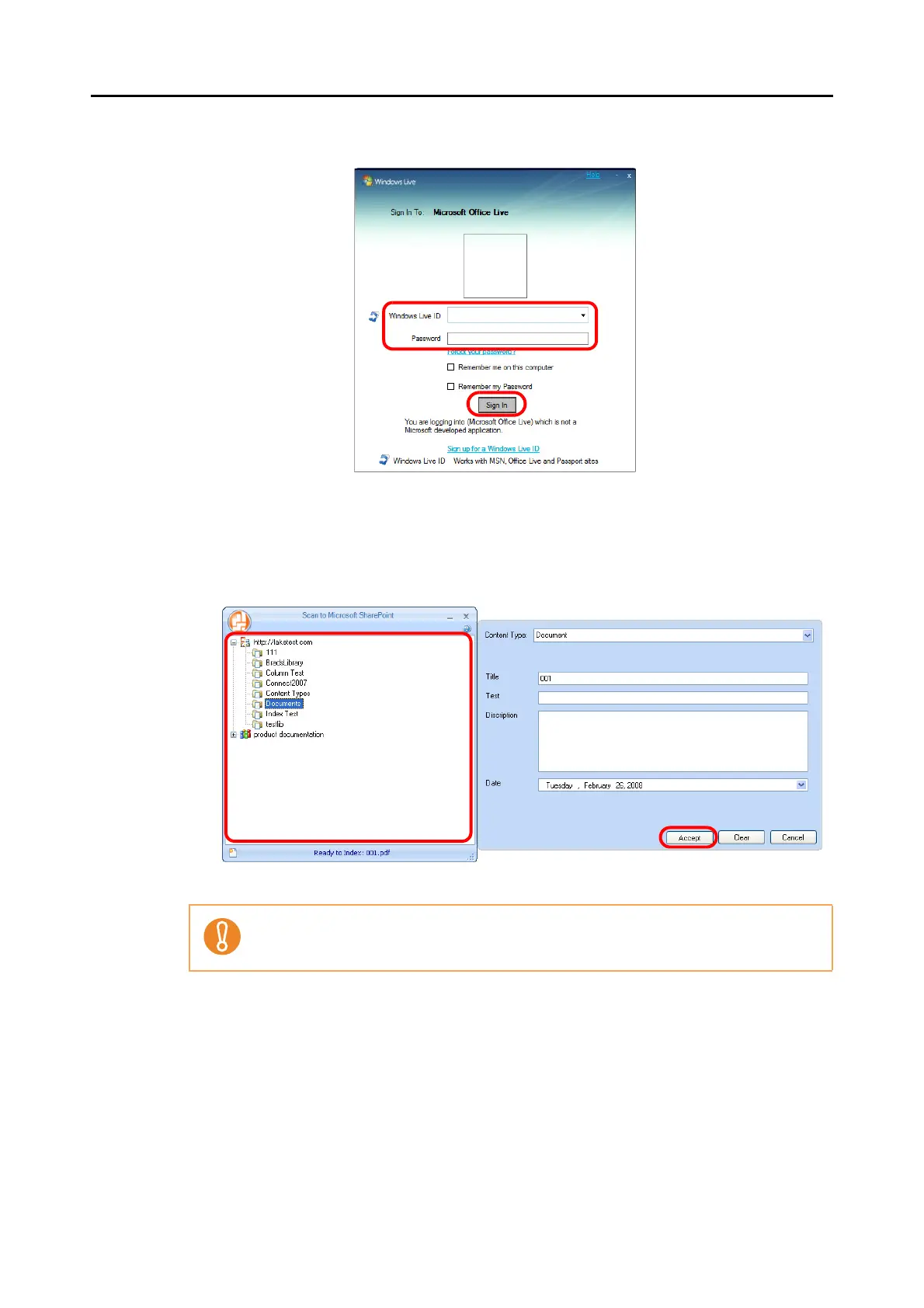
2. Enter the ID and the password in the Office Live logon dialog box, and then click the
[Sign In] button.
D The [Scan to Microsoft SharePoint] dialog box appears after the ScanSnap is
connected to Office Live.
3. Select a folder in which you want to save the scanned image data.
4. In the Scan to Microsoft SharePoint Index Pane, enter information, such as the title,
and click the [Accept] button.
DThe scanned image data is saved in the specified folder.
For details, refer to the Scan to Microsoft SharePoint User Guide.



 To Next Page
 Loading...













