Installation
7 · G&D DVIMUX2-DL-USB
USB 2.0 Devices: If you want USB devices to be available to the connected computers
(e.g. a printer or a mass storage device), connect these devices to the interfaces on
the front panel
(see figure 1 on page 5).
Connecting the computers
Line In: If the audio signals of the computers are to be output over the speakers which are
connected to the KVM switch, use one of the audio connection cables
(Audio-M/M) to
connect the computer’s Line Out interface to this interface.
Line Out: If you want to use a microphone or a headset at the console, use one of the
audio connection cables (Audio-M/M) to connect this interface to the computer’s
microphone input.
USB 2.0: Use one of the USB connection cables (USB-AM/BM) to connect one of the
computer‘s USB interfaces to this interface.
IMPORTANT:
KVM cable sets are required to connect the computers to the KVM
switch.
Assign the cable sets to the different computers and have them available for instal-
lation.
NOTE:
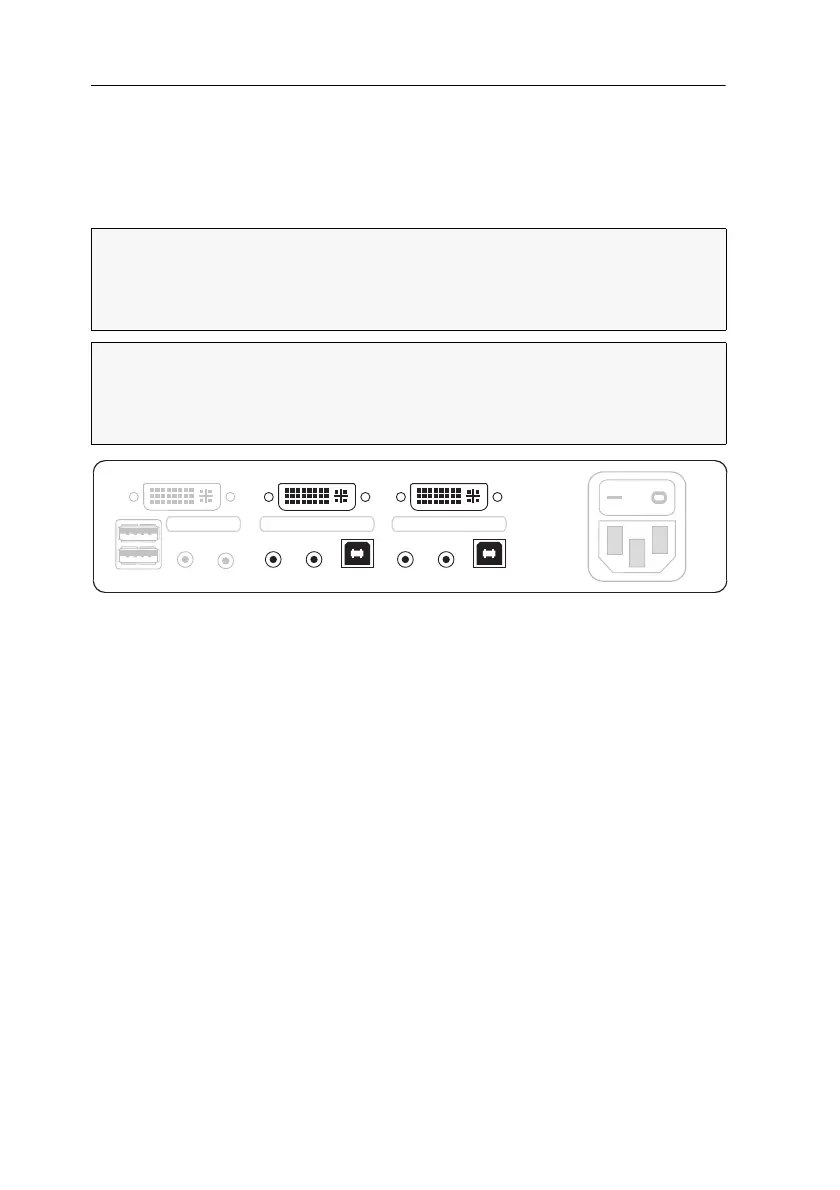
To connect the (maximum two) computers to the KVM switch, the inter-
faces as shown below are available for each computer.
The label (e.g. CPU 1) assigns the interface to a specific computer and to the corre-
spondent button on the front panel.
Figure 3: Interfaces to connect the computers
Monitor 1
Keyb./Mouse
Speaker
CON
Line In Line In
CPU 1
DVI-I CPU 1
USB 2.0
Line Out
Line In
CPU 2
DVI-I CPU 2
USB 2.0
Line Out
Power


 To Next Page