Configuration
G&D DVIMUX2-DL-USB · 22
English
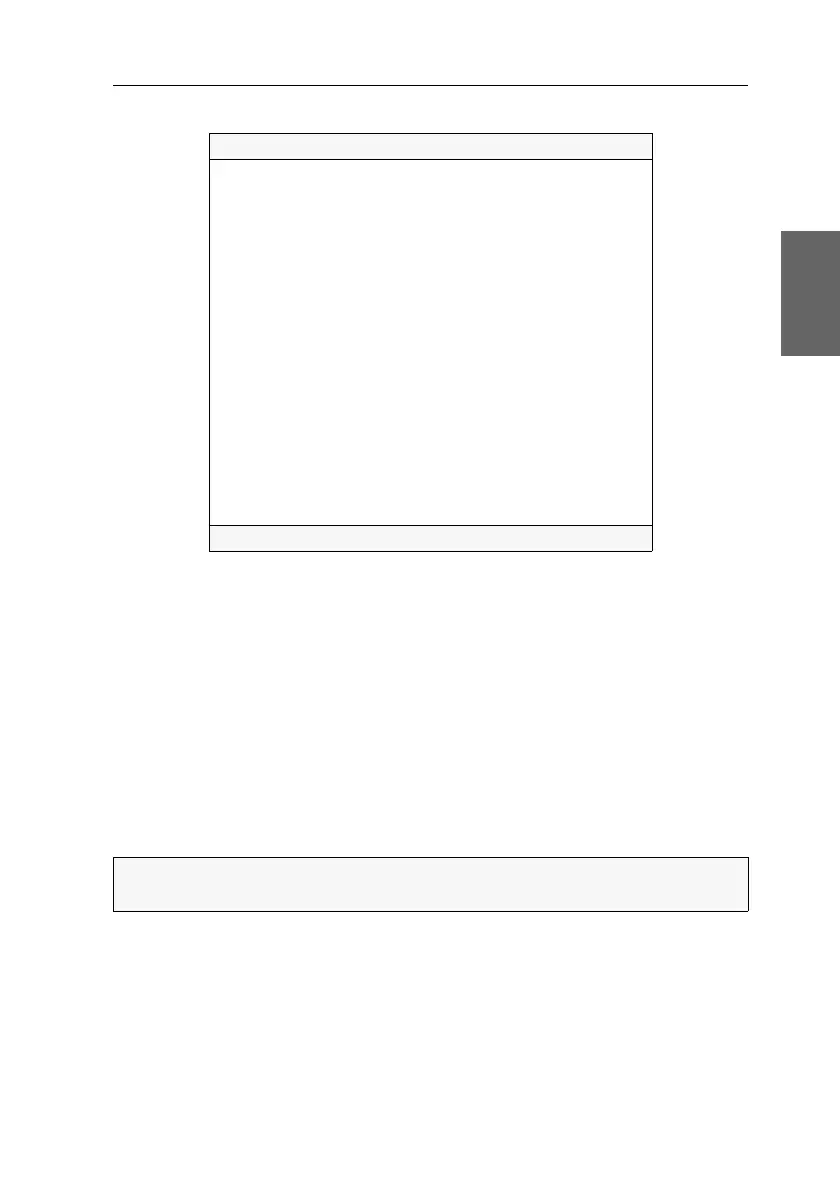
The setup menu lists all KVM switch settings in tabular form:
The right column displays the active setting of the respective function.
Menu items with submenus containing more settings are indicated with three dots
(...) in the right column.
How to operate the setup menu:
1. Use the Arrow or Arrow keys to select the desired menu item.
The active entry is marked with angular arrows .
2. Depending on the type of menu item, following action(s) can be carried out:
Menu items whose settings are displayed in the right column can be changed
by pressing the
Space key (repeatedly).
A menu item that has a sub-dialogue available can be opened by pressing Enter.
Settings for DVIMUX2
Show System Info ...
Hotkey: Ctrl
Double Hotkey: No
Select Key: 1..2
Hotkey Delay: Yes
Set System Defaults ...
Select Ch.1 after Power up: No
Select Channel via Front Button: Yes
Select Channel via Hotkey: Yes
Select Channel via Step Key: 9 | 0
Select Channel via Mouse: No
Select Channel via F21/F22: No
Select Channel via Multi A/B: No
USB Keymode: ...
USB2.0 Function: enabled
USB Pinning: disabled
Service Port Config: ...
RS232 Port Config: ...
'Space': Toggle 'S': Save
NOTE:
The following pages provide detailed information on how to change a cer-
tain function.


 To Next Page