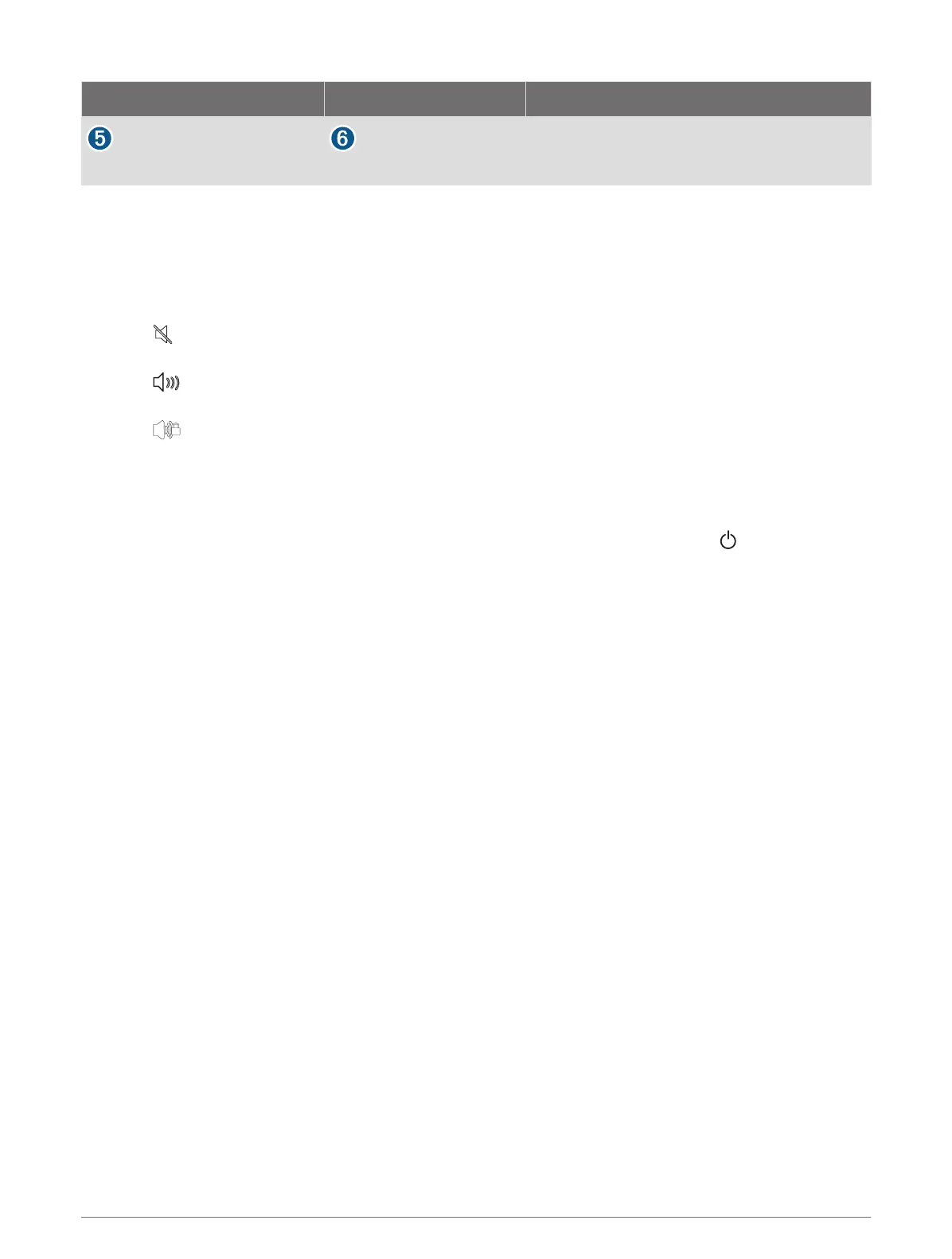
From To Cable
Chartplotter's USB OTG/USB port HDMI source's USB port
GPSMAP USB OTG adapter cable to power the
HDMI source, if possible (2.5 W maximum)
Controlling HDMI Audio
You can control the audio for HDMI video sources.
1 From an HDMI video source, select Options.
2 Select an option:
• To turn off the audio, select Off.
The icon appears on the video screen.
• To play the HDMI audio, select On.
The icon appears on the video screen.
• To always play the HDMI audio, even when you are not viewing the HDMI video, select Always On.
The icon appears on the video screen.
Pairing the GC
™
100 Camera with a Garmin Chartplotter
Before you can connect a wireless device to the chartplotter wireless network, you must configure the
chartplotter Wi‑Fi network (Setting Up the Wi‑Fi Network, page 24).
1 With the camera within an unobstructed 76 m (250 ft.) of the chartplotter, quickly press three times.
2 On the chartplotter, select Options > Settings > Communications > Wireless Devices > Garmin Camera >
Start.
3 Follow the on-screen instructions.
Viewing Video 153


 To Next Page