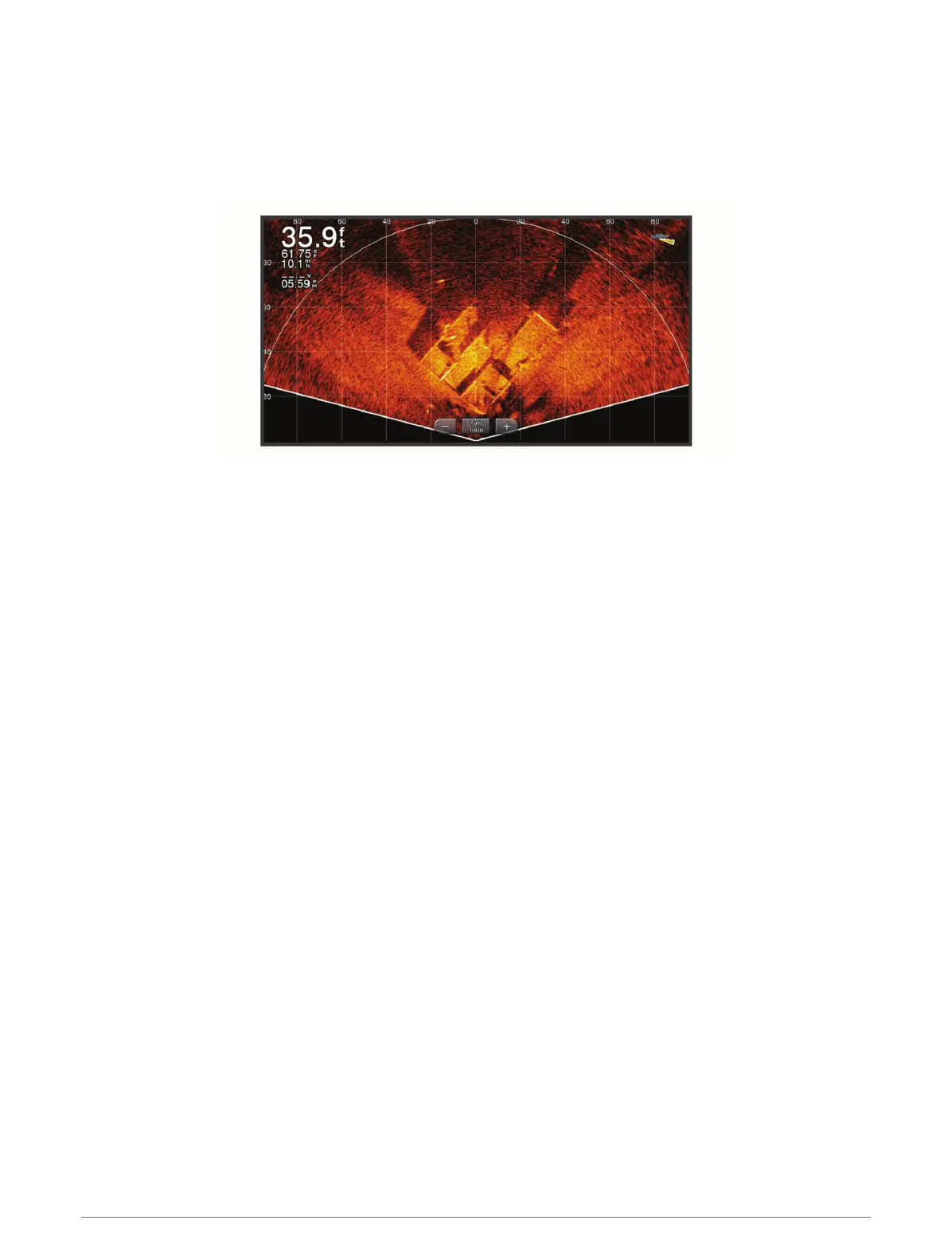
Perspective View
This sonar view shows a live view of what is around and ahead of your boat and can be used to see shorelines,
fish, and structures. This view is best used in shallow water of 50 feet (15 meters) or less.
To see this sonar view, you must install a compatible LiveScope transducer on compatible a perspective mode
mount.
Selecting the Transducer Type
This chartplotter is compatible with a range of accessory transducers, including the Garmin ClearVü
™
transducers, which are available at garmin.com/transducers.
If you are connecting a transducer that was not included with the chartplotter, you may need to set the
transducer type to make the sonar function properly.
NOTE: Not all chartplotters and sonar modules support this feature.
1 Complete an action:
• From a sonar view, select Options > Sonar Setup > Installation > Transducers.
• Select Options > Settings > My Vessel > Transducers.
2 Select an option:
• To enable the chartplotter to detect the transducer automatically, select the transducer to change, and
select Auto Detect.
• To select the transducer manually, select the transducer to change, select the transducer model from the
list, and select Change Model.
NOTE: If you select the transducer manually, disconnect that transducer, and then connect a different
transducer, you should reset this option to Auto Detect.
Selecting a Sonar Source
This feature may not be available with all models.
When you are using more than one sonar data source for a particular sonar view, you can select the source to
use for that sonar view. For example, if you have two sources for Garmin ClearVü, you can select the source to
use from the Garmin ClearVü sonar view.
1 Open the sonar view for which you will change the source.
2 Select Options > Sonar Setup > Source.
3 Select the source for this sonar view.
78 Sonar Fishfinder


 To Next Page