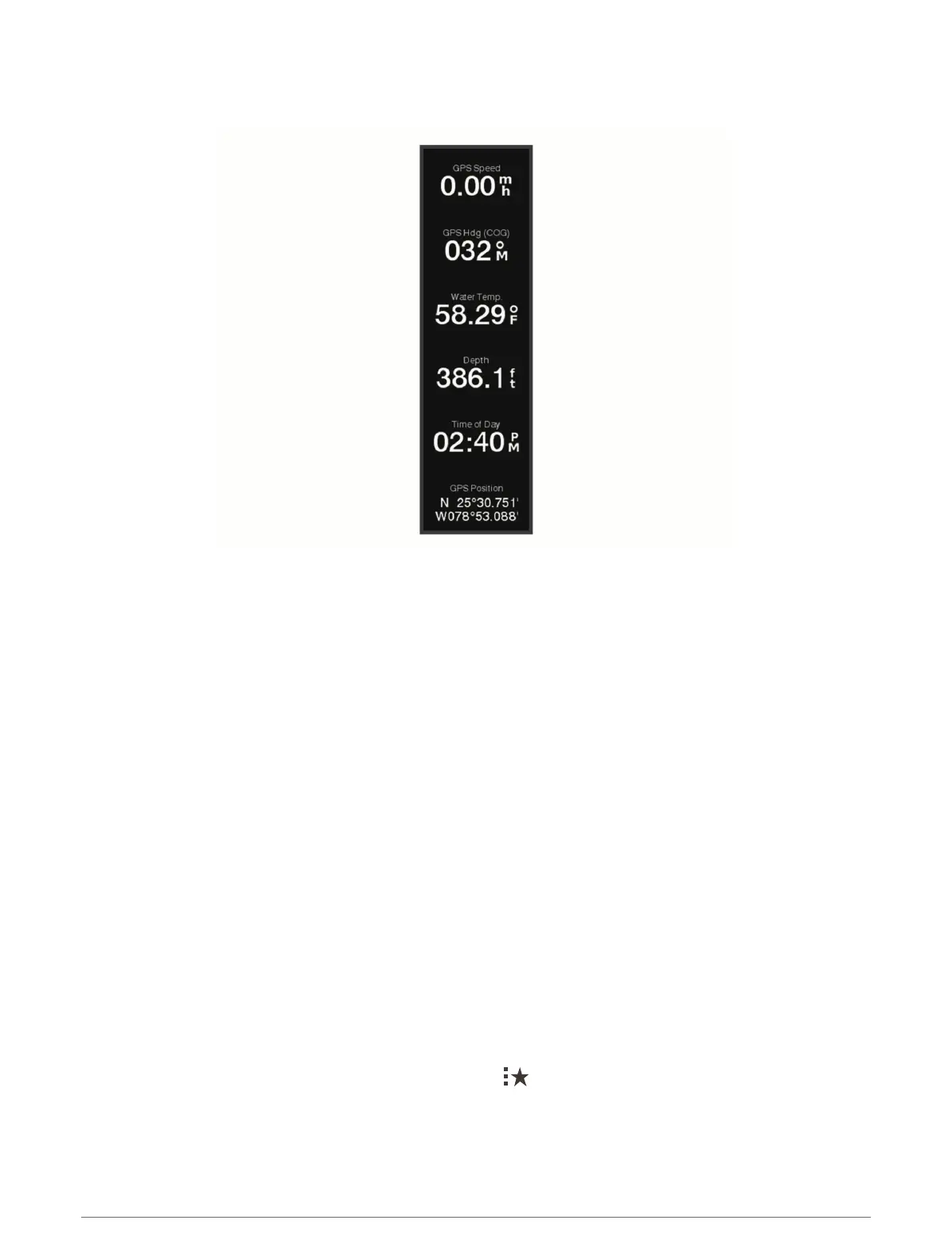
Customizing the Data Overlays
You can customize the data in the data overlays shown on a screen.
1 Select an option based on the type of screen you are viewing:
• From a full screen view, select Options > Edit Overlays.
• From a combination screen, select Options > Edit Combo > Overlays.
• From a SmartMode screen, select Options > Edit Layout > Overlays.
TIP: To quickly change the data shown in an overlay box, hold the overlay box.
2 Select an item to customize the data and data bar:
• To show the data overlays, select Data, select the location, and select Back.
• To change the data shown in an overlay box, select the overlay box, select the new data to show, and
select Back.
• To customize the information shown when navigating, select Navigation, and select an option.
• To turn on other data bars, like the media controls, select Top Bar or Bottom Bar, and select the necessary
options.
3 Select Done.
Resetting the Station Layouts
You can restore the layouts in this station to the factory default settings.
Select Options > Settings > System > Station Information > Reset Layouts.
Presets
A preset is a collection of settings that optimize the screen or view. You can use particular presets to optimize
groups of settings for your activity. For example, some settings might be optimal for when you are fishing, and
others might be optimal for when you are cruising. Presets are available on some screens, such as charts, sonar
views, and radar views.
To select a preset for a compatible screen, select Options > , and select the preset.
When you are using a preset and you make changes to the settings or view, you can save the changes to the
preset or create a new preset based on the new customizations.
18 Customizing the Chartplotter


 To Next Page