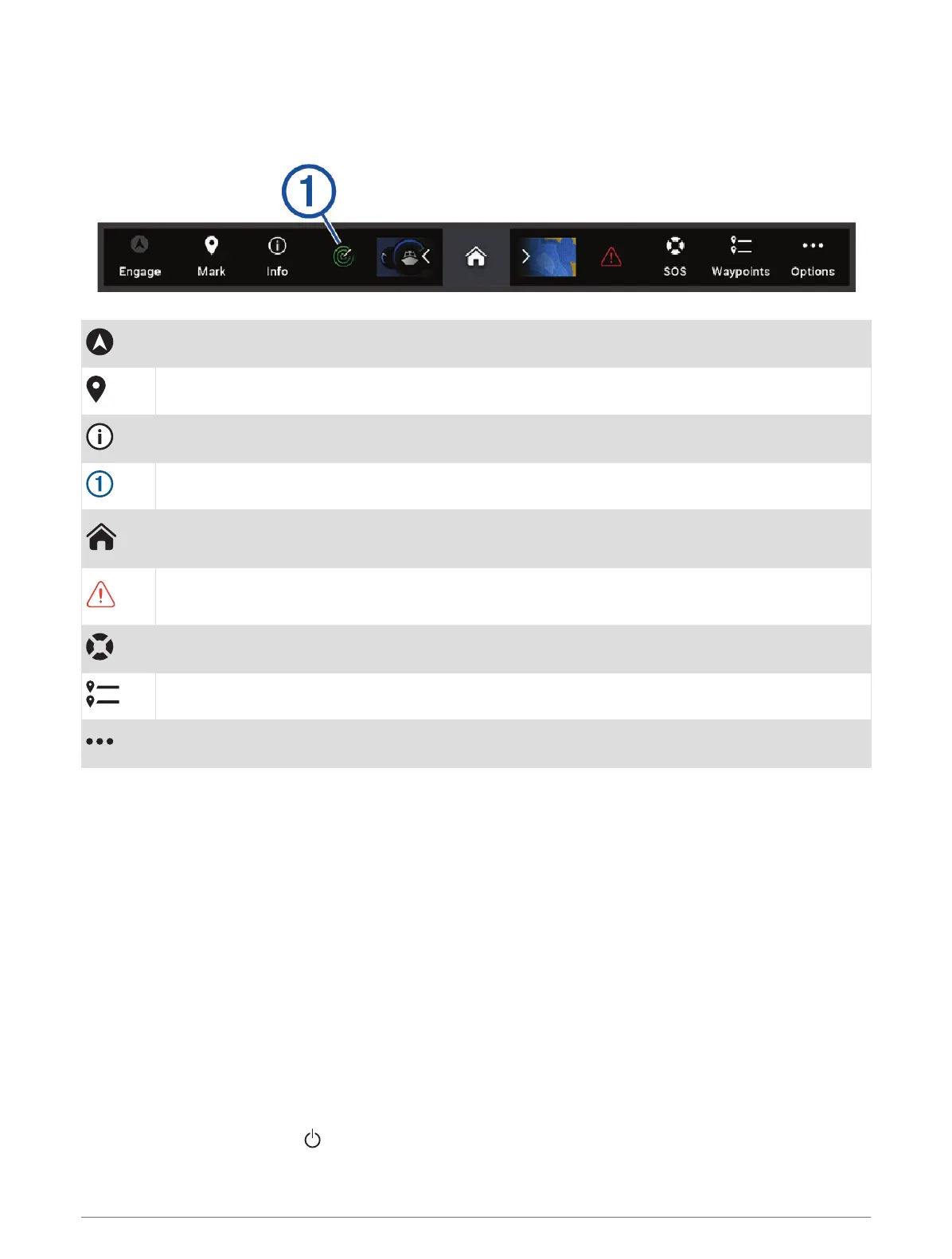
Menu Bar
The menu bar along the bottom of the screen provides access to many functions of the chartplotter, the options
menu, and the home screen.
Engages and disengages the autopilot
Creates a waypoint at your location
Opens the Information menu
Shows certain active function such as, radar
Opens the home screen
TIP: Use the arrows to scroll through the Pinned features.
Opens the Warning Manager
TIP: The icon changes color to indicate severity.
Creates an SOS
Opens the waypoint list
Opens the options menu
Hiding and Showing the Menu Bar
You can hide the menu bar automatically to make more screen space available.
1 Select Options > Settings > Preferences > Menu Bar Display > Auto.
After a short period of time on a main page, such as a chart, the menu bar collapses down.
2 Swipe the screen from the bottom up to show the menu bar again.
Setting the Vessel Type
You can select your boat type to configure the chartplotter settings and to use features customized for your
boat type.
1 Select Options > Settings > My Vessel > Vessel Type.
2 Select an option.
Adjusting the Backlight
1 Select Options > Settings > System > Sounds and Display > Backlight.
2 Adjust the backlight.
TIP: From any screen, press repeatedly to scroll through the brightness levels. This can be helpful when
the brightness is so low you cannot see the screen.
14 Customizing the Chartplotter


 To Next Page