23
To run a single job
1
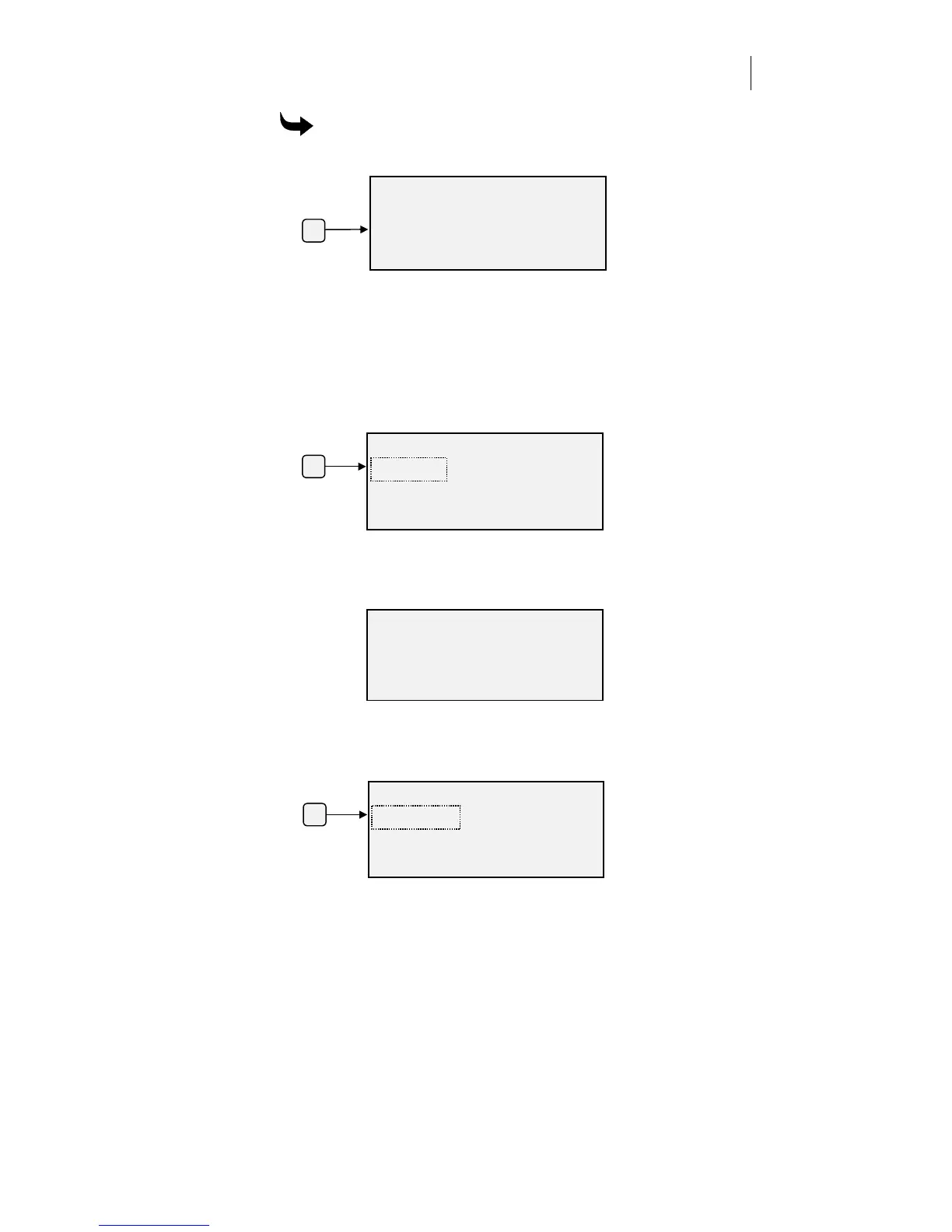
Press F2 to toggle between Single and Multi mode. Choose Single.
2
Load the material in the plotter.
3
Install a tool in the tool holder.
4
Use the slew keys to move the tool to the starting position of the job.
5
Send the job from your computer to the plotter. When the job is in
plotter memory, the status changes from
No Job
to
Ready
, and
Start-Job
blinks (indicated by the dotted box around Start-Job in the diagram).
6
Press F1, Start-Job, and verify that the correct material is loaded in the
plotter. This display does not appear if the Plotter Prompts checkbox
is not turned on in Gerber software.
7
Press F4. The job starts and Job Status displays
Running
and
## %
DONE
.
(The percentage appears only with OMEGA and GA version 6.2
or higher.)
To pause and re-start the job, press F1.
Job: PLT1474.plt
Color: White
Type: 220
Press F4 key - >
F2
MAIN MENU
Settings
Mode: Single Menu 1
Job Status: No Job
MAIN
MENU
Start-Job Settings
Mode: Single Menu 1
Job Status: Ready
F1
MAIN
MENU
Pause-Job Settings
Mode: Single
Job Status: Running % DONE
F1



 To Next Page