36
CHAPTER 4
Tool Settings
4
Press F3 to increase the force or F4 to decrease it. The maximum
setting is 16 ounces in 0.5 ounce steps.
5
Press ENTER to accept the value and return to the Current Settings
menu.
Adjusting corners
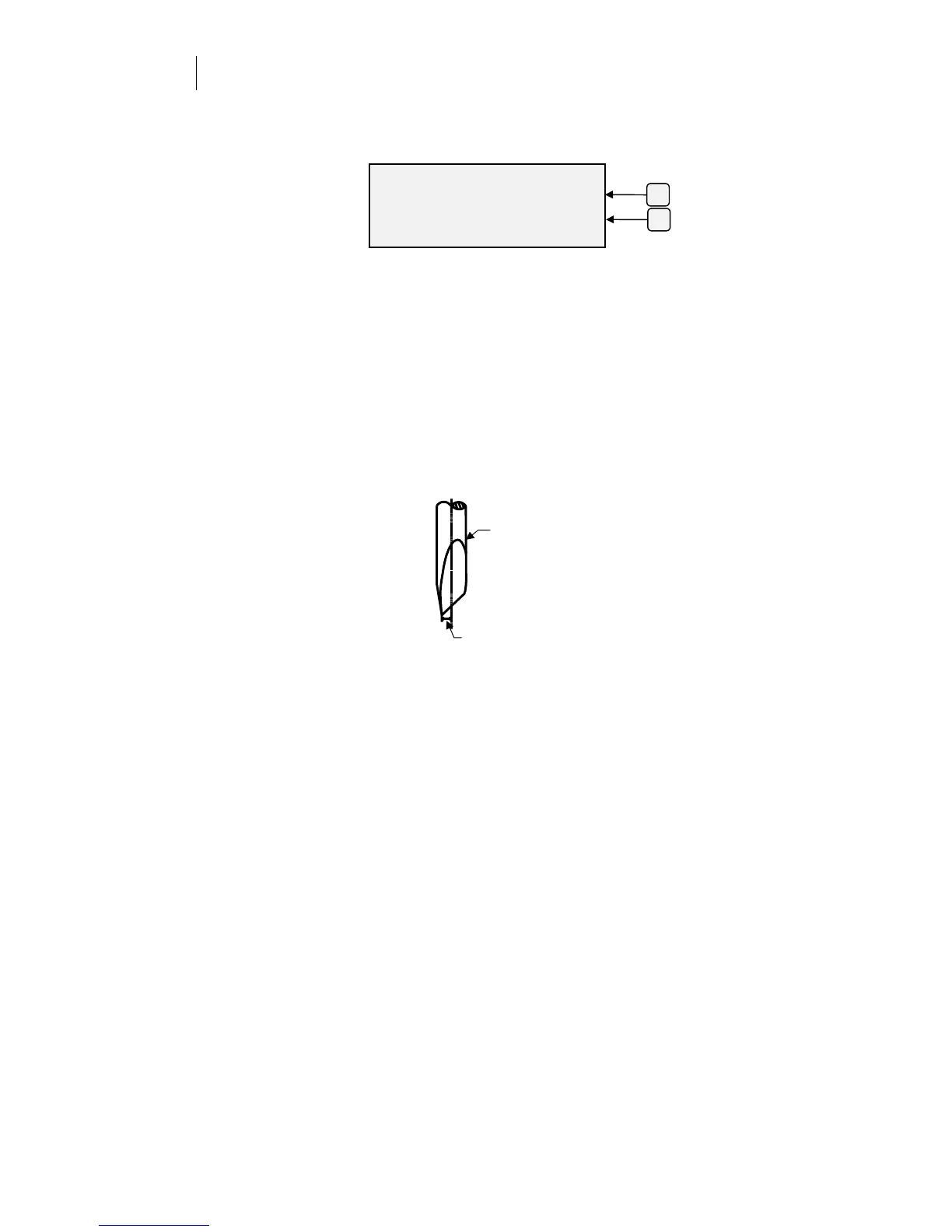
In swivel blade technology, the knife tip is always slightly behind the
center of the tool holder and the knife offset is the distance between the
knife center and the knife tip. The amount of corner adjustment in the
firmware tells the plotter to compensate for this distance. It ensures that
the knife is cutting the center line of the shape and that the corners will
be accurate. An inaccurate corner setting will cause poor cutting quality,
difficult weeding, and poor corners
The ODYSSEY XP plotter firmware provides a corner adjustment feature
(corners) to help you ensure accurate corner cutting. To determine what
corners adjustment to make, cut a 1/2" (13 mm) test square. Examine the
corners (possibly with a magnifying glass) and compare them to the
following diagrams. If you determine that a corners adjustment is
necessary, you can make the adjustment in GA or at the plotter control
panel before you send the job.
Offset
Knife blade
F3
ENTER TOOL FORCE
Force +
3.5 oz. -
ENTER Ke
to Acce
t
F4



 To Next Page