Recordings
2018-06-13
2018-0 6-13 16:25:1 9
2018-0 6-13 17:45:3 9
2018-0 6-13 18:12:0 0
Monitors
Home
Office
+
SOUL S5110/ART 7W VIDEO DOOR ENTRY SYSTEM KIT
29
Main screen
G2Call APP
Icon will take you to the screen that shows the images or videos recorded from the app. Press on any recording
to view it in full screen, from where you can also share or delete it individually. By clicking on icon , you can
delete and share several or all recordings simultaneously. To do so, use icons , and .
If you press icon , you will access the event screen. This screen shows the list of events: answered calls, missed
calls and door openings. Each event shows the door panel number in brackets and the time it occurred. Swipe
the screen downwards to refresh the list. By pressing icon , you can delete all events; if you press one of the
events for 2 seconds, you can delete the events you select, or all simultaneously using icon .
To access the app settings, press icon . From here, you can select if you want the phone to ring and/or vibrate
when receiving a call. By clicking on icon , you can view the version of this app and Golmar's privacy policy.
In the case of Android devices, exit the app using icon , or force its closure: it will continue receiving calls and
the app will not consume battery.
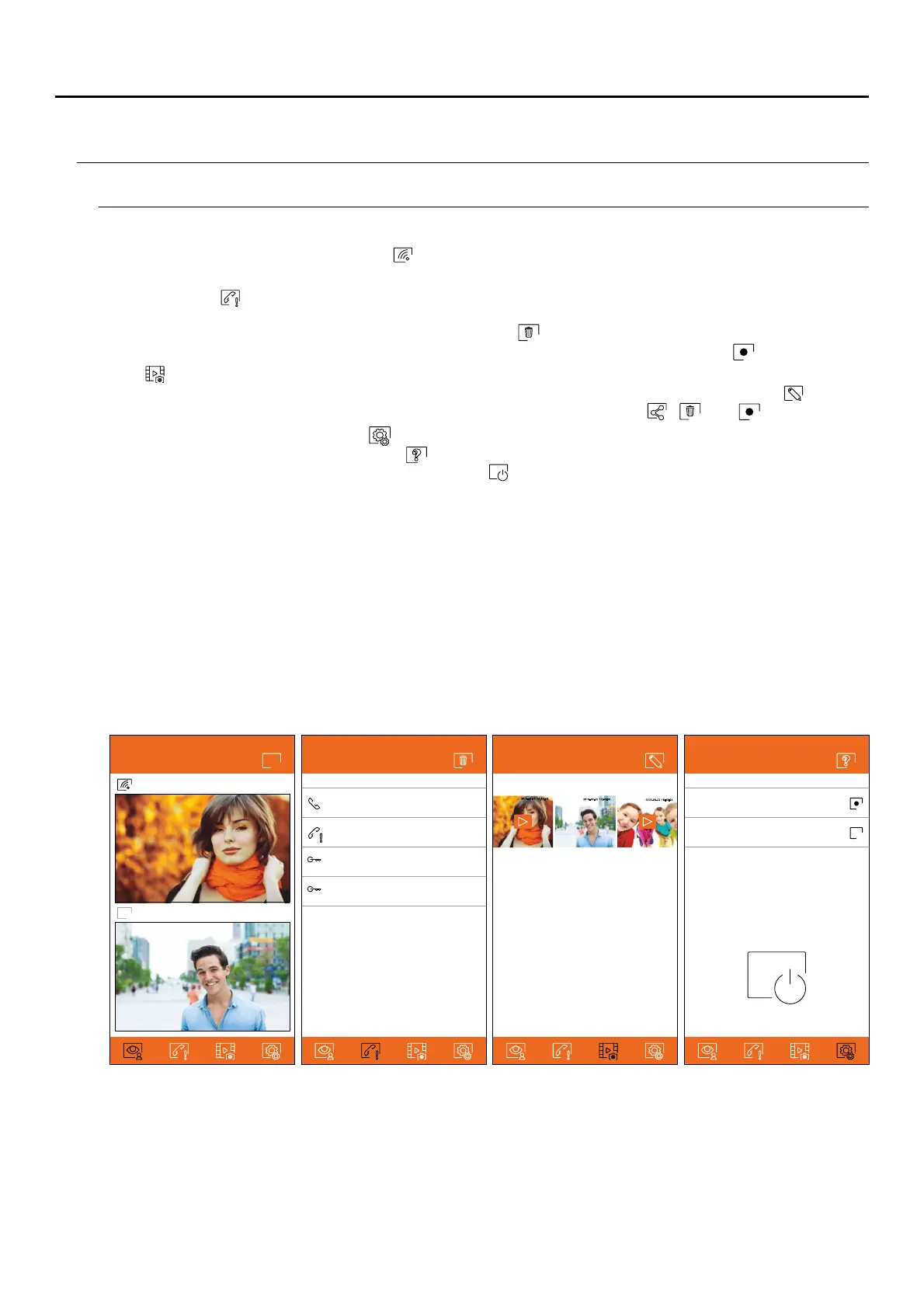
When you run the app, and after the welcome screen, the selection screen of the connected monitors is displayed.
Those with connectivity will show icon . To view the image from one of the devices, press your registered
monitor to access the communication screen (see next page).
Events
Home (1)
Office ( )2
Home (1)
Home (1)
2018-06-13 19:17:18
2018-06-13 19:17:18
2018-06-13 19:17:18
2018-06-13 19:17:18
1
2
Settings
Sound
Vibration
Exit


 To Next Page