24
Advanced Features
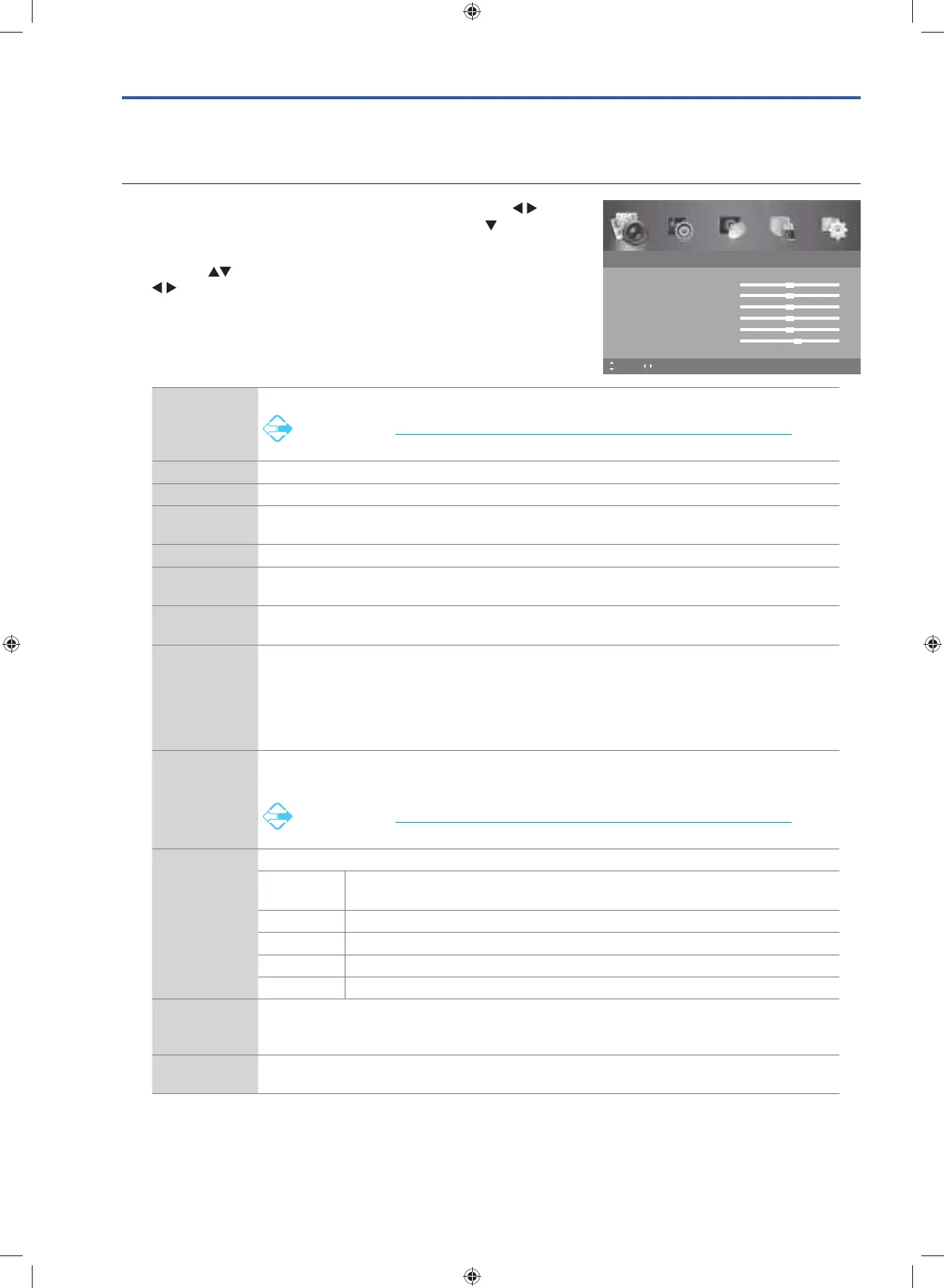
Picture Setting
Allows you to set your preferred picture mode.
1. Press the MENU button to display the main menu. Press the
buttons to select the PICTURE menu and then press the
button or
the OK button.
2. Press the
buttons to select the following options, and then press
buttons to adjust each option’s setting or the OK button to
select the options.
Picture Mode Select among picture mode: Standard / Mild / Personal / Dynamic.
Alternative
You may press the PMODE button to select the picture mode directly.
Brightness Increases or decreases the amount of white in the picture. (for Personal mode)
Contrast Adjusts the difference between light and dark levels in the picture. (for Personal mode)
Sharpness Adjusts the level of crispness in the edges between light and dark areas of the picture. (for
Personal mode)
Colour Controls the colour intensity. (for Personal mode)
Tint (for NTSC
format)
Adjusts the balance between red, blue and green levels.
(Tint is only available for NTSC signal input via the AV IN.)
Backlight Adjusts the backlight setting of your TV. This controls the brightness and display performance of
the screen.
Colour Temp Select among colour temperature: Standard / Cool / Warm.
Adjusts the colour components independently to achieve a warm or cool colour. (for Personal
mode)
• Standard
• Cool: Increases blue tint
• Warm: Increases red tint
Aspect Ratio
Allows you to watch the screen in various picture formats: Auto / 4:3 / 16:9 / Zoom /
Subtitle / Smart Zoom.
Alternative
You may press the ASPECT button to select the aspect ratio directly.
PC Setup
(PC mode only)
Adjusts the PC desktop content. Press OK button to enter the PC Setup menu.
Auto
Adjust
Allows you to synchronise a PC signal automatically.
H Position Adjusts the position of the picture left and right in the window.
V Position Adjusts the position of the picture up and down in the window.
Phase Minimize horizontal distortion.
Clock Minimize vertical stripes in the screen image.
Screen Mode
(HDMI mode
only)
Allows you to select the screen mode: Auto / Video / PC.
Noise
Reduction
Switch on / off the noise level of the connected device: On / Off.
3. Press the MENU button to return to the previous menu, press again
to return to the main menu.
4. Press the EXIT button to exit the menu.
Picture
Picture Mode Standard
Brightness 50
Contrast 50
Sharpness 50
Colour 50
Tint 0
6Backlight
Colour Temp Standard
MENU: Return EXIT: ExitMove Adjust
G24HTC16_IB_160630-V2_Annie.indd 24 30/6/16 下午6:06



 To Next Page