30
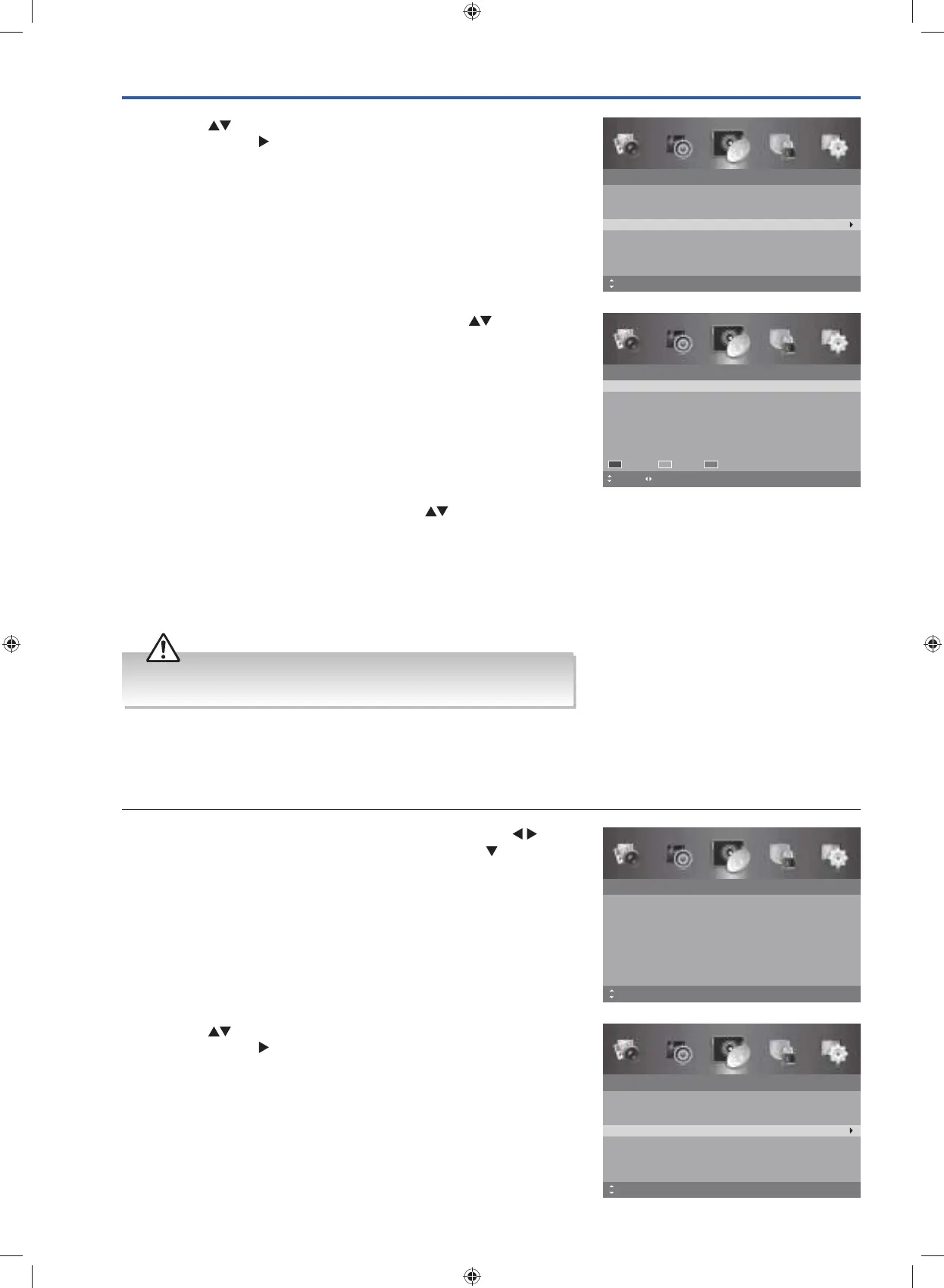
3. A Channel Edit screen will be displayed. Press the buttons to
select the programme you want to edit.
a. Delete
Press the RED button to delete the selected channel.
b. Skip
Press the GREEN button to select the channels that you want to
skip when you are selecting channels. Press the GREEN button
again to undo it.
c. Move
Press the BLUE button and then press the
buttons to
move to the selected channel. Press the BLUE button or the
OK button to confirm.
4. Press the MENU button to return to the previous menu, press again
to return to the main menu.
5. Press the EXIT button to exit the menu.
Channel Edit
1
5
ABC News
TWO
16
17
NITV
SBS
Move MENU: Return
Delete
EXIT: ExitPage
Skip Move
2. Press the buttons to select Channel Edit and then press the
OK button or the
button to enter the Channel Edit menu.
Channel
Auto Scan
Manual Scan
Auto Channel Update
Channel Edit
Favourite Manager
Signal Information
On
MENU: Return EXIT: ExitMove OK: Select
Channel Edit (ATV Mode)
Allows you to edit TV channel information in the Channel List under ATV mode.
1. Press the MENU button to display the main menu. Press the
buttons to select the Channel menu and then press the
button or
the OK button.
2. Press the
buttons to select Channel Edit and then press the
OK button or the
button to enter the Channel Edit menu.
Channel
Auto Scan
Manual Scan
Auto Channel Update
Channel Edit
Favourite Manager
Signal Information
On
MENU: Return EXIT: ExitMove OK: Select
Channel
Auto Scan
Manual Scan
Auto Channel Update
Channel Edit
Favourite Manager
Signal Information
On
MENU: Return EXIT: ExitMove
Care should be taken when editing the position of digital channels as
this may affect EPG and reminder settings.
G24HTC16_IB_160630-V2_Annie.indd 30 30/6/16 下午6:06



 To Next Page