34
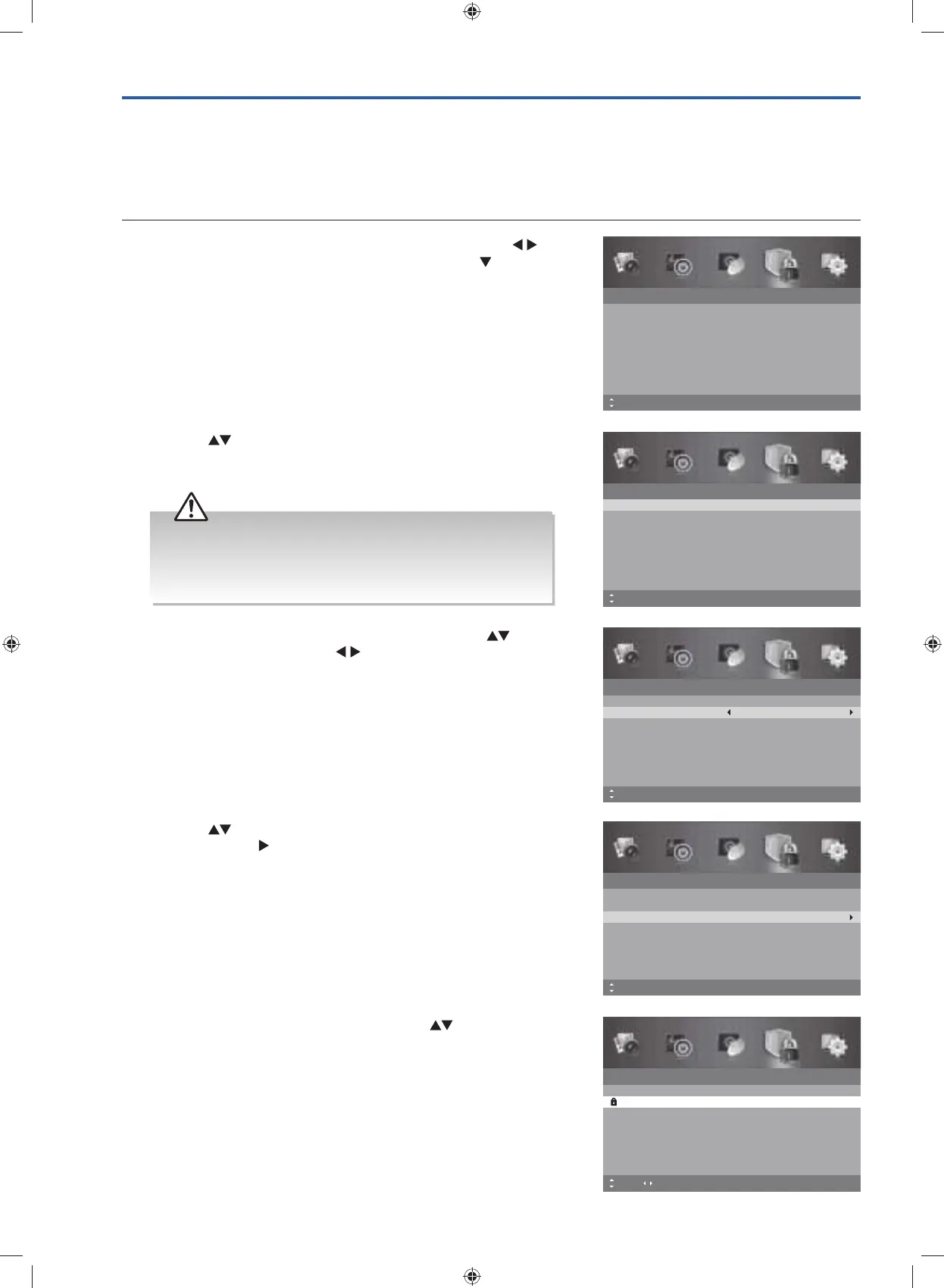
4. Press the buttons to select Channel Block and then press the
OK button or the
button.
2. Press the buttons to select the Enter Password. Use the 0-9
buttons to input a 4-digit password to enter the Lock System
menu.
Lock System
Enter Password
– – – –
Off
No Block
Enable
Channel Block
Parental Rating
Lock Keypad
New Password
Clear Lock
Off
– – – –
MENU: Return0~9: Input EXIT: ExitMove
Lock System
Enter Password
– – – –
On
No Block
Enable
Channel Block
Parental Rating
Lock Keypad
New Password
Clear Lock
Off
– – – –
MENU: Return EXIT: ExitMove OK: Select
5. A Channel Block screen will display. Press the buttons to select
a channel. Press the OK button on the remote control to block. Press
the OK button again to unblock.
6. Press the MENU button to return to the previous menu, press again
to return to the main menu.
7. Press the EXIT button to exit the menu.
Lock System
Select channel(s) to lock.
1
2
3
4
5
6
ABC News
TWO
NITV
SBS
GEM
SPREE
MENU: Return EXIT: ExitMove Page OK: Select
Lock System
Enter Password
Off
No Block
Enable
Channel Block
Parental Rating
Lock Keypad
New Password
Clear Lock
Off
MENU: Return EXIT: ExitMove
– – – –
– – – –
Channel Locks
Block Channel is designed to prevent children from watching unsuitable programmes.
The Lock System must be set to On for this function to operate. When a channel is blocked, a valid password must be
entered.
1. Press the MENU button to display the main menu. Press the
buttons to select the Lock System and then press the
button or
the OK button.
• The default password is “0000”.
• If you change the password, be sure to remember the new
password! If you forget the new password, enter the master
password“8899”.
3. Ensure the option Enable is set to On. If not, press the buttons
to select Enable and then the
buttons to select On.
Lock System
Enter Password
– – – –
On
No Block
Enable
Channel Block
Parental Rating
Lock Keypad
New Password
Clear Lock
Off
– – – –
MENU: Return0~9: Input EXIT: ExitMove
G24HTC16_IB_160630-V2_Annie.indd 34 30/6/16 下午6:06



 To Next Page