34 ODROID C2 USER MANUAL
• 1440×900
• 1360×768
• 1024×600 (DVI supported for ODROID-VU7 Plus)
• 800×600
For more information on conguring the screen resolution, please
refer to the ODROID-C2 Wiki at http://bit.ly/2cUNeli.
The SSH daemon is enabled by default in the Ubuntu template,
and the username:password is odroid:odroid. The root password is
also odroid.
Finally, the language and timezone settings may be congured
with the following command, after installing the desired language in
the “Language Support” settings application:
$ sudo dpkg-recongure locales
After the command completes, drag the selected language to
the top of the list in the “Language Support” settings. The timezone
may be selected by typing the following command:
$ sudo dpkg-recongure tzdata
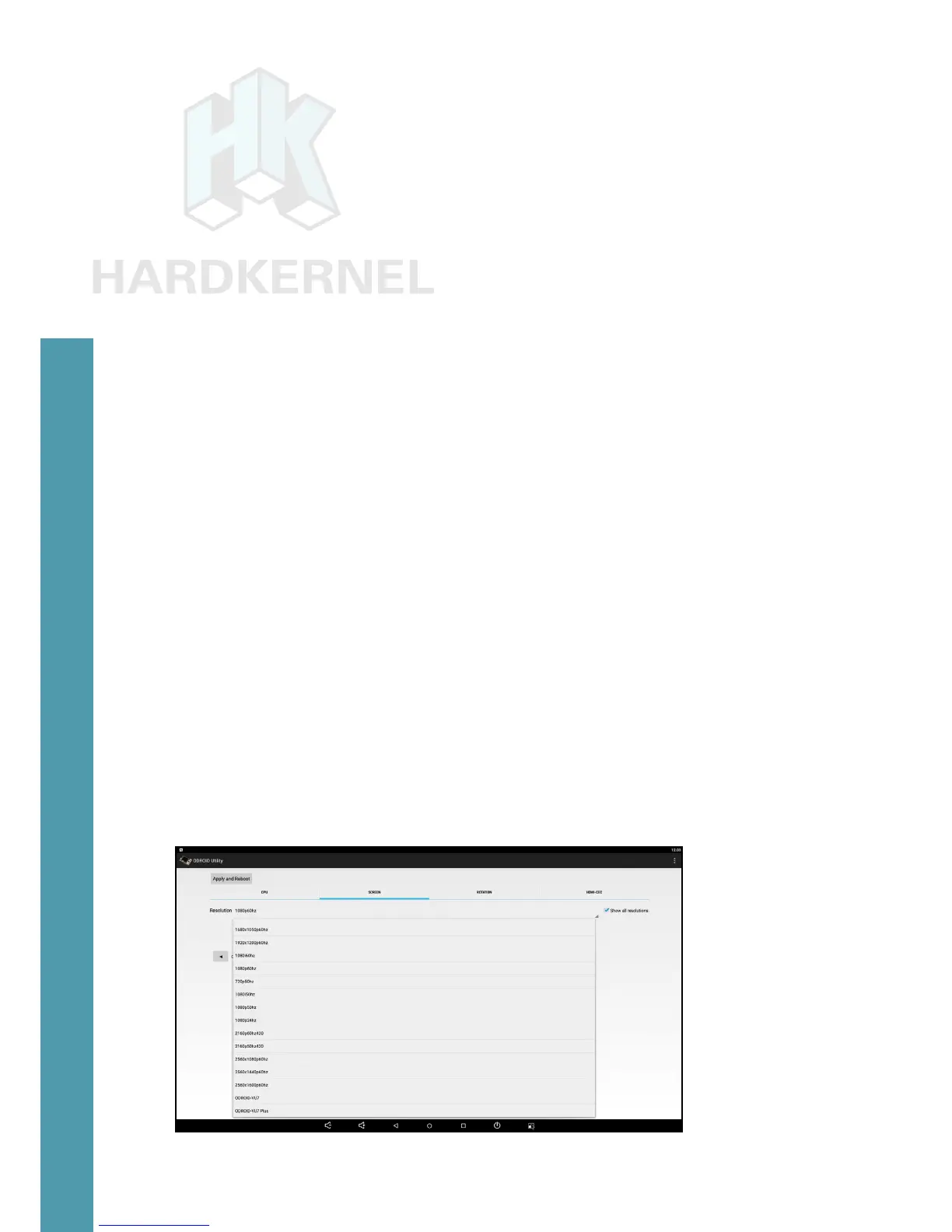
Conguring HDMI Resolution in Android
Once the Android desktop has loaded, run the ODROID Utility
app, which is pre-installed on all Hardkernel Android images, and se-
lect the desired CPU frequency, monitor resolution and orientation.
Other options may also be selected using the ODROID Utility app,
including the CEC options which allow the use of a remote with appli-
cations such as Kodi.
Conguring HDMI resolution with the Android ODROID Utility app
Chapter 2


 To Next Page