28 ODROID C2 USER MANUAL
le, all subsequent steps would be that same as those listed above.
Launch the browser once again and navigate to http://bit.ly/2be993R,
then look for the latest Android image and click the link to download it.
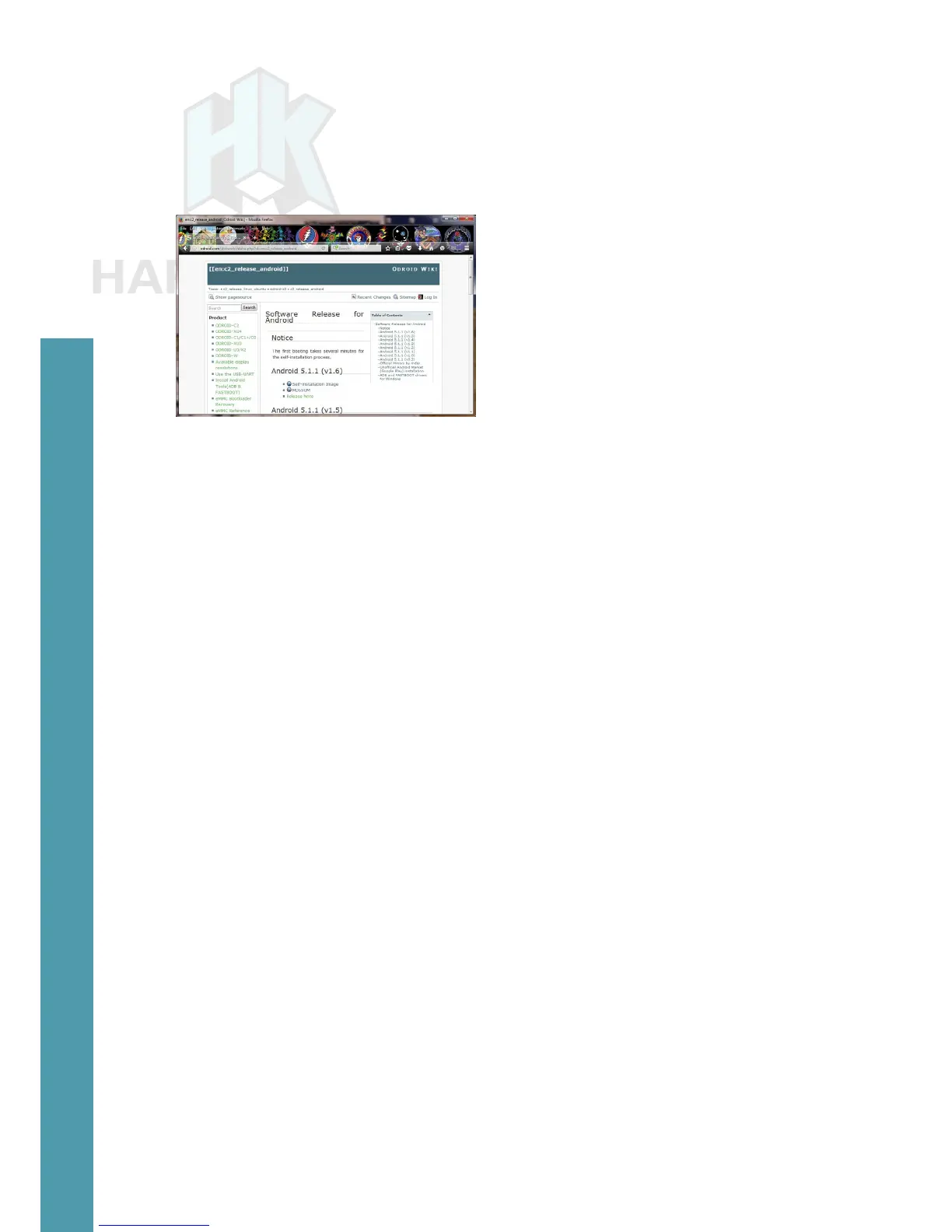
The screenshot below shows the webpage that lists the Android images.
List of Android images for the ODROID-C2
Once the compressed le has been downloaded, uncompress it
and ash it, using the steps listed earlier in this section.
Flashing an Image on a Linux Ubuntu 16.04 LTS computer
In your Ubuntu Linux desktop, launch a terminal window. Create
a working directory:
$ cd ~ && mkdir linux-img && cd linux-img
You can download the compressed image using a browser like
Firefox for Ubuntu using the same (Windows OS) steps described ear-
lier. If you follow this method, you should use the mv command to
move the downloaded compressed le to the working dir listed above.
Instead, if you wish, you can use a Linux utility like wget right from
within the working directory:
$ wget http://odroid.in/ubuntu_16.04lts/\
ubuntu64-16.04lts-mate-odroid-c2-20160525.img.xz
Wait for the download process to complete, then uncompress
the le using the following command:
$ unxz ./ubuntu64-16.04lts-mate-odroid-c2-20160525.img.xz
This will result in an uncompressed image le called ubuntu64-
16.04lts-mate-odroid-c2-20160525.img. Attach the USB SD card
reader / writer with the boot media into an appropriate USB port. After
a few moments, check for an entry that corresponds to the SD card or
eMMC module using the following command (your results may differ):
Chapter 2


 To Next Page