76 ODROID C2 USER MANUAL
bcdDevice 1.00
iManufacturer 2 Asmedia
iProduct 3 ASM1051
iSerial 1 0123456789ABCDEF0124
bNumCongurations 1
…
As shown in the output, the docking system uses the ASMedia‘s
ASM1051E single-chip based SuperSpeed USB (USB 3.0) to Serial
ATA3 bridge.
A brand new storage device, if unformatted, will not be automat-
ically detected by the docking system. You can follow these steps to
use the storage device on an ODROID-C2:
First, install GParted using the command:
$ sudo apt-get install gparted
Then start the GParted application from the desktop’s System >
Administration menu. Select the device, which will typically be named
/dev/sda if no other storage devices exist on the system. Highlight the
unallocated partition and select the Device > Create Partition Table
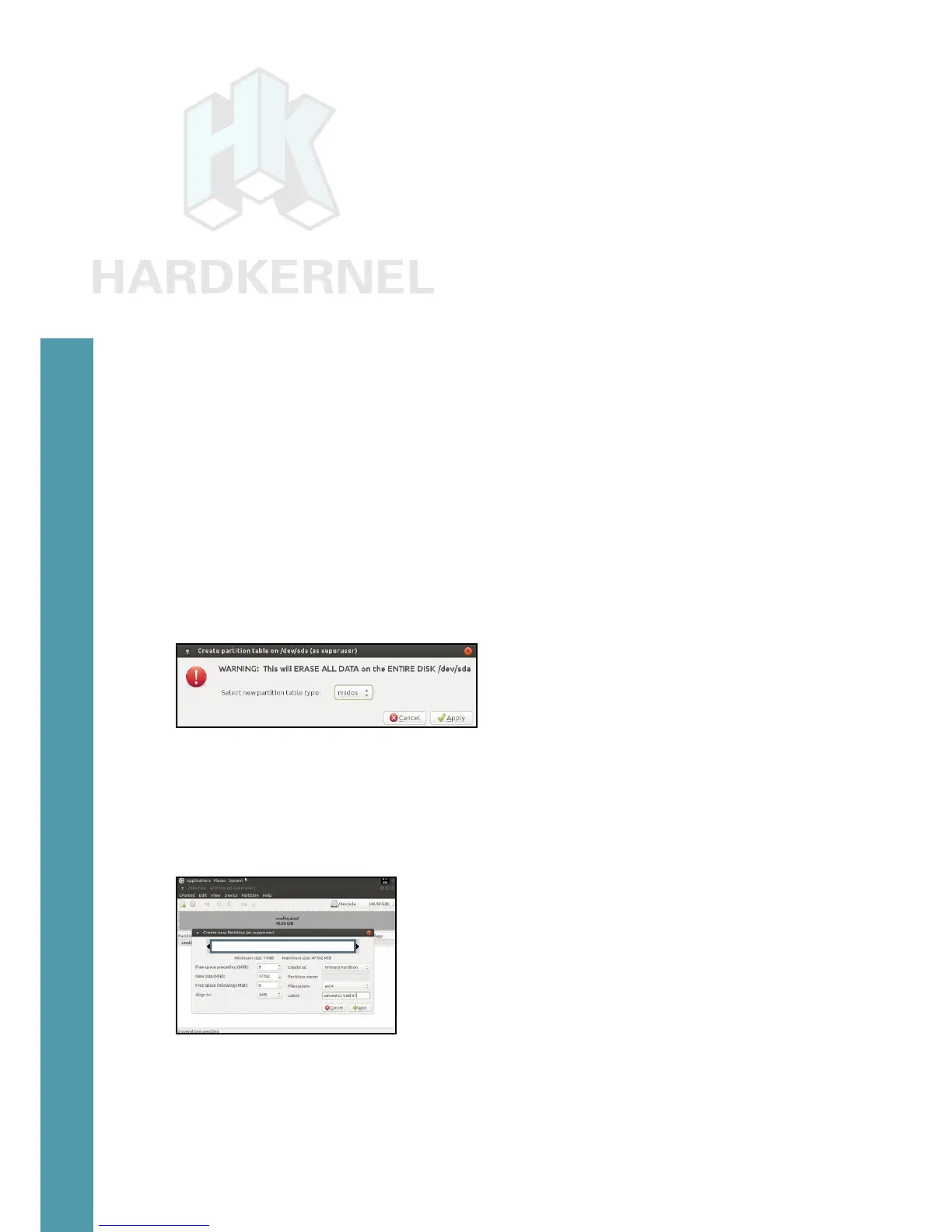
menu item. You will be presented with a warning as shown below.
Partition creation warning
Click the Apply button, then highlight the unallocated partition
and select the Partition > New menu item. You will be presented with
a screen to enter the new partition’s information, as shown below:
New partition information
Enter a label name odroid-c2-hdd-01, and click the Add button. Select
the new partition and Click on the check icon, to apply/save all changes.
Reboot the system and run the following command to validate
the creation of the new partition:
Chapter 4


 To Next Page