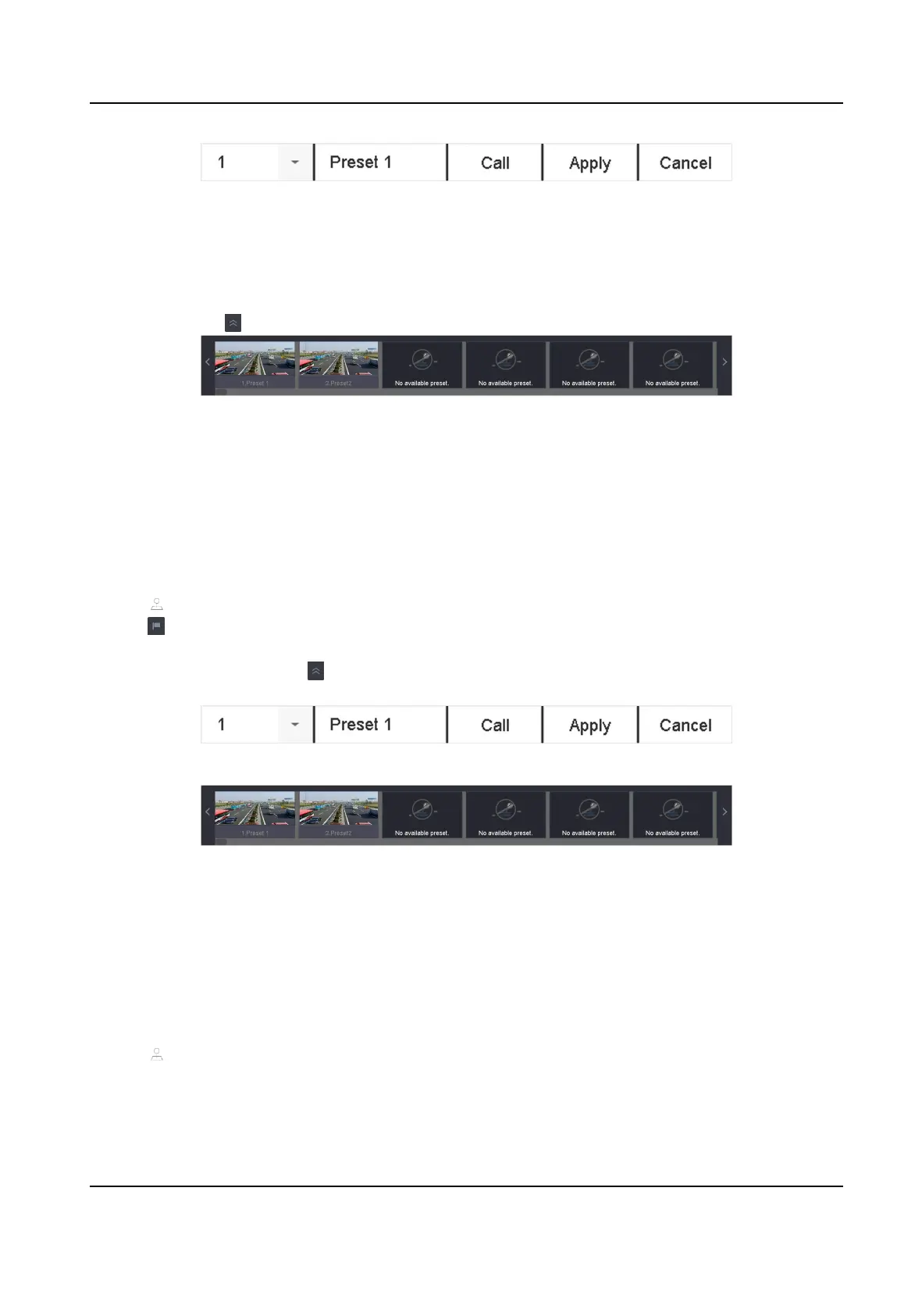
Figure 3-11 Set Preset
5. Select the preset No. (1 to 255) from the drop-down list.
6. Enter the preset name.
7. Click Apply to save the preset.
8.
Oponal: Click Cancel to cancel the locaon informaon of the preset.
9. Oponal: Click in the lower right corner of Live View to view the congured presets.
Figure 3-12 View the Congured Presets
3.12.3 Call a Preset
A preset enables the camera to point to a specied posion such as a window when an event takes
place.
Steps
1. Click on the quick sengs toolbar of the PTZ camera's Live View.
2. Click
in the lower right corner of Live View to set the preset.
3. Select the preset No. from the drop-down list.
4. Click Call to call it, or click
in the lower right corner of Live View, and click the congured
preset to call it.
Figure 3-13 Call Preset (1)
Figure 3-14 Call Preset (2)
3.12.4 Set a Patrol
Patrols can be set to move the PTZ to key points and have it stay there for a set duraon before
moving on to the next key point. The key points are correspond to the presets.
Steps
1. Click
on the quick sengs toolbar of the PTZ camera's live view.
2. Click Patrol to congure patrol.
Network Video Recorder User Manual
33


 To Next Page
 Loading...