6.2.5 Log Server Sengs
Upload Logs to the Server
You can upload system logs to the server for backup.
Steps
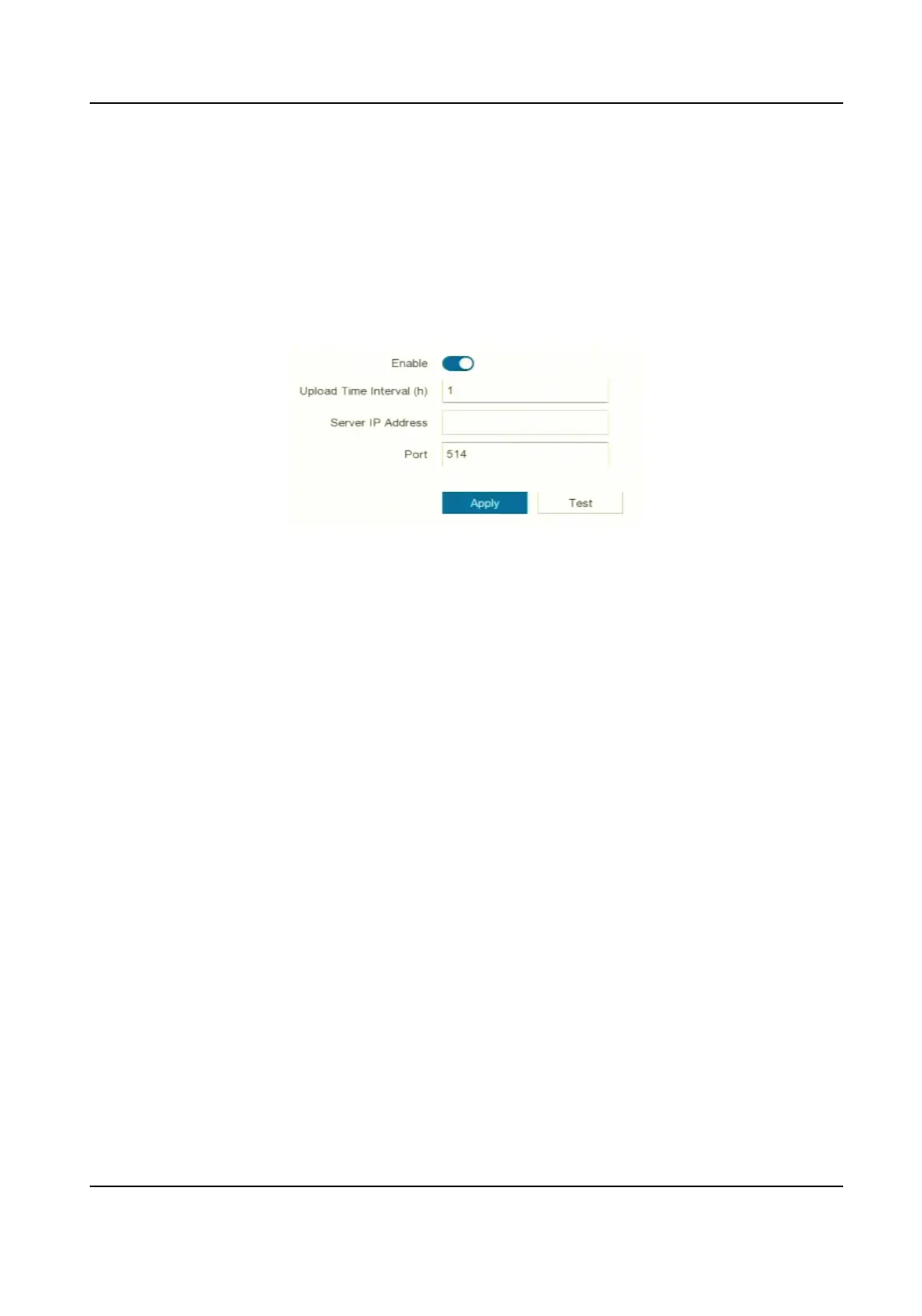
1. Go to Conguraon → Network → General → Log Server Sengs .
Figure 6-6 Log Server Sengs
2. Turn on Enable
3. Set Upload Time Interval, Server IP Address, and Port.
4.
Oponal: Click Test to test if parameters are valid.
5. Click Apply.
One-Way
Authencaon
You can install a CA cercate (from the server) to your device to authorize the server via web
browser. It would improve the log communicaon security.
Before You Start
●
Download the CA
cercate from the server.
●
Ensure log server parameters are valid.
Steps
1. Go to Conguraon → Network → Advanced Sengs → Log Server Conguraon .
Digital Video Recorder User Manual
39



 To Next Page