Steps
1. Go to Conguraon → Camera → IP Camera .
2. Click to edit the selected camera.
Channel Port
If the connected device is an encoding device with mulple channels, you can select the
channel port No. to choose a
connecng channel.
3. Click OK.
5.3.3 OSD Sengs
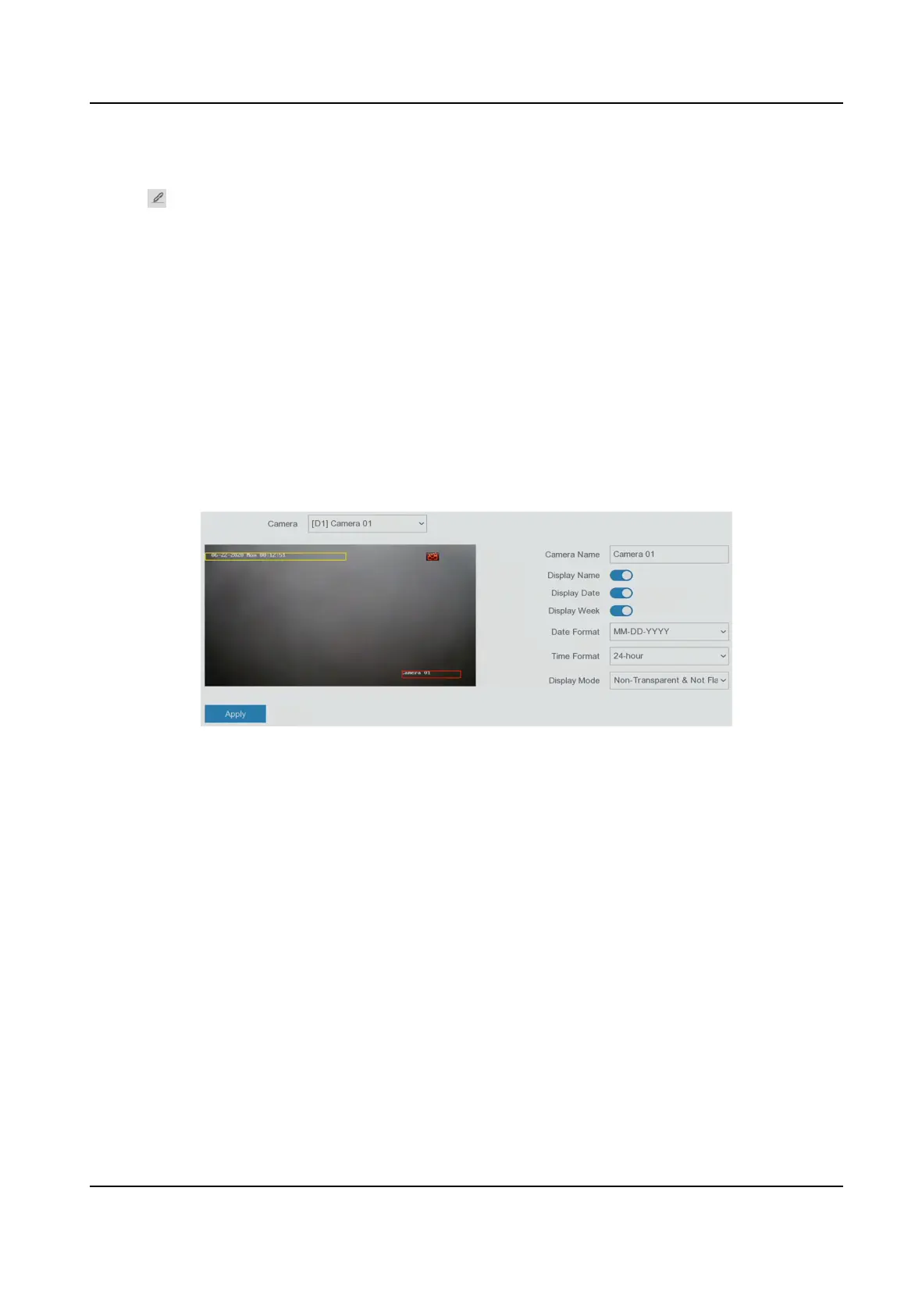
Congure OSD (On-Screen Display) sengs for the camera, including date format, camera name,
etc.
Steps
1. Go to
Conguraon → Camera → OSD .
2. Select a camera.
Figure 5-10 OSD
3. Set parameters as your desire.
4. Drag the text frames on the preview window to adjust the OSD
posion.
5. Click Apply.
5.3.4
Moon Detecon
Moon detecon enables the video recorder to detect the moving objects in the monitored area
and trigger alarms.
Steps
1. Go to Conguraon → Camera → Moon Detecon .
2. Select a camera.
3. Check Enable.
4. Set the
moon detecon area.
-
Click Draw Area or Clear to draw or clear areas. The
rst area is set as full screen by default.
Digital Video Recorder User Manual
24



 To Next Page