2. SETUP
2-22
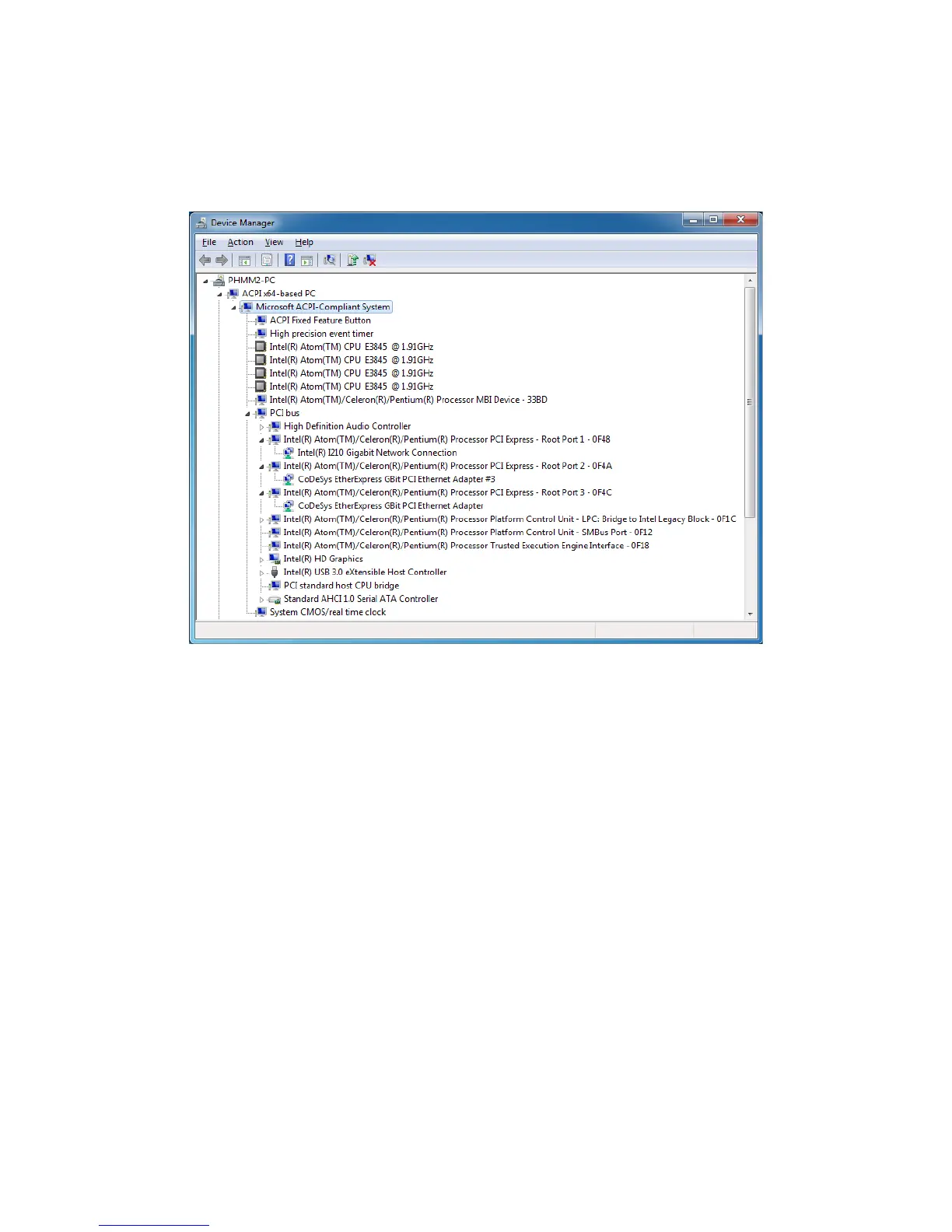
6. As in the following example, right-click on the network adapter where you want to update
the driver. Then a menu appears. Click Update Driver Software.
The following screenshot is just an example. Be aware that network adapter names are
displayed differently for the HF-W100E/IoT.
<To update the driver for built-in LAN (LAN A)>
Click Intel(R) Atom(TM)/Celeron(R)/Pentium(R) Processor PCI Express – Root
Port1 – 0F48. Then, right-click on the network adapter displayed below (in the example
above, Intel(R) I210 Gigabit Network Connection (*)).
<To update the driver for built-in LAN (LAN B)>
Click Intel(R) Atom(TM)/Celeron(R)/Pentium(R) Processor PCI Express – Root
Port2 – 0F4A. Then, right-click on the network adapter displayed below (in the example
above, CoDeSys EtherExpress GBit PCI Ethernet Adapter #3 (*)).
<To update the driver for built-in LAN (LAN C)>
Click Intel(R) Atom(TM)/Celeron(R)/Pentium(R) Processor PCI Express – Root
Port3 – 0F4C. Then, right-click on the network adapter displayed below (in the example
above, CoDeSys EtherExpress GBit PCI Ethernet Adapter #2 (*)).
(*) Network adapter names are displayed differently for the HF-W100E/IoT.






 To Next Page