EQUIPMENT DESCRIPTION
9
2.3.3 Battery Charging
It’s a good idea to charge up to four batteries while you are installing the other equipment. Charging
takes about 2.5 hours. When the batteries are fully charged, install them in the headset as shown in
Section 2.2.3 and Section 2.2.5.
Procedure:
Insert batteries in the charging ports for charging. The batteries can only be inserted into the charging
ports one way. If they do not slide in easily, turn them around. DO NOT force them. Push each battery
down into a port until it snaps in place.
Battery Status Lights:
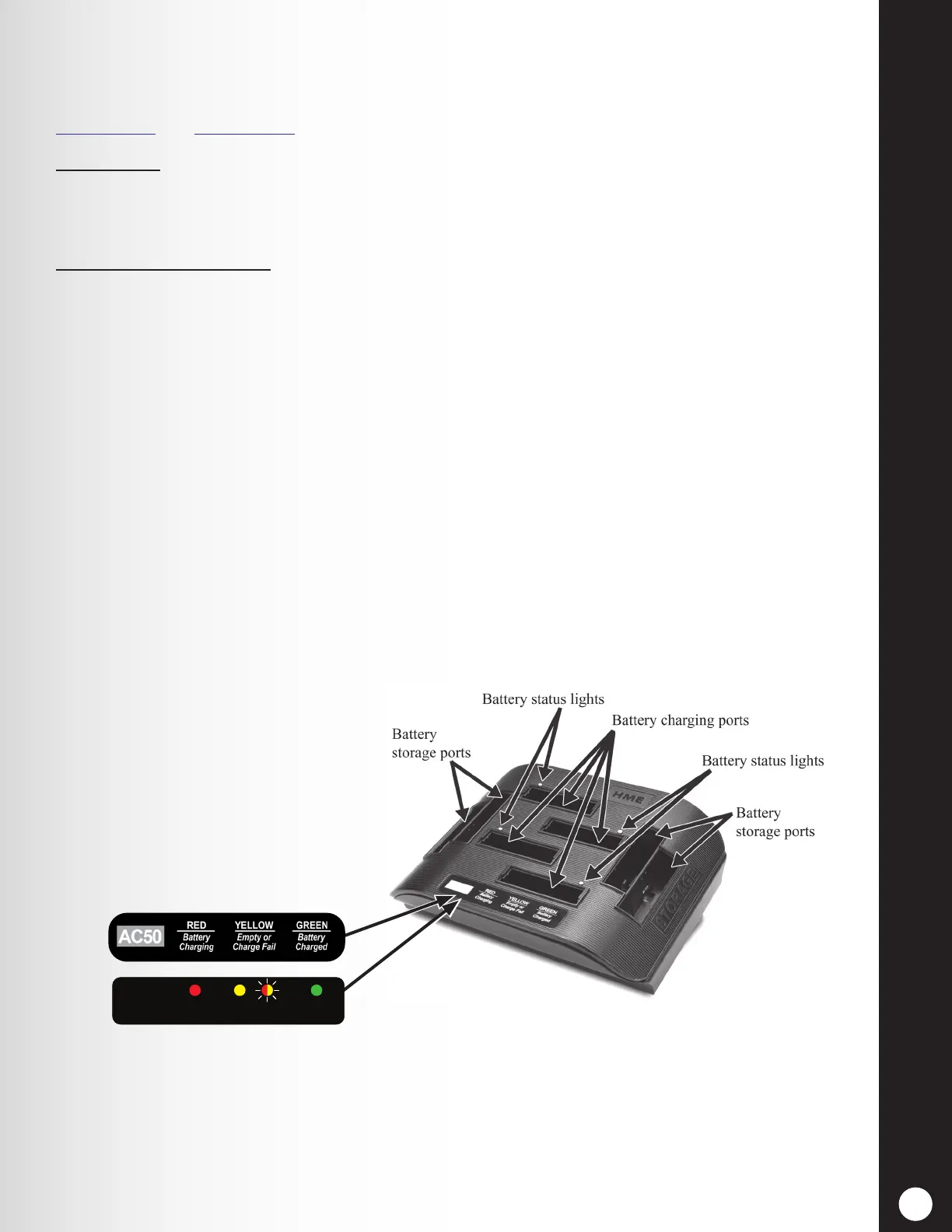
The battery status lights indicate the charging status, as shown on the battery status guide at the bottom
of the battery charger front panel.
h A YELLOW LIGHT stays on steady next to each charging port while the port is empty.
h Insert a battery in one of the four charging ports until it clicks in place.
h A RED LIGHT will stay on next to a battery while it is charging.
h A GREEN LIGHT will go on next to a battery when it is fully charged.
h If a YELLOW LIGHT is on steady or a YELLOW and RED LIGHT is ashing next to a battery
in a charging port, it means the charge failed (yellow/red ashing only occurs on battery
chargers using the second Battery status guide label shown in Figure 12). If this happens:
○ Be sure the battery is pushed all the way into the port until it snaps into place to make
contact.
○ Try charging it in a different port. If it charges this time, the rst charging port may
be defective. If the battery does not charge in the second port, replace it with another
battery.
h Store up to four fully charged batteries in the storage ports.
Figure 12. AC50 Features and Battery Status Guide
Battery status guide
Charging Empty/Fault Charged
AC50
or
or



 To Next Page