MAN1032-10-EN_EXL6_UserManual
March 12, 2020 27 | 191
5.2 System Menu – Navigation and Editing
As mentioned above, the System Menu is started by pressing the System key on the EXL6. Next
press ESC to exit the System Menu or use and to select an item and press Enter to display
the item’s Sub-Menu.
A Sub-Menu generally shows a list of System Settings and their values. After opening a Sub-
Menu, if any of its System Settings are editable, the first System Setting that can be edited is
highlighted. If desired, the and keys can be used to select a different System Setting to be
edited.
At this point, either press ESC to exit the Sub-Menu (returning to the Main Menu) or press Enter
to edit the highlighted System Setting. If Enter is pressed, the System Setting’s value will be
highlighted, indicating that it is ready to be modified.
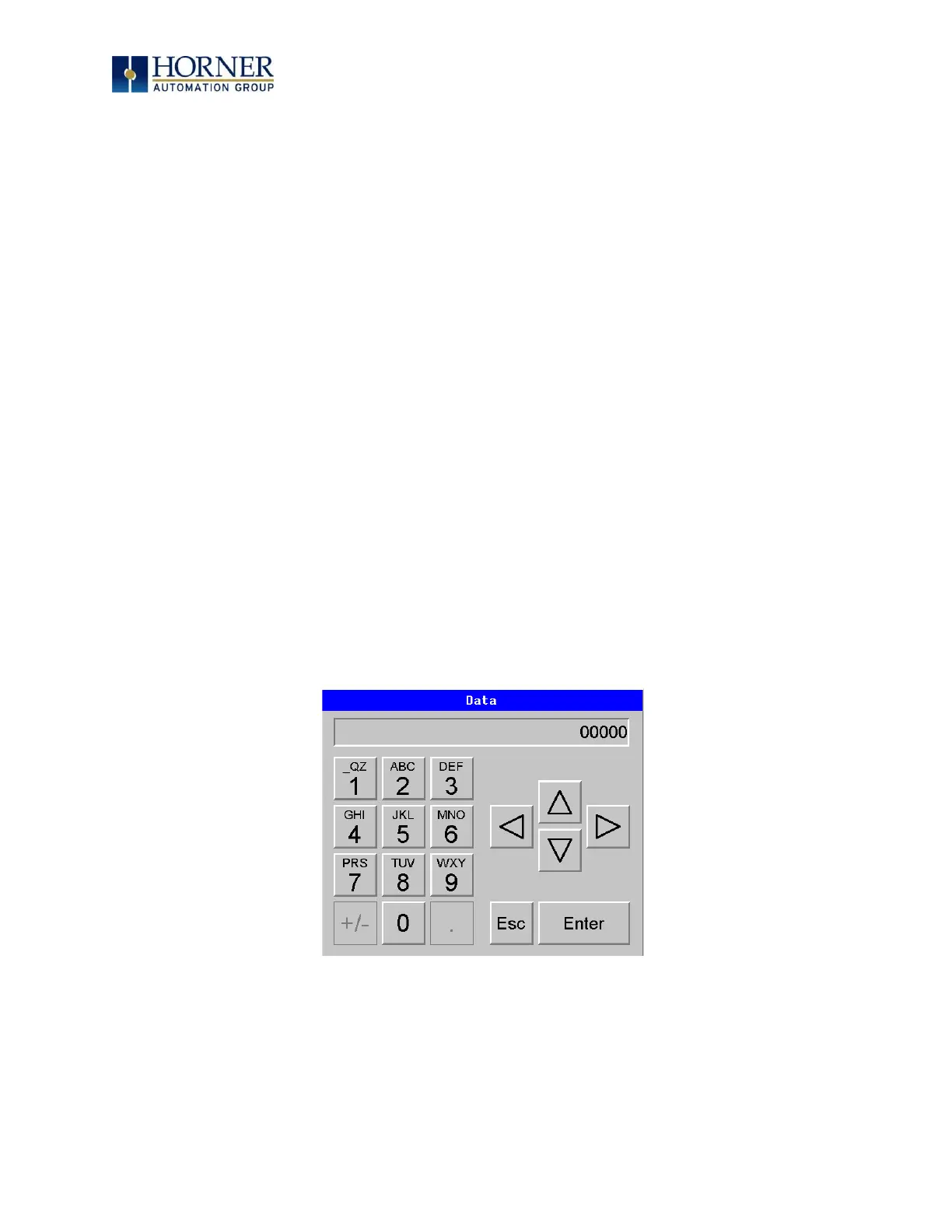
When modifying a System Setting’s value, use either the arrow keys ( → ) or the numeric
keys, or the appropriate touch screen icons to select a new value.
The arrow keys are used to edit System Settings that have just a few possible values. Each time
the arrow key is pressed, a new possible value is displayed. When the desired value appears,
press the Enter key to save it; otherwise press the ESC key to cancel the edit.
The numeric keys are normally used to enter numeric System Settings. In addition, to edit a
single numeric digit, use the or → key to select the digit and then either press a numeric
key or use or to modify the digit. In any case, after entering the new desired value, press
the Enter key to save it; otherwise press the ESC key to cancel the edit.



 To Next Page