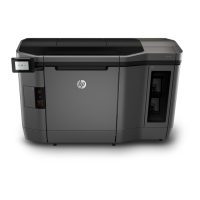
1. At the printer’s front panel, tap the Jobs icon on the home screen.
2. If the build unit has not been inserted, open the door and insert the build unit by pushing the
handles.
3. Select the processed job and tap Print.
4. The printer checks that all subsystems and supplies are ready to complete the build. If one of
them is not ready, the printer notifies and advises you: a notification appears in the job details with
an accessible summary of any issues. If necessary, correct the issue(s) and resend the job for
printing.
5. The printer starts the printing process. Wait until the printer tells you that the process is complete,
then remove the build unit.
Add job while printing
If you have available space in the build unit and enough material, you can add a job to be printed while
the pr
evious job is still being printed.
To do so, select the job to be printed and tap Add. The printer checks whether it can be added, and adds
it if feasible.
On the Jobs page, the FINISH line shows the total time to finish the currently printing job and the
following jobs in the queue. It is updated whenever a job is added or removed.
Add job while printing 73



 To Next Page
 Loading...