Camera and Video 149
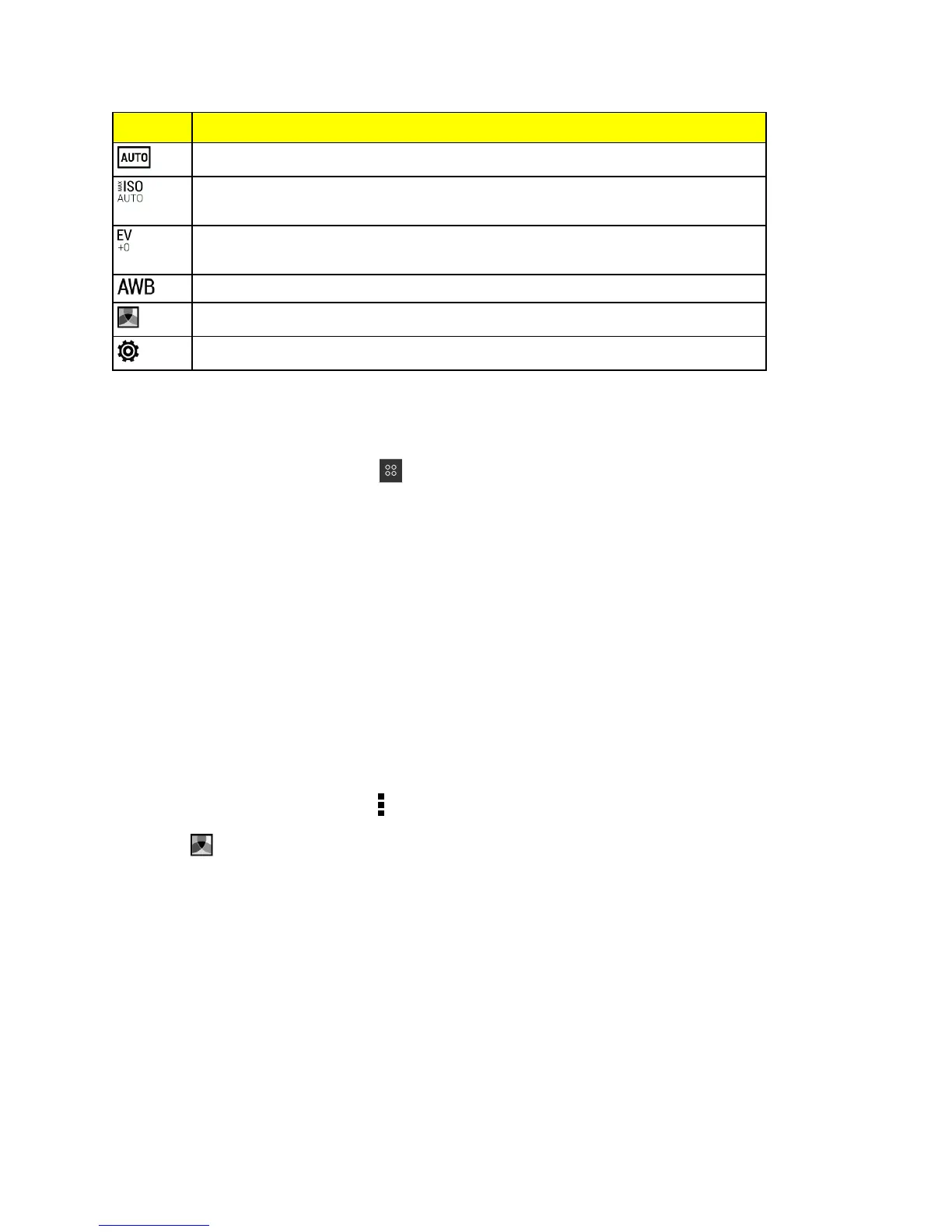
Control What it does
Seeacollectionofcamerasceneswhentakingphotosandvideos.
ChooseanISOlevelorsetitbacktoAuto.HigherISOworksbestinlowlight
conditions.
Adjusttheexposuresettings.Higherexposuresettingscapturemorelightfor
yourphotosorvideos.
Selectawhitebalancesettingthatmatchesyourcurrentlightingenvironment.
Applyphotoorvideofilters.
Modifybasicandadvancedcamerasettings.
ChooseaCaptureMode
Yourphonegivesyouavarietyofcapturemodestoenjoy.
n
OntheViewfinderscreen,touch ,andthenselectacapturemodetouse.
Tip:ChooseCameramodeifyouwantyourphotosreadyforDuoEffectseditinginGallery.See
DuoEffectsfordetails.
Zooming
n Beforetakingaphotoorvideo,slidetwofingersaparttozoominortogethertozoomout.
n Whenyou’rerecordingvideo,youcanfreelyzoominoroutwhilerecording.
ApplyaFilter
Usetheavailablefilterstomakeyourphotosandvideoslooklikethey’vebeentakenthroughspecial
lenses.
Note:Somecameramodesmaynotsupportfilters.
1.
OntheViewfinderscreen,touch toshowthecameraoptions.
2.
Touch ,andthenchooseoneoftheavailablefilters.
ChooseaFlashMode
n OntheViewfinderscreen,touchtheflashicontochooseaflashmode.
WhenusingFlashonorAutoflashmode,thecameraintelligentlysetsthebestflashbrightnessfor
yourphoto.
UsetheVolumeButtonsforTakingPhotosandVideos
Ifyoufeelmuchcomfortablewithusingpush-buttonswhentakingphotosandvideos,youcanset
yourphonetousetheVolumebuttonsastheCameraapp'sshutterreleaseorzoomcontrols.



 To Next Page