Phone Basics 30
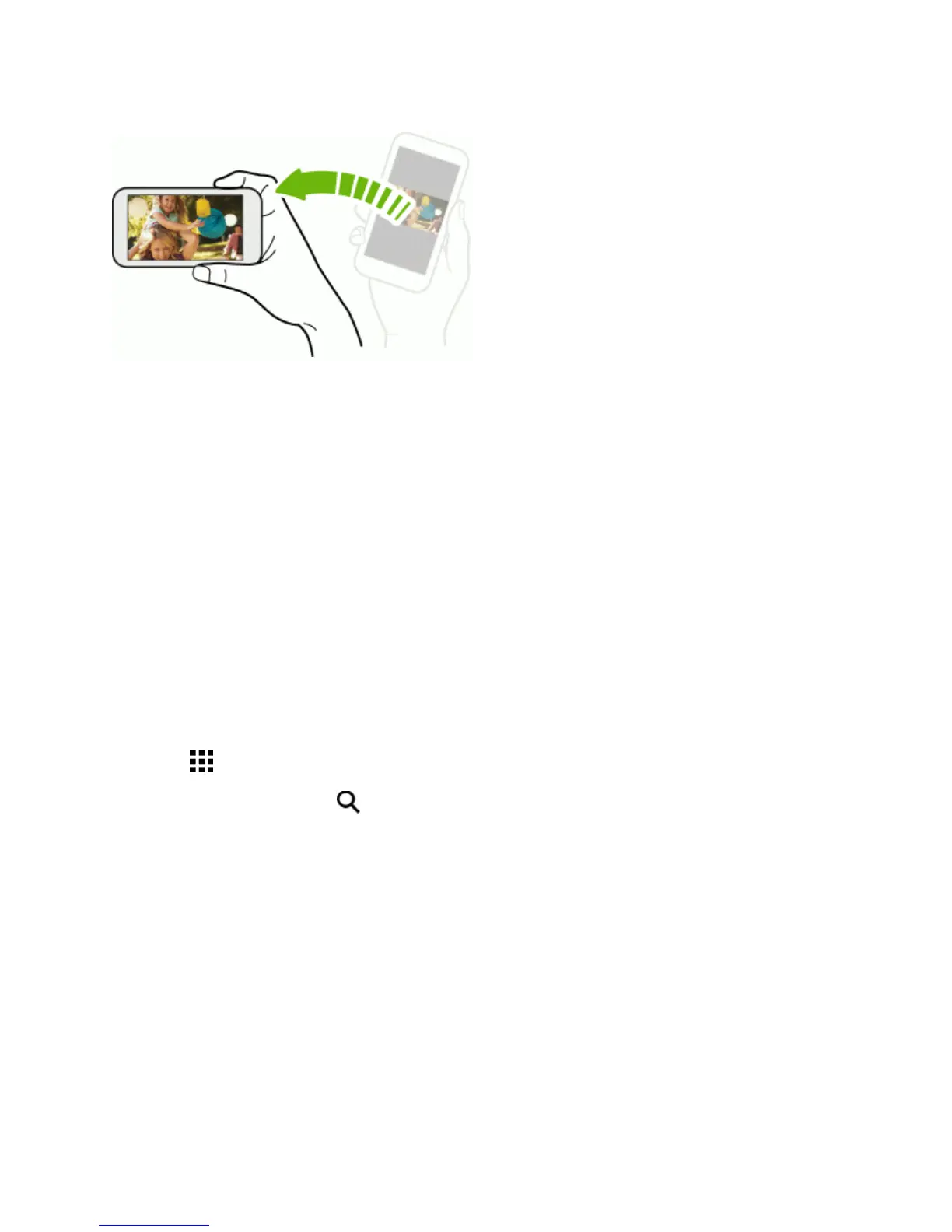
Toturnthisfeatureoff,cleartheAutorotate screenoptioninSettings>Display & gestures.
Note:TheTalkBackaccessibilityfeatureworksbestifyouturnoffauto-rotate.Fordetails,see
NavigateYourPhonewithTalkBack.
Working with Phone Apps and Settings
Quicklyopenyourfavoriteappsevenwhenthephonescreenislockedandeasilychangeyour
phonesettingstomakeittrulyyours.
Open an App
ThereareseveraloptionsforopeninganappfromtheHomescreen.
n TouchanapponthelaunchbaratthebottomoftheHomescreen.
n
Touch togototheAppsscreen,andthentouchtheappyouwanttouse.
n
OntheAppsscreen,touch ,andthenenterthenameoftheappyou’relookingfor.
OpenanApporFolderfromtheLockScreen
n Onthelockscreen,draganapporfoldericonuptounlockthescreenanddirectlygototheapp
orfolder.
Ifyou’vesetupascreenlock,you’llbeaskedtoprovideyourcredentialsfirstbeforeyourphone
openstheapporfolder.
Tip:TheshortcutsonthelockscreenarethesameonesonyourHomescreen’slaunchbar.To
changethelockscreenshortcuts,you’llhavetoreplacetheappsorfoldersonthelaunchbar.



 To Next Page