Phone Basics 32
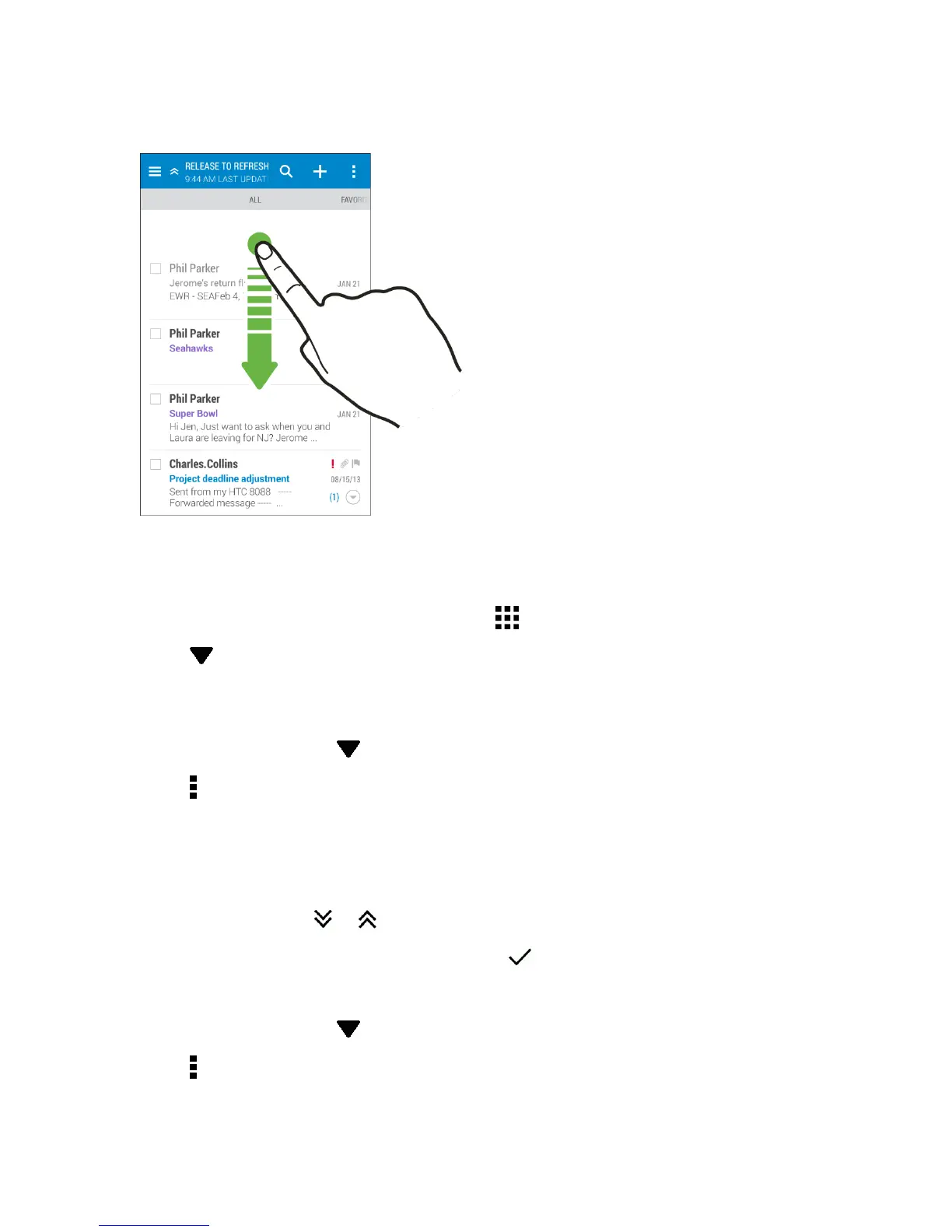
2. Pulldownthescreenwithyourfinger,andthenreleasetorefresh.
ArrangeAppsontheAppsScreen
PersonalizetheAppsscreentoyourliking.Youcanrearrangetheappsandchangethelayout.
1.
FromHTCBlinkFeedoranywidgetpanel,touch .
2.
Touch andthenchoosehowtoarrangeapps,suchasalphabetically.Ifyouwanttogroup
appsintofoldersorrearrangethem,selectCustom.
MoveAppsandFolders
1.
OntheAppsscreen,touch >Custom.
2.
Touch >Rearrange apps.
3. Touchandholdanapporfolder,andthendooneofthefollowing:
l Dragtheapptoanotherpositiononthesamepage.Waituntilyouseetheoccupyingicon
moveawaybeforereleasingyourfinger.
l
Dragtheapptothe or arrowtomoveittoanotherpage.
4.
Whenyou’redonemovingappsandfolders,touch .
GroupAppsintoFolders
1.
OntheAppsscreen,touch >Custom.
2.
Touch >Rearrange apps.
3. Touchandholdanapp,andthendragitovertoanotherapptoautomaticallycreateafolder.



 To Next Page