5. Tap the screen or OK button to save the settings.
3.6 Phone Lock
From the home screen, tap > Phone Lock > Switch. The Switch screen is displayed. You
can enable or disable the phone lock function as required. For details about how to use the phone
lock function, see 4.8 Phone Lock.
3.7 Phone Info
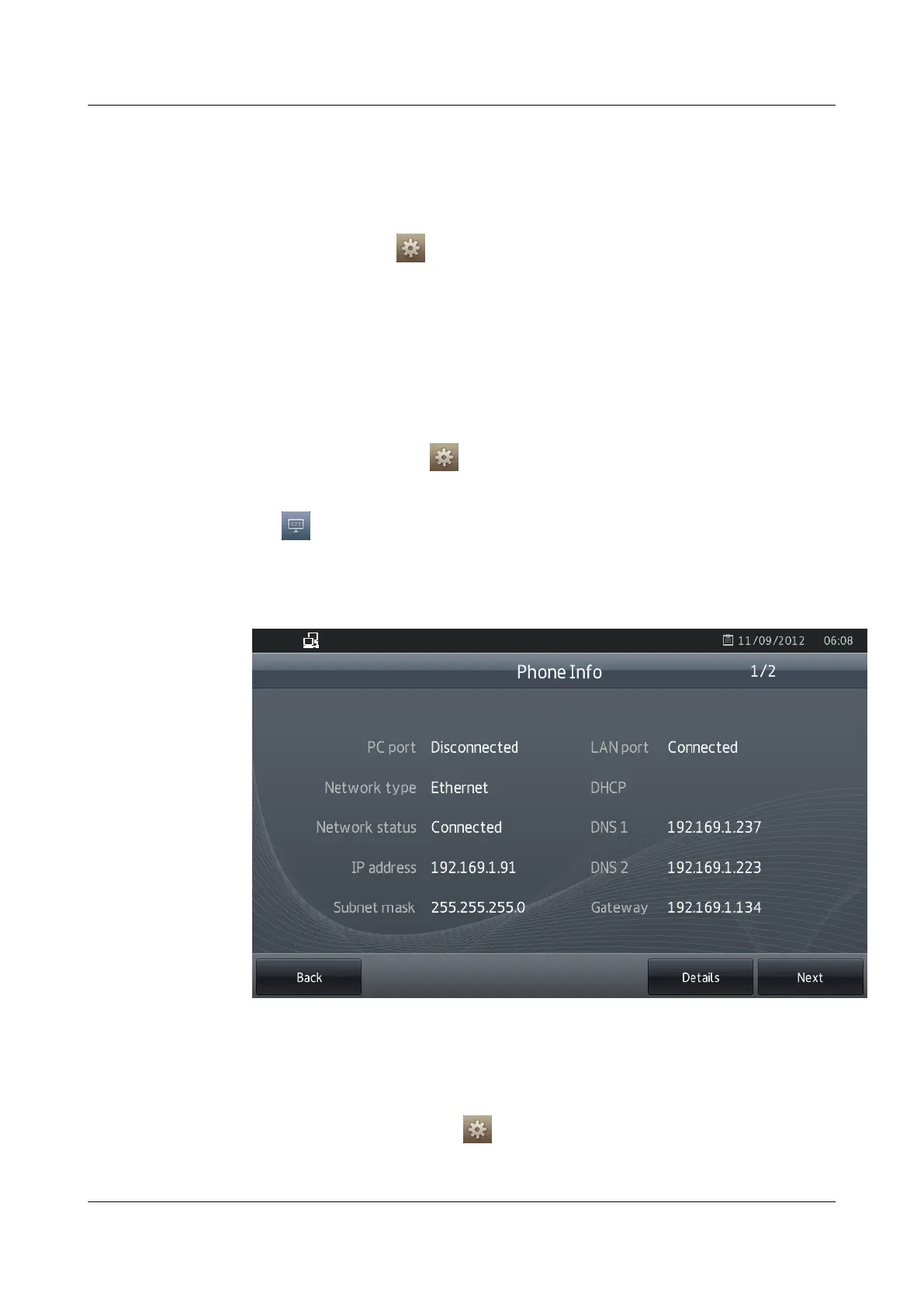
The Phone Info screen displays the status of eSpace 8850. If eSpace 8850 is faulty, check the
device information before you seek help from the service provider.
1.
From the home screen, tap
.
The Settings screen is displayed.
2. Tap .
The Phone Info screen is displayed, as shown in Figure 3-1.
Figure 3-1 Phone Info screen
3.8 Cordless Handset
1. Start registration on the phone.
a. From the home screen, tap
.
The Settings screen is displayed.
eSpace 8850 Video Phone
User Guide
3 Setting eSpace 8850
Issue 08 (2014-08-25) Huawei Proprietary and Confidential
Copyright © Huawei Technologies Co., Ltd.
21


 To Next Page