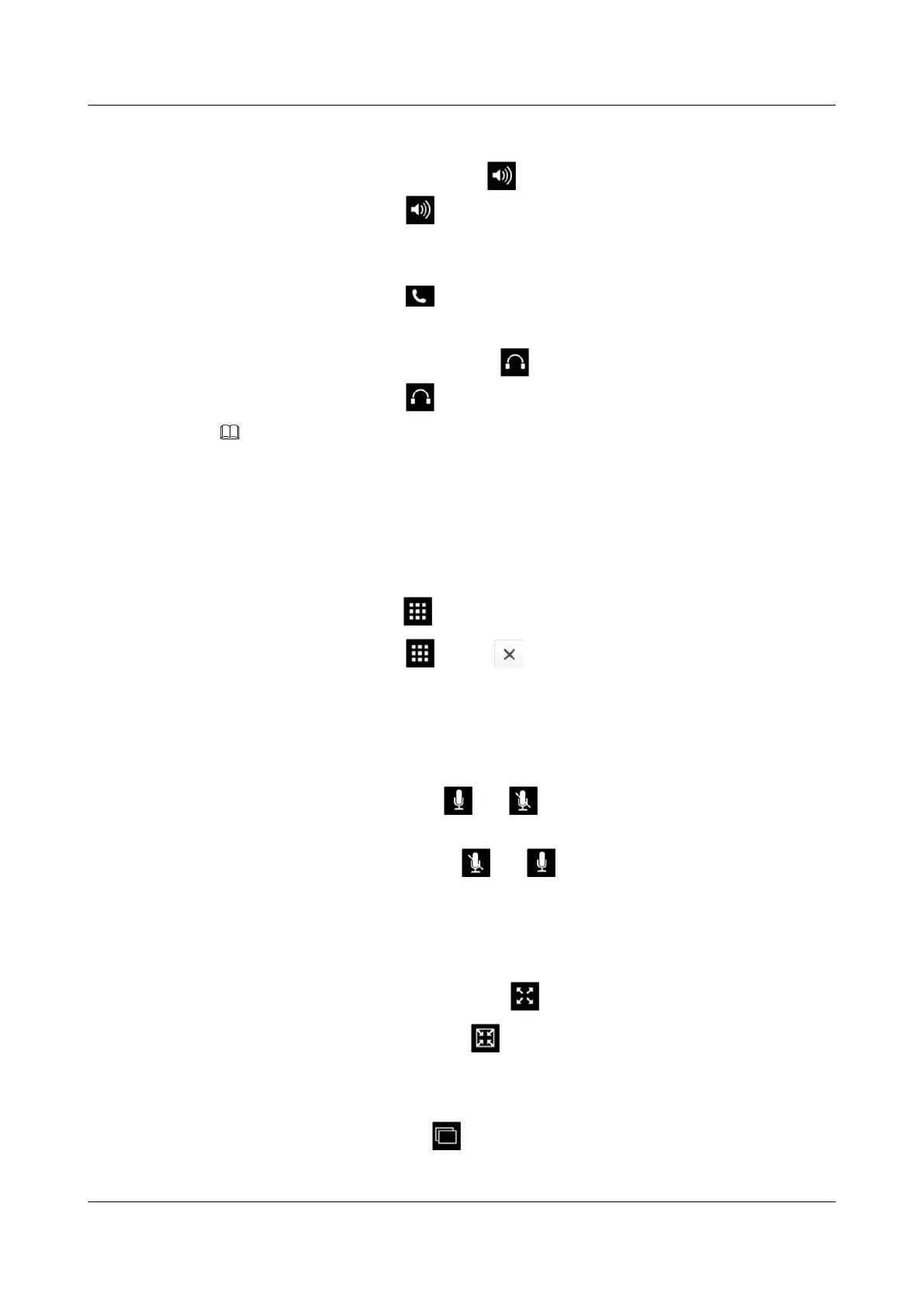
l Switch to the hands-free mode.
In the handset or headset mode, tap . eSpace 8850 is switched to the hand-free mode.
The status bar displays .
l Switch to the handset mode.
In handset mode, you can pick up the handset to switch eSpace 8850 to the handset mode.
The status bar displays
.
l Switch to the headset mode.
In the handset or hand-free mode, tap . eSpace 8850 is switched to the headset mode.
The status bar displays .
NOTE
If you answer an incoming call by tapping the screen, eSpace 8850 automatically enters the hands-free mode
by default.
4.6.3 Opening or Closing the Dialer
During a call, you can open or close the dialer.
1. To open the dialer, tap
.
2. To close the dialer, tap again or on the dialer.
4.6.4 Muting or Unmuting the Microphone
During a call, you can mute or unmute the microphone.
1. To mute the microphone, tap
. The button is displayed, and you will not be heard
by the other party.
2. To unmute the microphone, tap . The button is displayed.
4.6.5 Playing Videos in Full Screen Mode
During a video call, you can play videos in full screen mode.
1. To play videos in full screen mode, tap
.
2. To return to the original size, tap .
4.6.6 Switching Among Local Video, Remote Video, and PIP Modes
During a video call, you can tap to cycle through the local video, remote video, and PIP
modes, as shown in Figure 4-6.
eSpace 8850 Video Phone
User Guide
4 Phone Features
Issue 08 (2014-08-25) Huawei Proprietary and Confidential
Copyright © Huawei Technologies Co., Ltd.
38

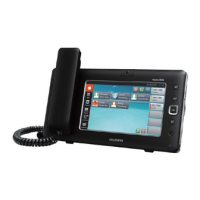

 To Next Page