7.2.7 Setting the Date Format
1. In standby mode, press MENU to display the main menu.
2. Use the navigation buttons to highlight Date and time, and then select Select or press
OK.
3. Use the down navigation button to highlight Date format, and then select Select.
4. Select a date format as required, and then select Select to save the setting and return to the
upper-level menu.
7.2.8 Setting the Time Format
1. In standby mode, press MENU to display the main menu.
2. Use the navigation buttons to highlight Date and time, and then select Select or press
OK.
3. Use the down navigation button to highlight Time format, and then select Select.
4. Select a time format as required, and then select Select to save the setting and return to the
upper-level menu.
7.2.9 Adjusting the Display Contrast
1. In standby mode, press MENU to display the main menu.
2. Use the navigation buttons to highlight Display, and then select Select or press OK.
3. Select Select again to select Contrast and display the current contrast.
4. Use the navigation buttons to adjust the contrast as required (11 contrast ratios are
available), and then select Select.
7.2.10 Setting the Wallpaper
1. In standby mode, press MENU to display the main menu.
2. Use the navigation buttons to highlight Display, and then select Select or press OK.
3. Use the up or down navigation button to select Wallpaper, and then select Select to display
the current wallpaper.
4. Use the navigation button to select a wallpaper as required, and then select Select.
7.2.11 Setting the Background Color
1. In standby mode, press MENU to display the main menu.
2. Use the navigation buttons to highlight Display, and then select Select or press OK.
3. Use the up or down navigation button to select Background col., and then select Select to
display the current background color.
4. Use the navigation button to select a background color as required (nine colors are
available), and then select Select.
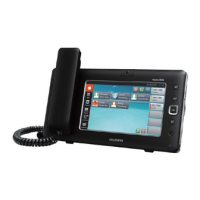
eSpace 8850 Video Phone
User Guide
7 Using the Cordless Handset (Sold Separately)
Issue 08 (2014-08-25) Huawei Proprietary and Confidential
Copyright © Huawei Technologies Co., Ltd.
64


 To Next Page