5.2 Call Waiting
When there is an incoming call during a call, the line indicator blinks in red, and the new
incoming call screen is displayed.
NOTE
l To use the call waiting service, ensure that your account has been assigned the call waiting service
right. If you have any questions, contact the system administrator.
l To user the call waiting service, ensure that at least two lines have been configured for your account
and at least one line is idle.
You can perform the following operations to enable or disable the call waiting function.
1.
On the home screen, tap
> Call Service > Call Waiting. The Call Waiting screen is
displayed.
2. Enable or disable the call waiting function.
l Tap Enable to enable the call waiting function.
l Tap Disable to disable the call waiting function.
3. Tap Save to save the settings.
5.3 Call Hold
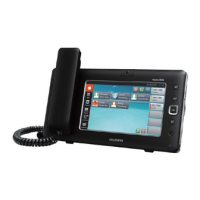
The eSpace 8850 video phone supports the call hold function.
When a call is in process, you can:
l Tap Call Hold to hold the call.
After the call is held, the Holding call... is displayed, and the line button blinks in blue.
NOTE
If the call hold function is enabled by yourself, you cannot end the call.
l Tap Resume to resume the call.
When multiple calls or three-party conferences are connected on the phone, you can tap the line
button to hold or resume a call.
5.4 Call Transfer
You can use the call transfer function to transfer a call to a third party and then quit the call.
eSpace 8850 supports the following call transfer modes: blind transfer, semi-consult transfer,
and consult transfer.
l Blind transfer: Tap Transfer during a call. After dialing the number, tap Finish to transfer
the call to the destination number.
l Semi-consult transfer: Tap Transfer during a call and enter a destination number. After
hearing the ringback tone, tap Finish to transfer the call to the destination number.
eSpace 8850 Video Phone
User Guide
5 IPT Features
Issue 08 (2014-08-25) Huawei Proprietary and Confidential
Copyright © Huawei Technologies Co., Ltd.
49


 To Next Page