29
The Chimp groups fixture parameters in a sense full way by dividing them into seperate groups like
Intensity, Position, Color, Gobo, Beam, Shaper (Blades or Knifes in Profile Lights), Control, Macro and
Special.
You’ll see one more group called Effects, which is used to open the Shape Generator / FX Engine.
What is the programmer?
The “Programmer” is the place where all of the programming happens.
As soon as you modify a fixtures attribute value by using any of the value input methods described
below, it will show up in the programmer.
The programmer always takes precedence over cuelists, this way you may always at any point in a show
modify the look on stage – by using the programmer.
13.1.1 Different states of fixture attribute values
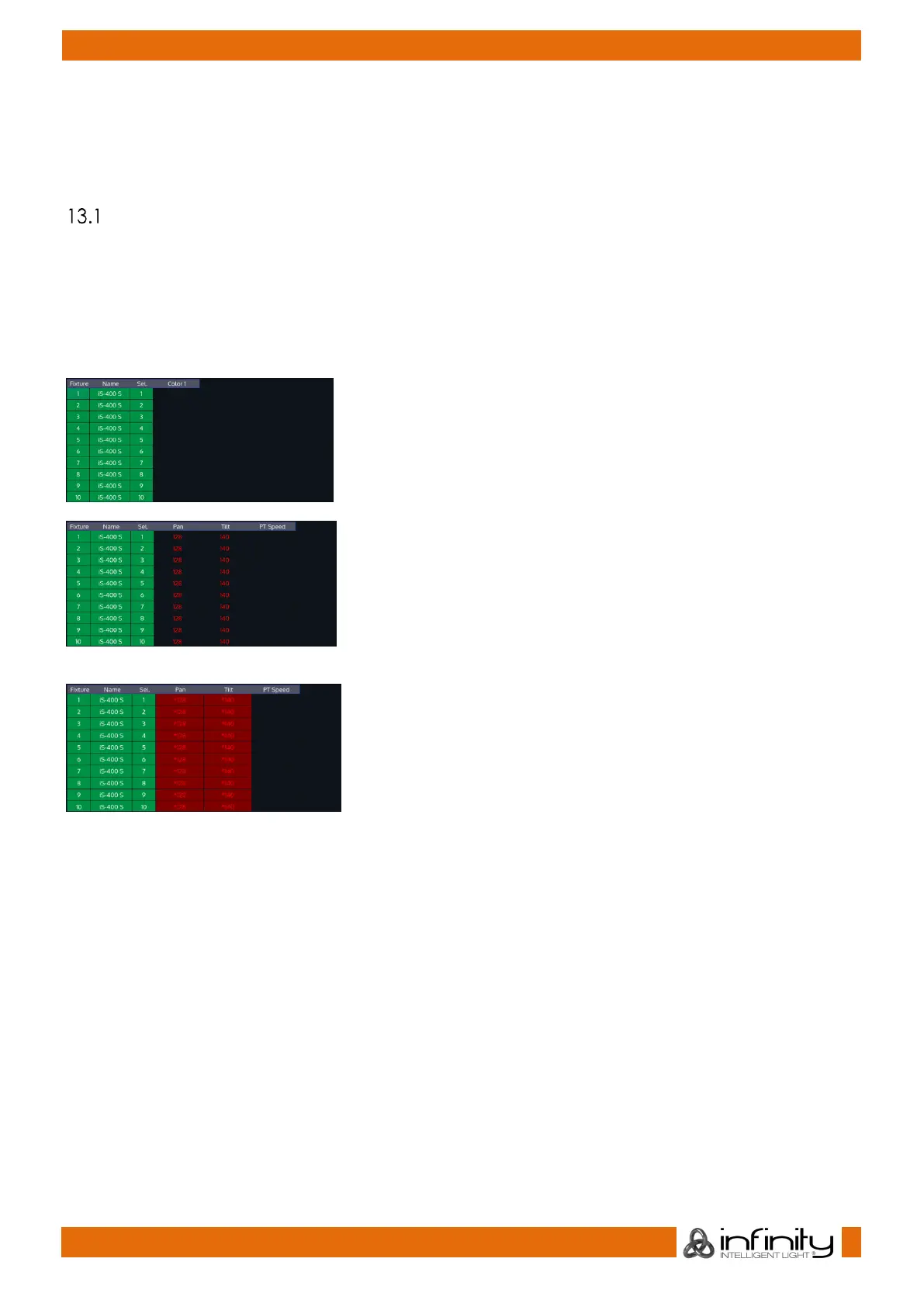
This image shows how the programmer looks like if you have
fixtures selected, but no values assigned to them. They are still
outputting values set by cuelists or their default values set in the
library.
This image shows how the programmer looks like if you have
fixtures selected, with values assigned in the programmer. The
programmer takes precedence over cuelist output for the
attributes with values in the programmer. However, these values
would not be recorded.
This screenshot shows how the programmer looks like if you
modified (touched) values of an attribute in the programmer.
The programmer takes precedence over cuelist output for all
attributes with values in the programmer. As soon as values are
“touched” (indicated by red background color of the
corresponding cell) they can be recorded.
The side menu of the programmer indicates which attribute groups have active (touched) values by
using a red border color. Attribute groups with inactive values will show an orange border color instead.
13.1.2 Emptying the Programmers „Content“
In order for all playbacks to re-gain control over the fixture attributes contained in the programmer, the
programmer needs to be cleared out. This happens in three steps with each press of the [Clear] key.
The first press of the [Clear] key will un-touch all values, however they are still in the programmer overriding
the playback. The second press of the [Clear] button will remove all values from the programmer and
playback values will be output again. The third and last press will unselect all fixtures that were selected.
In short, three times [Clear] will clear the programmer:
[Clear] [Clear] [Clear]


 To Next Page