33
14.1.2 Select a Preset using the Preset Split Widget
Once you selected the Presets button in one of the Split Widget Menus, this particular split widget will
change to “Preset” mode.
As soon as you select fiixtures, Chimp will figure out which of your presets can be applied to all or only
some of your fixtures, and which can not be applied as well. This will be presented by the preset pool in
an appealing way.
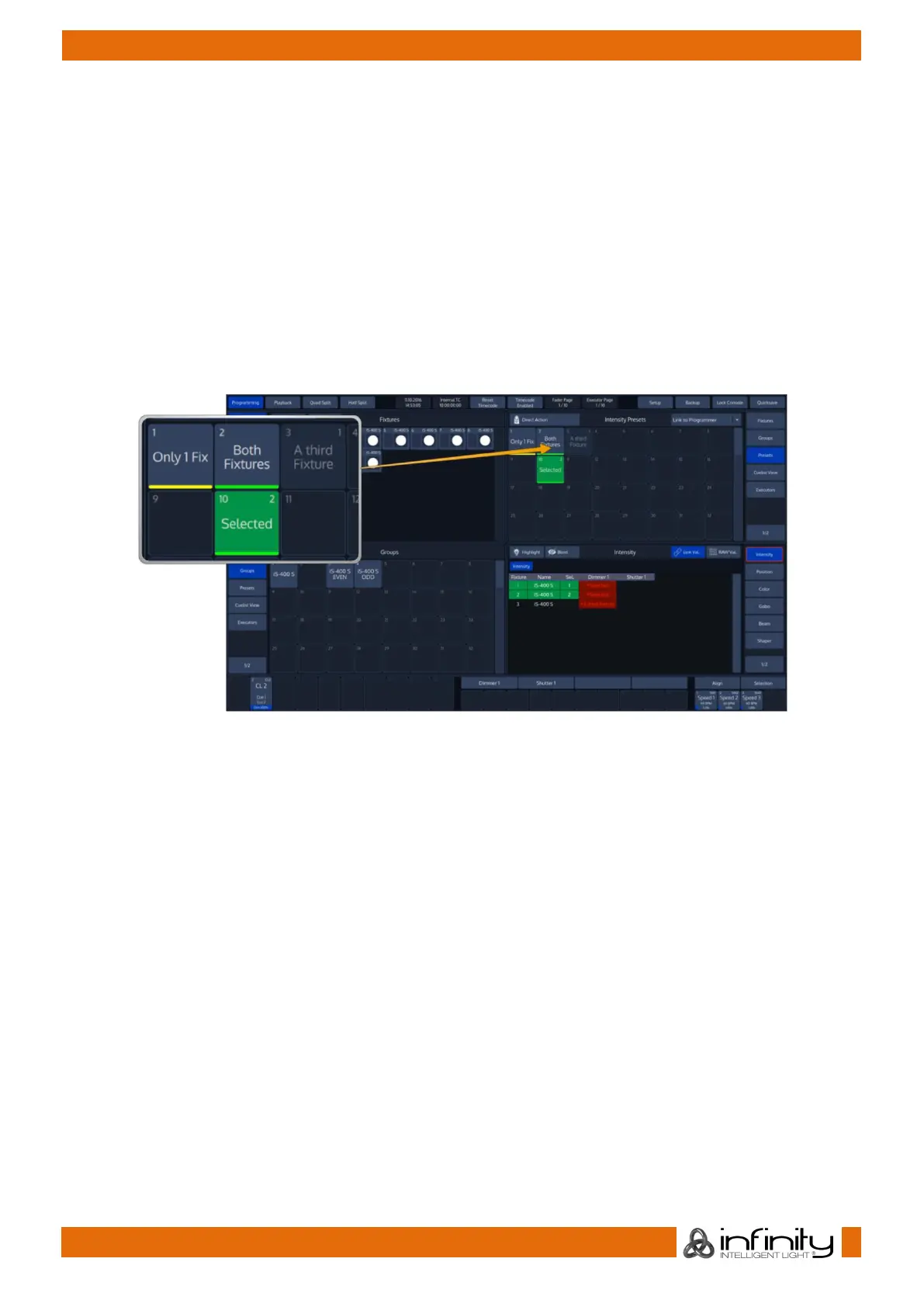
Presets that can not be applied at all will fade into the background. Those who can only be applied to a
part of your selection will have a little yellow bar at the bottom. And presets that may be applied to all of
your selected fixtures will show a green bar.
If this preset has been applied to fixtures in the programmer, the preset will show how many fixtures it is
applied to in the top right corner.
Fig. 42: Preset Item States
Simply click on a Preset to select it. It will be applied to all the selected fixtures, this preset may be applied
to. Selected Items will be indicated by a green background color.


 To Next Page