35
16 Change Cuelist Timings
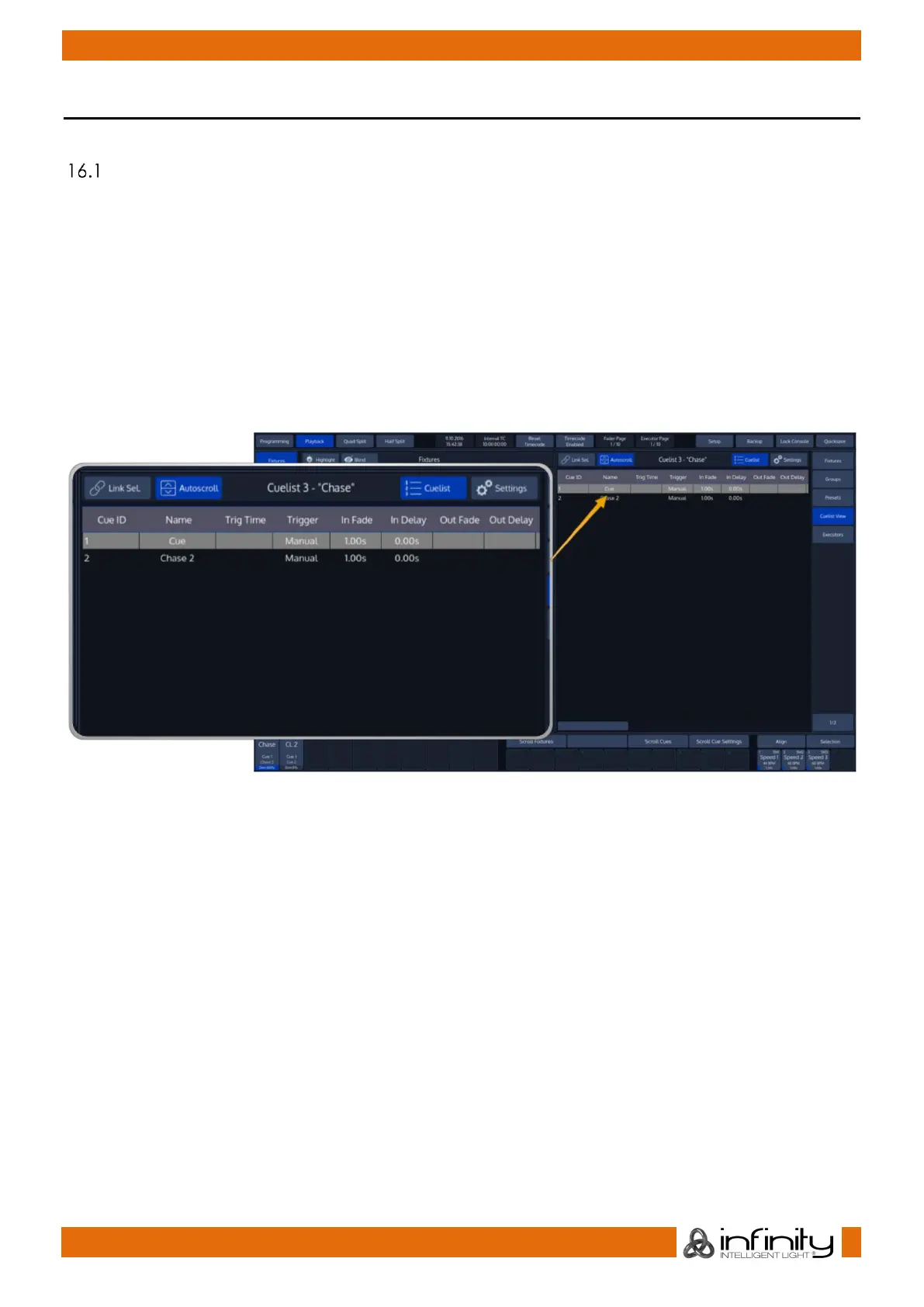
To change cuelist timings, you need to do so in the “Cuelist View”.
Opening the “Cuelist View”
To open the cuelist view for a Cuelist that is assigned to a Fader or Executor Button, press [Open] followed
by either a faders [Go], [Pause/Back] or an [Exec] key; or press a Master Executors softbutton.
To open the cuelist view for any Cuelist using the command line interface, press [Open] followed by
[Cuelist] [Number] [Enter] key.
For Example:
[Open] [Cuelist] [1] [Enter]
16.1.1 Assigning Timings and Changing Cue-Names
Within the Cuelist View, select the cell with the value you would like to change. Press the [Set] –key and
enter the appropriate value.
To have a Cue wait for x seconds before it advances to the next cue, select the cells in the Trig Time
column and press the [Set] key. A window will pop up and ask you for the amount this cue should be
waiting after the previous Cue before it starts.
To have a Cue listen to a speedmaster, select the cells in the Trigger column and press the [Set] key. A
window will pop up and ask you for the type of trigger.
The In Fade and Out Fade Columns are used for fade times. Unless you specified an Out Fade time, this
Cuelist will always use the In Fade time. Out Fade times only apply to fixtures that are lowering their
intensity value.
The In Delay and Out Delay Columns are used to specify a Delay time for the values recorded into this
Cue. Unless you specified an Out Delay time, this Cuelist will always use the In Delay time. Out Delay times
only apply to fixtures that are lowering their intensity value.


 To Next Page