38
19 Change Fader & Button behaviour
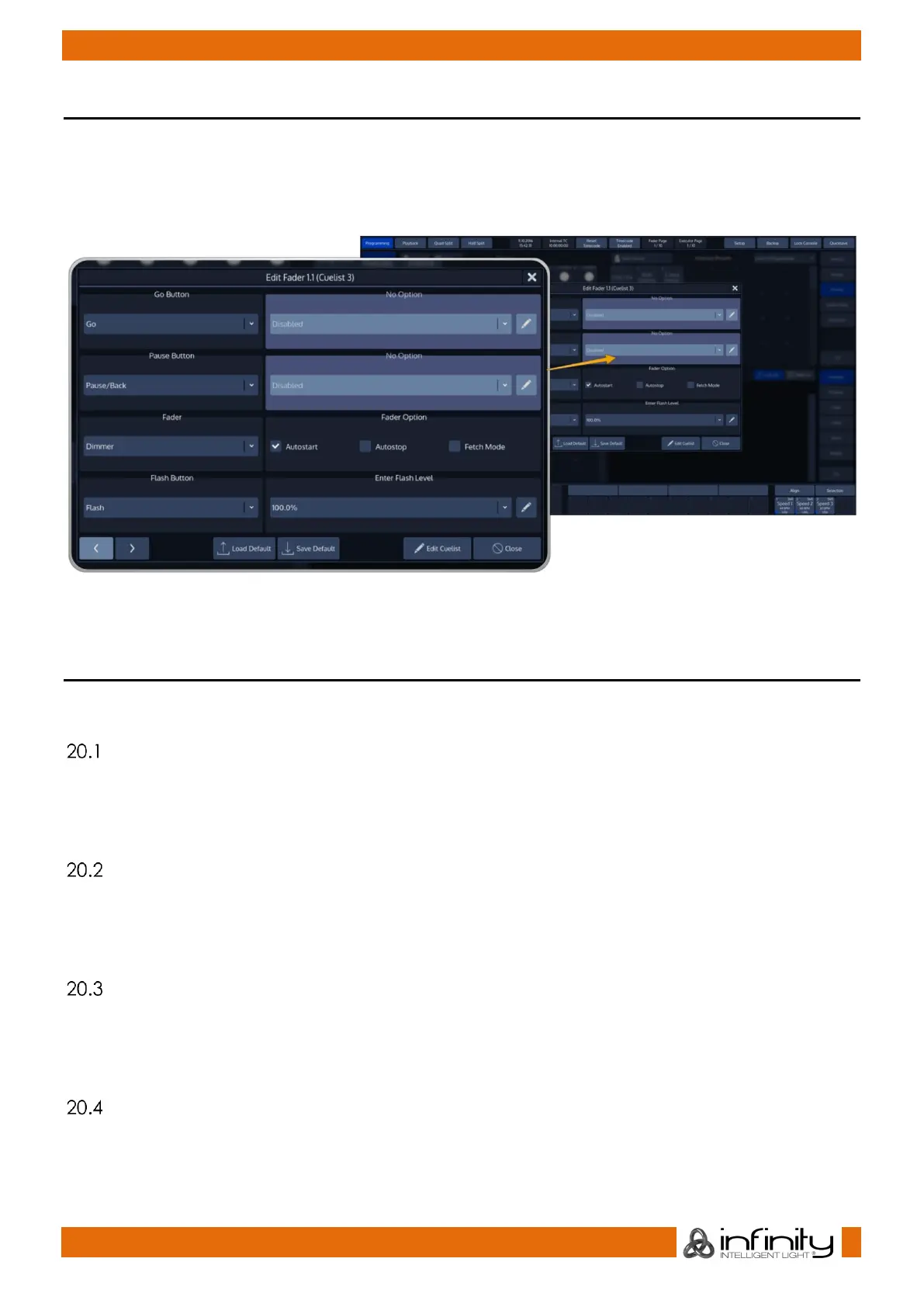
To change the behaviour of faders and buttons, press the [Edit] key followed by either a faders [Go],
[Pause/Back] or an [Exec]-key or a Master Executors softbutton.
Once the dialog opened up, you may change the action of each of the buttons and of the fader. There
are several configuration options available for different kinds of assigned objects.
20 How to use Fader & Executor Pages.
Pages store all assignments of Cuelist and Group Submasters, to enable them to be quickly recalled at a
later time. Pages do not store Levels of the faders and Cuelist states within the showfile.
Changing Fader Pages
Fader Pages may be changed at any time by pressing the [FPg Up] or the [FPg Down] buttons on the
frontpanel of the Chimp.
When Autofix is enabled in the Setup Menu, the console will carry over running playbacks to the new
Page, and will show the contents of the current page as soon as this playback is switched off.
Changing Exector Pages
Executor Pages may be changed at any time by pressing the [EPg Up] or the [EPg Down] buttons on the
frontpanel of the Chimp.
When Autofix is enabled in the Setup Menu, the console will carry over running playbacks to the new
Page, and will show the contents of the current page as soon as this playback is switched off.
Template Page
The template page is a page, which assignments will show on all other pages. This is especially helpful if
you want to have the same assignment on every page, front or audience lighting is a good use case for
this function.
To be able to set your page to the template for setup purposes, hit the [Templ] key on the frontpanel.
Opening up the “Fader-Page Directory” Window
To open up the Fader and Executor Page directory, click on the Fader- or Executor Page label in the Top
Toolbar of the Chimps User Interface.


 To Next Page