41
English
User Controls
Compatible
3D source, 3D
content and active
shutter glasses
are required for
3D viewing.
3D Format is only
supported on 3D
Timing on page
60.
“3D Format” is
only supported on
non-HDMI 1.4a 3D
timing.
“3D Sync. Invert”
is only available
when 3D is
enabled and this
mode 3D is for
DLP link glass
only.
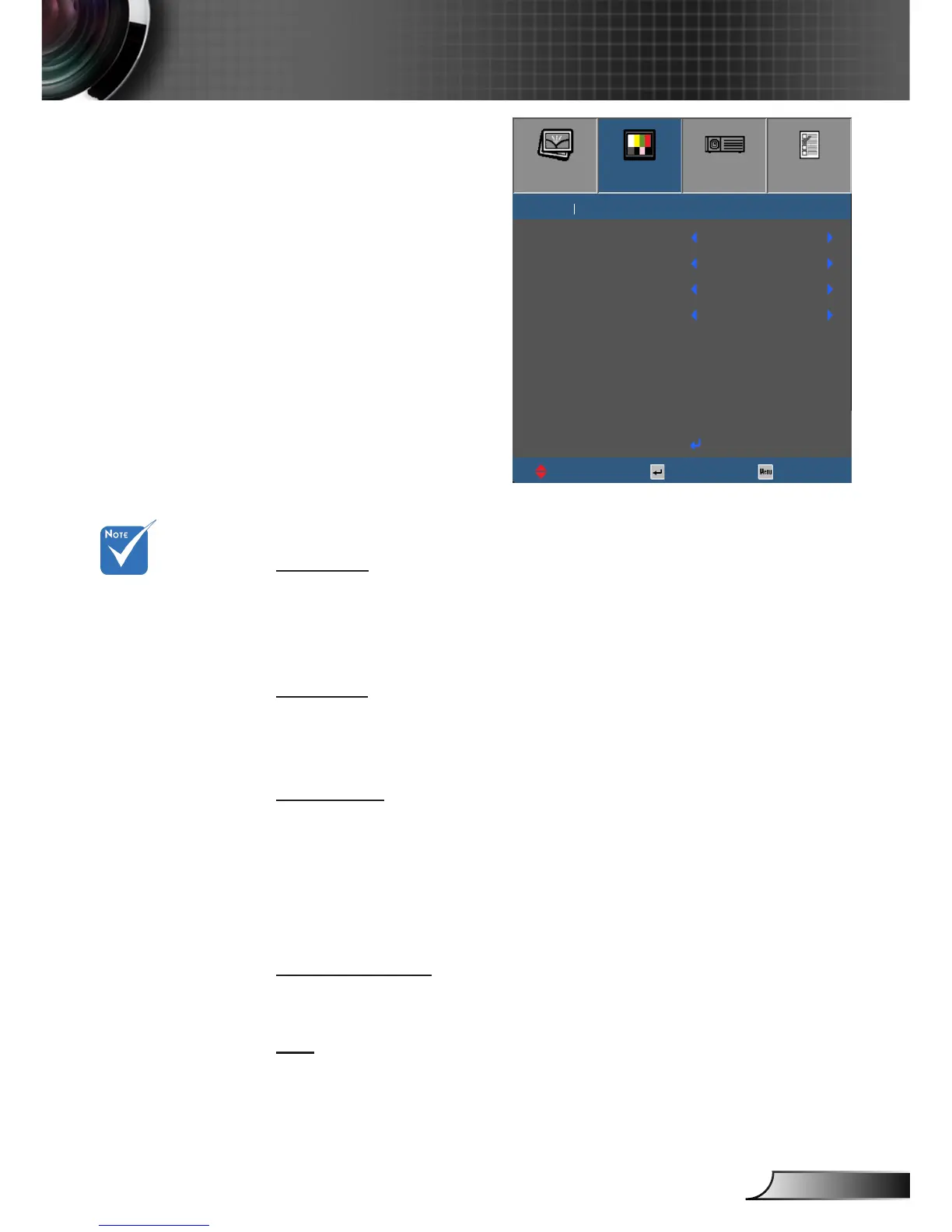
Display | 3D
3D Mode
` O: Select “O” to turn o 3D mode.
` DLP-Link: Select “DLP-Link” to use optimized settings for DLP
Link 3D Glasses. (refer to page 16).
` IR: Select “IR” to use optimized setting for IR 3D Glasses.
3D -> 2D
` 3D: Display 3D signal.
` L (Left): Display the left frame of 3D content.
` R (Right): Display the right frame of 3D content.
3D Format
` Auto: When a 3D identication signal is detected, the 3D
format is selected automatically.
` SBS: Display 3D signal in “Side-by-Side” format.
` Top and Bottom: Display 3D signal in “Top and Bottom” format.
` Frame Sequential: Display 3D signal in “Frame Sequential”
format.
3D Sync. Invert
` Press the “On” to invert left and right frame contents.
` Press the “O” for default frame contents.
Exit
Exit the 3D menu.
IMAGE
DISPLAY
SETUP
OPTIONS
DISPLAY 3D
3D Mode
UpDown Select Exit
3D Format
3D Sync. Invert
O
3D
Frame Sequential
O
Exit
3D -> 2D


 To Next Page