I7910 Payment – User Manual
28 0120-07390-0101
T
T
h
h
e
e
f
f
o
o
l
l
l
l
o
o
w
w
i
i
n
n
g
g
a
a
r
r
e
e
i
i
s
s
s
s
u
u
e
e
d
d
i
i
n
n
t
t
h
h
e
e
t
t
e
e
r
r
m
m
i
i
n
n
a
a
l
l
l
l
a
a
n
n
g
g
u
u
a
a
g
g
e
e
:
:
•
•
T
T
e
e
r
r
m
m
i
i
n
n
a
a
l
l
d
d
i
i
s
s
p
p
l
l
a
a
y
y
s
s
a
a
d
d
d
d
r
r
e
e
s
s
s
s
e
e
d
d
t
t
o
o
t
t
h
h
e
e
m
m
e
e
r
r
c
c
h
h
a
a
n
n
t
t
;
;
•
•
R
R
e
e
p
p
o
o
r
r
t
t
s
s
;
;
•
•
M
M
e
e
r
r
c
c
h
h
a
a
n
n
t
t
c
c
o
o
p
p
i
i
e
e
s
s
o
o
f
f
r
r
e
e
c
c
e
e
i
i
p
p
t
t
s
s
;
;
T
T
h
h
e
e
f
f
o
o
l
l
l
l
o
o
w
w
i
i
n
n
g
g
a
a
r
r
e
e
i
i
s
s
s
s
u
u
e
e
d
d
i
i
n
n
t
t
h
h
e
e
l
l
a
a
n
n
g
g
u
u
a
a
g
g
e
e
o
o
f
f
t
t
h
h
e
e
c
c
u
u
s
s
t
t
o
o
m
m
e
e
r
r
c
c
a
a
r
r
d
d
:
:
•
•
T
T
e
e
r
r
m
m
i
i
n
n
a
a
l
l
d
d
i
i
s
s
p
p
l
l
a
a
y
y
s
s
a
a
d
d
d
d
r
r
e
e
s
s
s
s
e
e
d
d
t
t
o
o
t
t
h
h
e
e
c
c
u
u
s
s
t
t
o
o
m
m
e
e
r
r
o
o
r
r
c
c
a
a
r
r
d
d
h
h
o
o
l
l
d
d
e
e
r
r
;
;
•
•
C
C
u
u
s
s
t
t
o
o
m
m
e
e
r
r
c
c
o
o
p
p
y
y
o
o
f
f
r
r
e
e
c
c
e
e
i
i
p
p
t
t
s
s
.
.
Printer and Receipt Configuration
T
T
o
o
k
k
e
e
e
e
p
p
t
t
h
h
e
e
d
d
i
i
s
s
p
p
l
l
a
a
y
y
e
e
d
d
p
p
a
a
r
r
a
a
m
m
e
e
t
t
e
e
r
r
u
u
n
n
c
c
h
h
a
a
n
n
g
g
e
e
d
d
,
,
j
j
u
u
s
s
t
t
p
p
r
r
e
e
s
s
s
s
[
[
O
O
K
K
]
]
w
w
i
i
t
t
h
h
o
o
u
u
t
t
c
c
h
h
a
a
n
n
g
g
i
i
n
n
g
g
t
t
h
h
e
e
c
c
u
u
r
r
r
r
e
e
n
n
t
t
p
p
a
a
r
r
a
a
m
m
e
e
t
t
e
e
r
r
v
v
a
a
l
l
u
u
e
e
.
.
a
SALE
PRE-AUTH
PRE-AUTH COMP
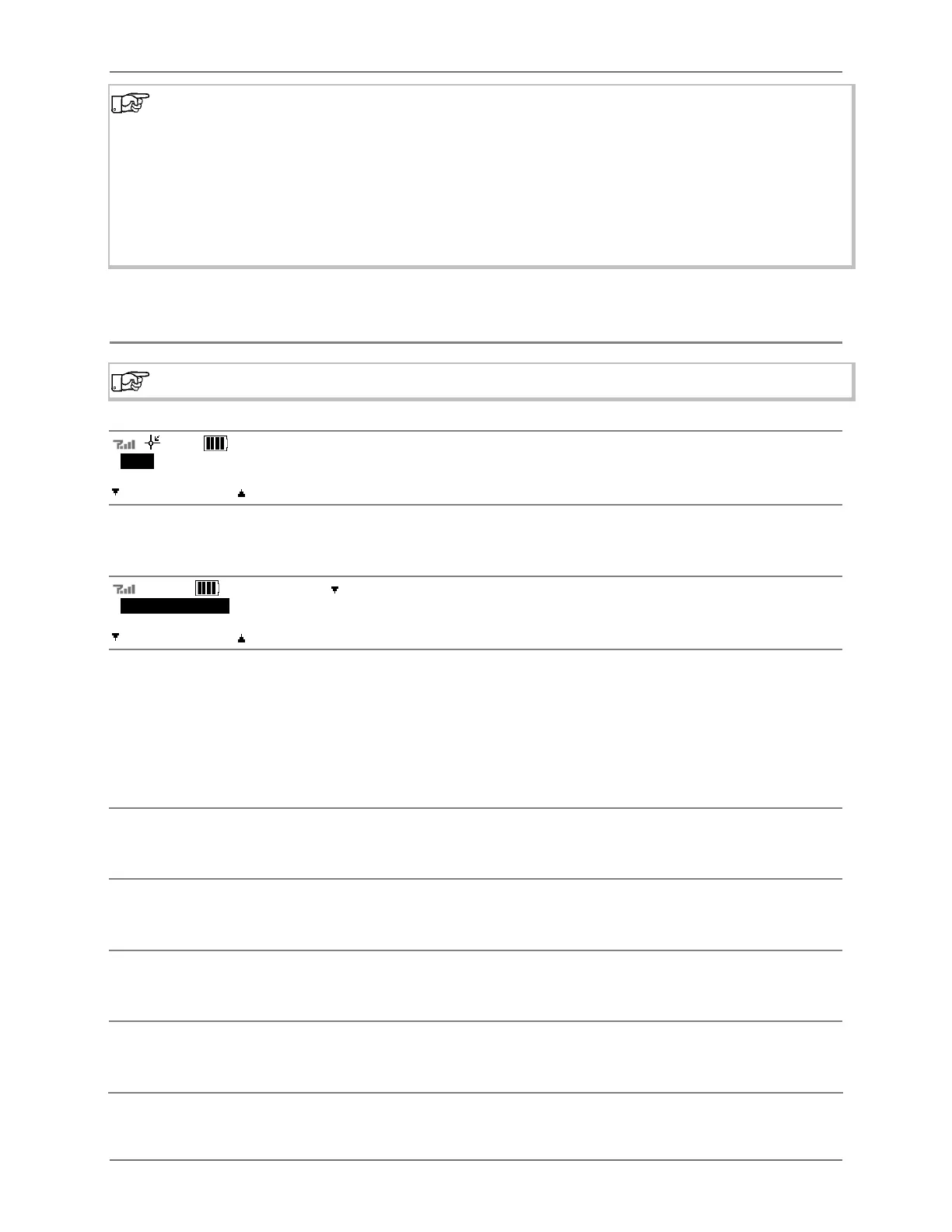
1. At the idle screen, press [ADMIN].
ADMIN - SELECT
REPORTS OTHER
2. Select [OTHER].
a
TERMINAL INIT
KEY EXCHANGE
TERMINAL CONFG
3. Use [ ] to highlight PRN SET-UP, then press [OK].
4. Enter the password (configurable; see page 25).
PRINTER
ON
ON OFF
5. Select [ON] to set the printer on and proceed to step 6. Select [OFF] if printed receipts
or reports are not required (the terminal returns to the “admin – other” menu).
The following functionality is no longer available if the printer is off:
Debit card transactions;
Reprint receipt or report;
Footer and GST options in the Printer Set-up Function;
All reports.
The following screens are displayed if the printer is on.
CHANGE FOOTER
YES NO
6. Select [YES] to change receipt footer lines (next step: 7). Select [NO] if no change is
needed (next step: 13).
CHANGE LINE 1
CHECK OUR SPECIA
LS
YES NO
7. Select [YES] to erase the current footer line 1 (CHECK OUR SPECIALS in the example)
and enter a new one (next step: 8). Select [NO] if no change is needed (next step: 9).
FOOTER LINE 1
HAPPY HOLIDAYS
8. Enter the new footer line 1 (HAPPY HOLIDAYS in the example). See Data Entry Keys
(page 17) on how to type in letters.
CHANGE LINE 2
COME AGAIN SOON
YES NO
9. Select [YES] to erase the current footer line 2 (COME AGAIN SOON in the example) and
enter a new one (next step: 10). Select [NO] if no change is needed (next step: 11).


 To Next Page
 Loading...