2-7
Bluehill Software
Product Support: www.instron.com
Status Bar
The status bar appears at the bottom of every screen and provides status information for:
• Security - is security enabled and, if it is, the name of the current user.
• Machine - is the software connected to a testing machine or running in demo mode.
• Sample - the name of the current sample.
• Method - the name of the current method file that is open, if any.
• Report - the name of the current report template that is open.
Table 2-3. Console Controls
Control Function
Frame status
indicator
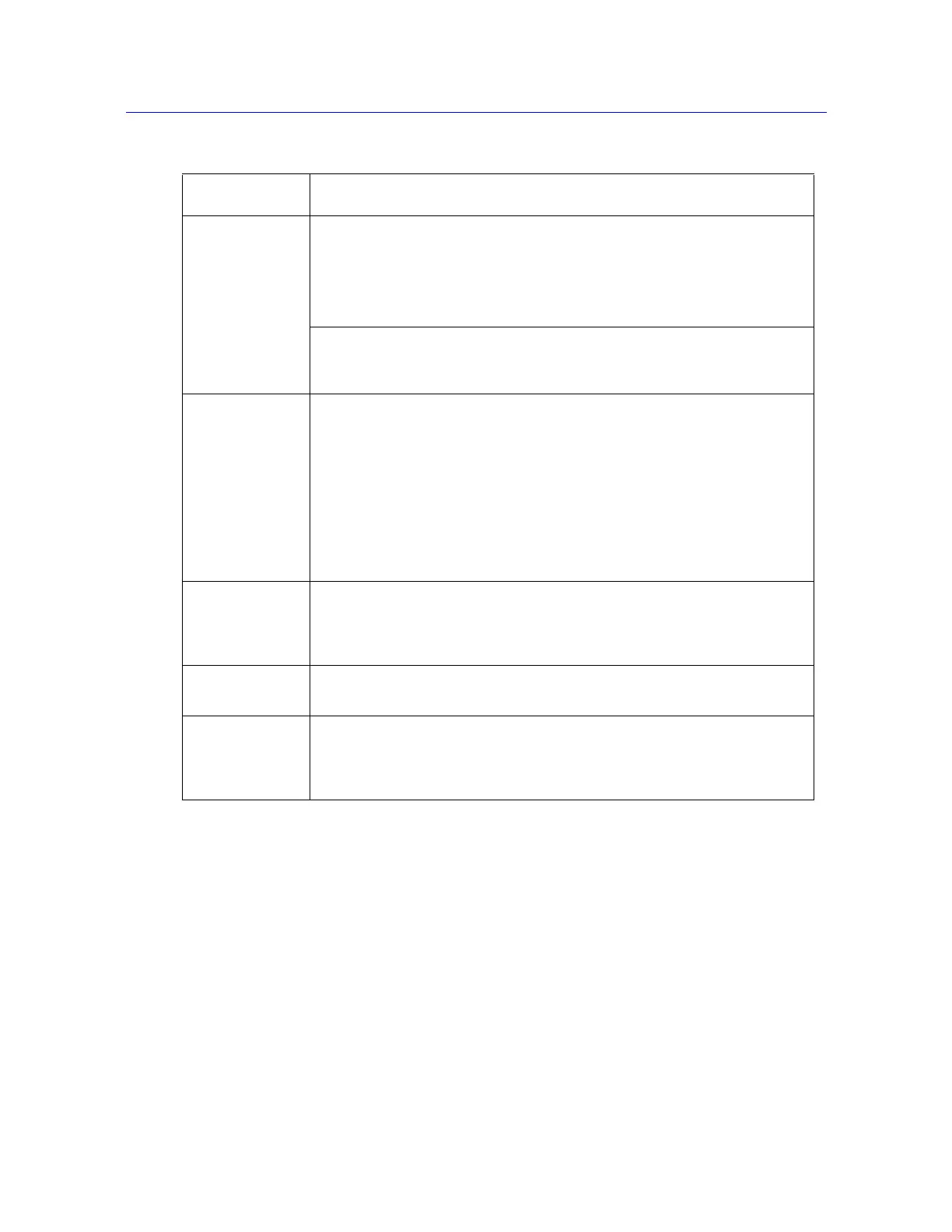
During test setup, the image of the frame changes according to the status of
the testing system.
• image grayed when frame is disabled
• green arrow superimposed on image indicates direction that crosshead
will move when test starts
When a test is running, the image changes to display the icon of the transducer
that is controlling the test. A large green arrow flashes to indicate the direction
of the test and that the test is running.
System settings This area contains a number of buttons, one for each component that makes
up the testing system, as follows:
• Frame - enables and disables the frame and set the jog speed
• Extension - lets you set limits for extension and reset the gauge length
• Load - lets you set limits for load, calibrate and balance the load cell
• Strain - lets you set limits for strain, calibrate and balance the
extensometer connected to this channel
Other buttons will display for other more specialized equipment, for example a
video extensometer or automatic extensometer.
Soft keys You can assign up to four functions that you use frequently to these keys. Each
key can display on the control panel so that you can perform that function from
the software console or from the control panel. Examples of common functions
assigned to soft keys are Balance Load and Reset Gauge Length.
Live display You can set up a number of live displays that display values of parameters that
you choose throughout the test.
System event log The event log provides information and warnings regarding various aspects of
the system. These include frame status messages, indications that certain test
method parameters are preventing the start of a test, or indications that the
system cannot open a sample file or method file.



 To Next Page