SW500 Wired Scale System
700431
Rev G, December 2021
Page 15
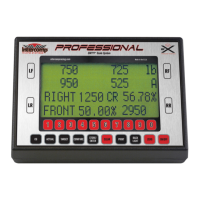
INDICATOR OVERVIEW
Baseline Setup (continued)
BASELINE SETUP
STORE BASELINE SETUP
Up to 99 setups can be stored in the indicator. Press the STORE/ENTER key to store a
weight setup as a target setup. Use the numeric keypad to enter the setup and save it
in a memory location (from 1 to 99). If a setup has already been stored in the selected
location, the following message will be displayed:
To continue with the save and overwrite the information that currently resides in the
location, press the 1 key. To save the setup to another location, press the 2 key to exit
the memory location.
MANUALLY ENTER THE TARGET SETUP
To manually enter target weights, press the STORE/ENTER key. Enter setting 00.
Press the STORE/ENTER key. Press either the 1, 2, or 3 key to select the method used
to enter the target weights (Direct Key-In, Wedge, Target %).
1: DIRECT KEY-IN
Manually entering values in Direct Key-In format enables targets to be entered with
the following parameters: Left Front Weight, Right Front Weight, Left Rear Weight
and Right Rear Weight.
1. Press the STORE/ENTER key to enter a target setup.
2. Enter 00 and press STORE/ENTER.
3. Press 1 to select the Direct Key-In format.
4. Enter target weight for Left Front Wheel.
5. Enter target weight for Right Front Wheel.
6. Enter target weight for Left Rear Wheel.
7. Enter target weight for Right Rear Wheel.
* THIS MEMORY SPOT *
* ALREADY HAS DATA *
1: OVERWRITE
2: EXIT


 To Next Page