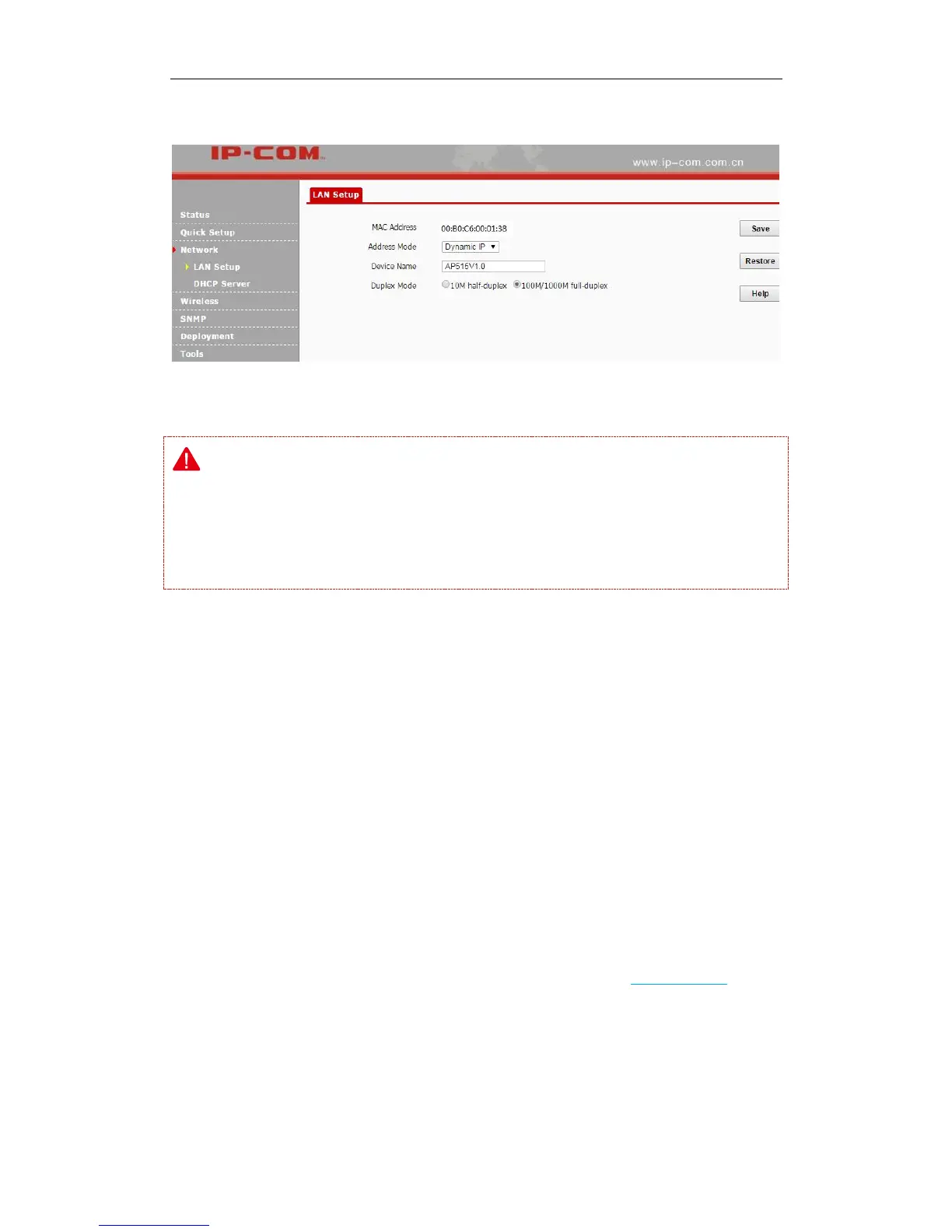
To set your AP’s IP address in DHCP mode:
❶ Address Mode: Select Dynamic IP.
❷ Click Save to apply your changes.
Note:
In DHCP mode, your LAN IP address is assigned by the DHCP server of your uplink device.
Thus, to know your LAN IP address, you need to check it on the DHCP client list of the uplink
device.
DHCP Server
DHCP Server
If you enable the built-in DHCP server on the device, it will automatically configure the TCP/IP
settings for all your LAN computers (including IP address, subnet mask, gateway and DNS etc.),
eliminating the need of manual intervention. Just be sure to set all computers on your LAN to be
DHCP clients by selecting Obtain an IP Address Automatically respectively on each PC. When
turned on, these PCs will automatically load IP information from the DHCP server. By default, the
DHCP server on this device is disabled. The first time you connected to the AP, you need to set
your PC to Use the following IP address. For more details, see Appendix 1 Configure PC.
Click Network > DHCP Server to enter page below:



 To Next Page